


Switching from FitNotes? Gript reads FitNotes' CSV export directly, so your training log — weights, reps, timed sets, and comments — transfers in a few minutes, however many years of it there are.
Step 1: export your data from FitNotes#
- In FitNotes, open Settings from the main workout screen.
- Choose Spreadsheet Export and export your Workout data.
- Tap Save to keep the CSV on the phone, or Share to send it to yourself via email or cloud storage.
FitNotes is Android-only; the App Store app of the same name is by a different developer and is unrelated, so export from the Android app.
Step 2: import into Gript#
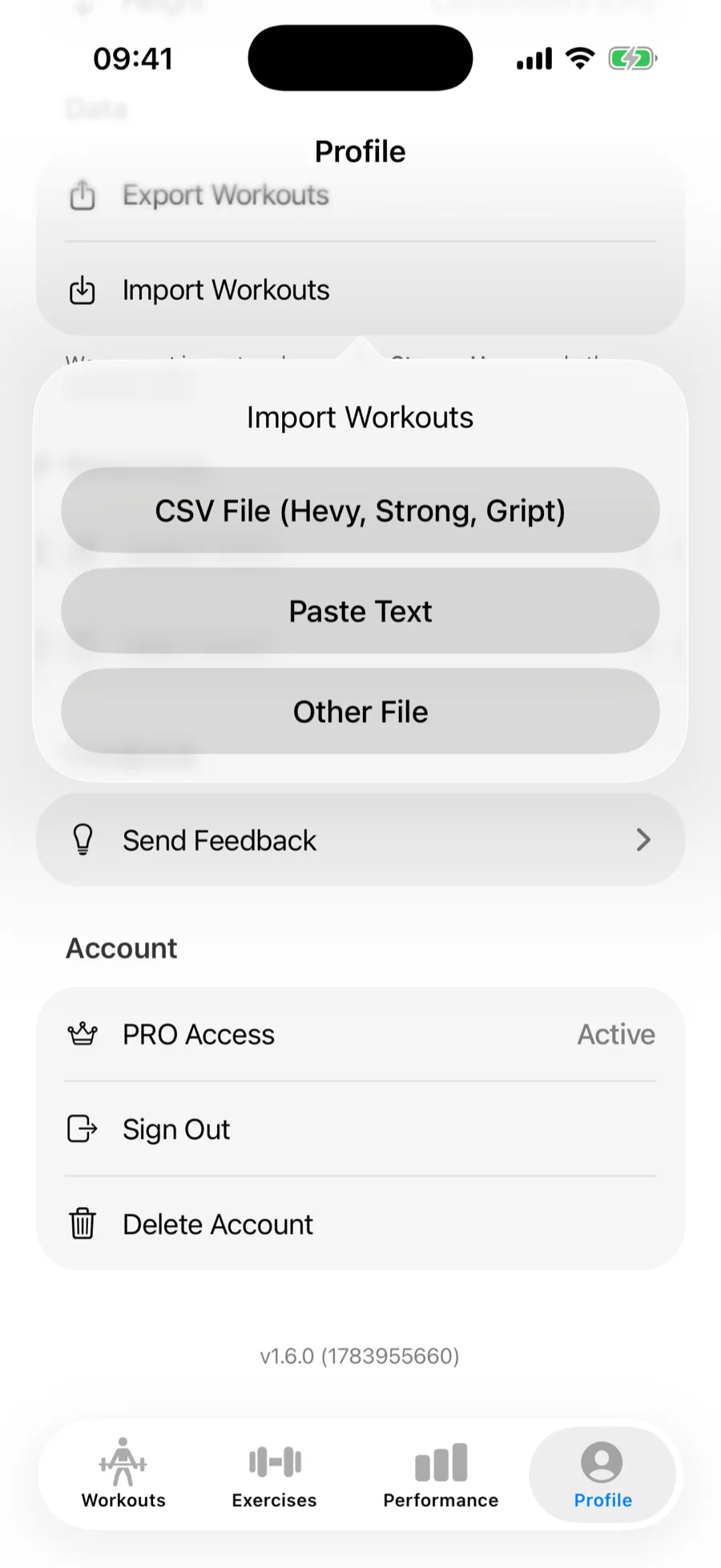
- In Gript, open Profile → Import Workouts.
- Choose CSV File (Hevy, Strong, Gript) and pick the exported file. FitNotes exports are recognized automatically.
Step 3: match exercises and confirm#
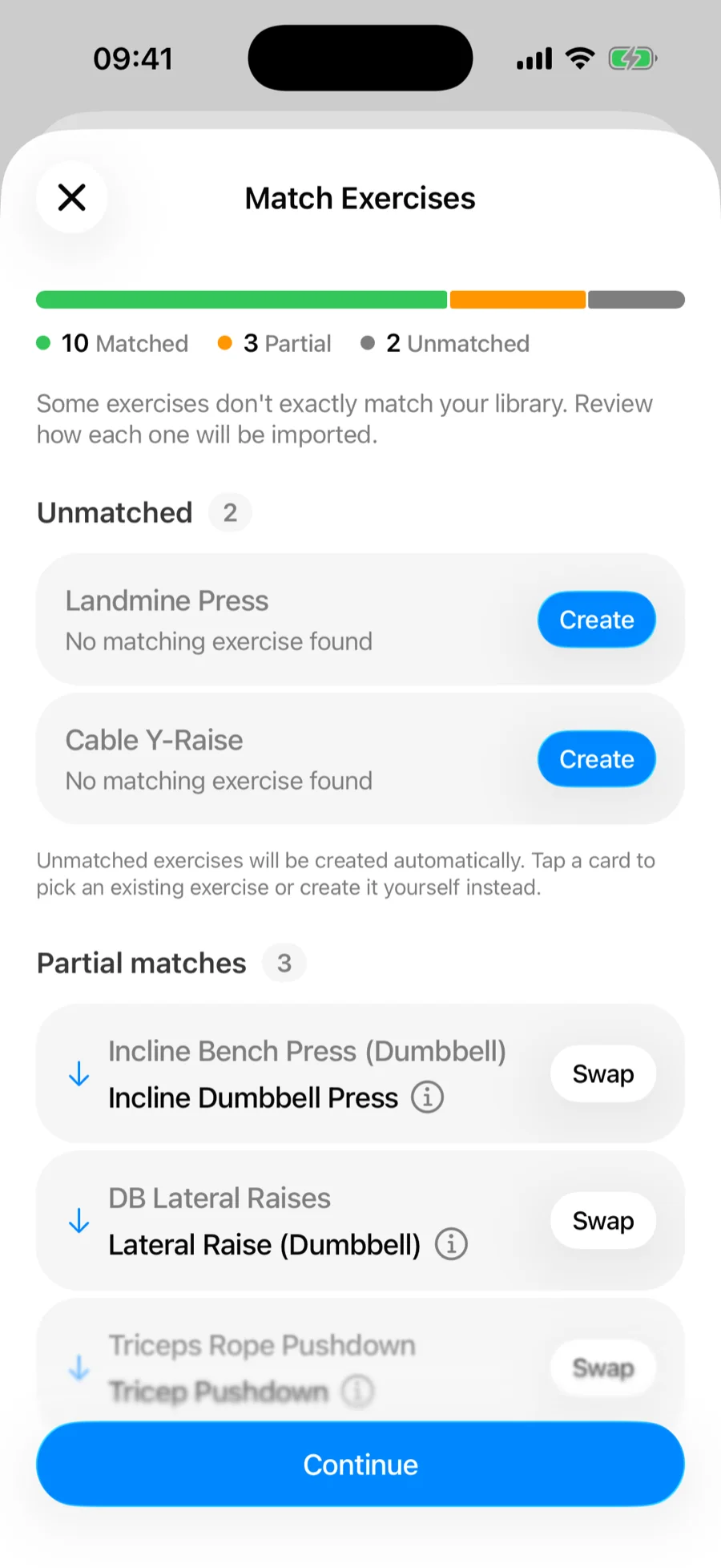
Gript matches FitNotes' exercise names to its own library on the Match Exercises screen — accept the suggested matches, remap anything it got wrong, and let unmatched movements be created as custom exercises. See how import matching works for the full details.
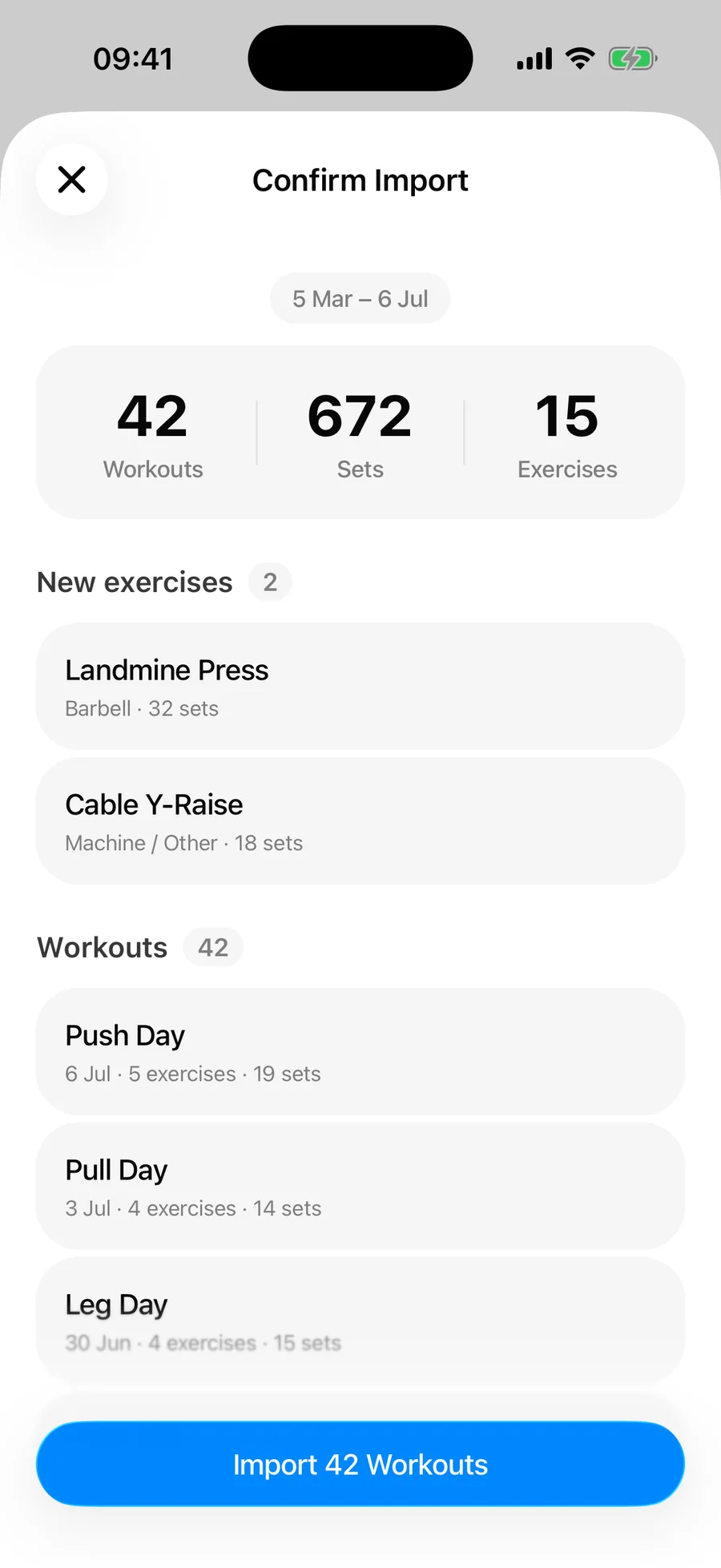
Then review the summary and confirm. Duplicate workouts already in your history are skipped automatically.
What transfers and what doesn't#
- Per-set weights and reps for every logged session, grouped into workouts by date
- Timed sets — planks and holds logged with durations come across as timed sets
- Set comments, kept as exercise notes
- Your weight unit — the export is in kg or lbs depending on your FitNotes settings
FitNotes tracks cardio by distance and time, and distance-based entries don't map to Gript's strength-focused sets, so those rows are skipped — the confirmation summary counts them. FitNotes also doesn't record workout names or start times, so imported workouts arrive unnamed and grouped by date — your charts, records, and history work the same either way.
Common problems#
Gript doesn't recognise the file#
The format is detected from the header row, so a CSV that a spreadsheet app has re-saved may no longer carry the columns Gript looks for. Import the original file from FitNotes' export rather than an edited copy.
Some rows didn't import#
The confirmation summary separates skipped duplicates from unreadable rows, so read it before assuming anything was lost — cardio rows and sessions already in your Gript history are skipped deliberately. See how import matching and duplicates work.