


Switching from JEFIT? Gript reads JEFIT's account export directly, so your entire training history — every set, rep, and weight — transfers in a few minutes, even if there are ten years of it.
Step 1: export your data from JEFIT#
- Sign in at jefit.com and open My Jefit → Settings.
- Click Data Controls, then Export Data.
- JEFIT generates a single CSV file with your full account history. Save it somewhere your iPhone can reach — iCloud Drive, email, or any cloud storage.
Step 2: import into Gript#
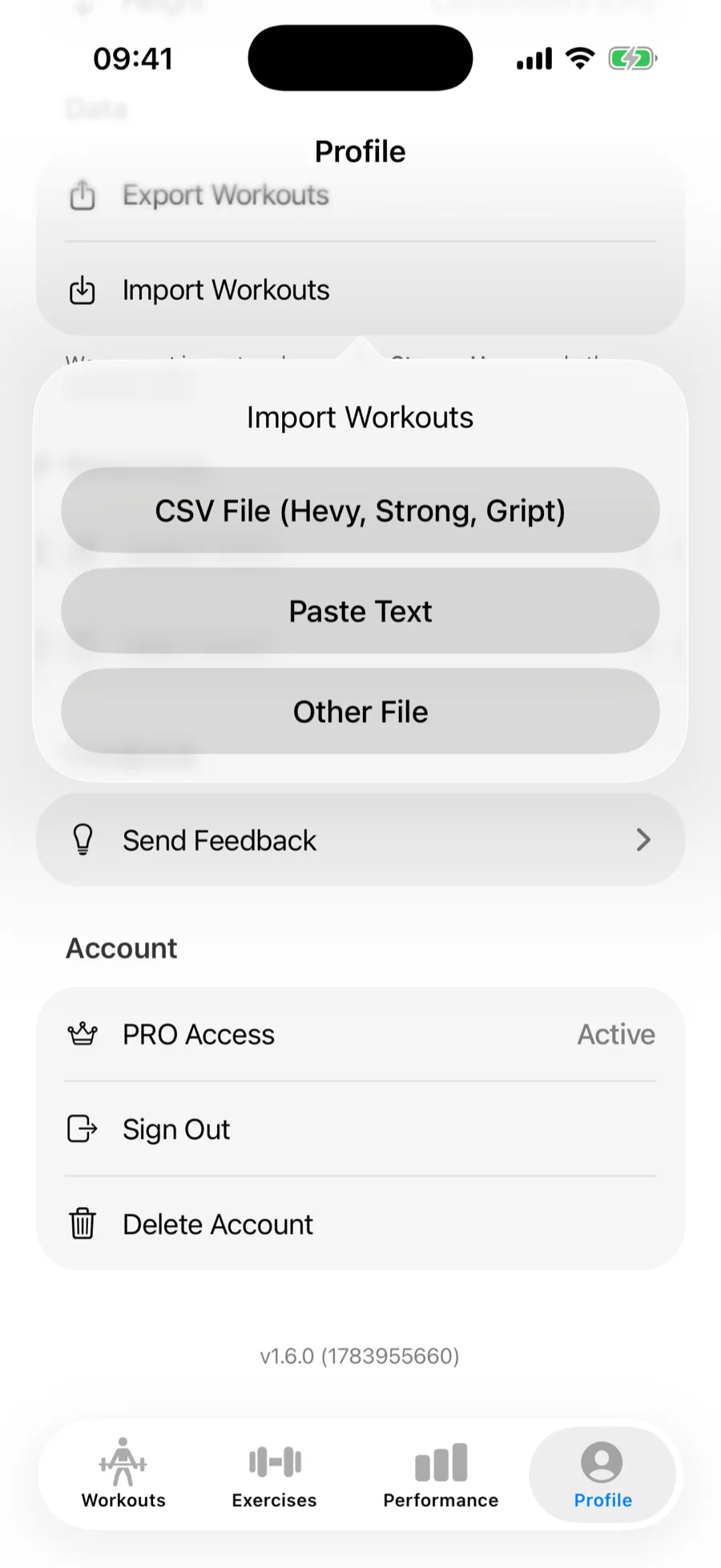
- In Gript, open Profile → Import Workouts.
- Choose CSV File (Hevy, Strong, Gript) and pick the exported file. JEFIT exports are recognized automatically.
JEFIT exports can get big — years of training in one file — but that's fine: Gript parses the file on your phone, so there is no size limit to worry about.
Step 3: match exercises and confirm#
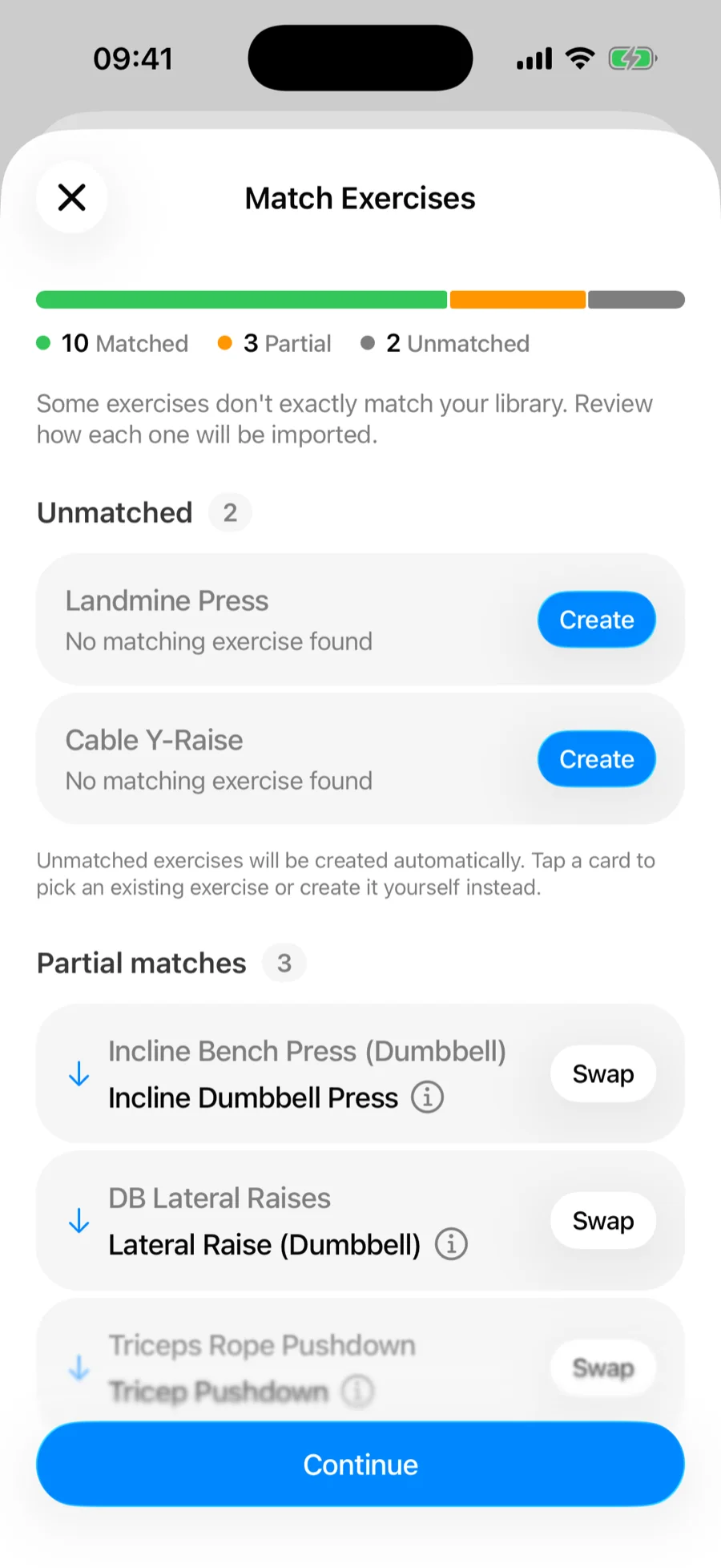
Gript matches JEFIT's exercise names to its own library on the Match Exercises screen — accept the suggested matches, remap anything it got wrong, and let unmatched movements be created as custom exercises. See how import matching works for the full details.
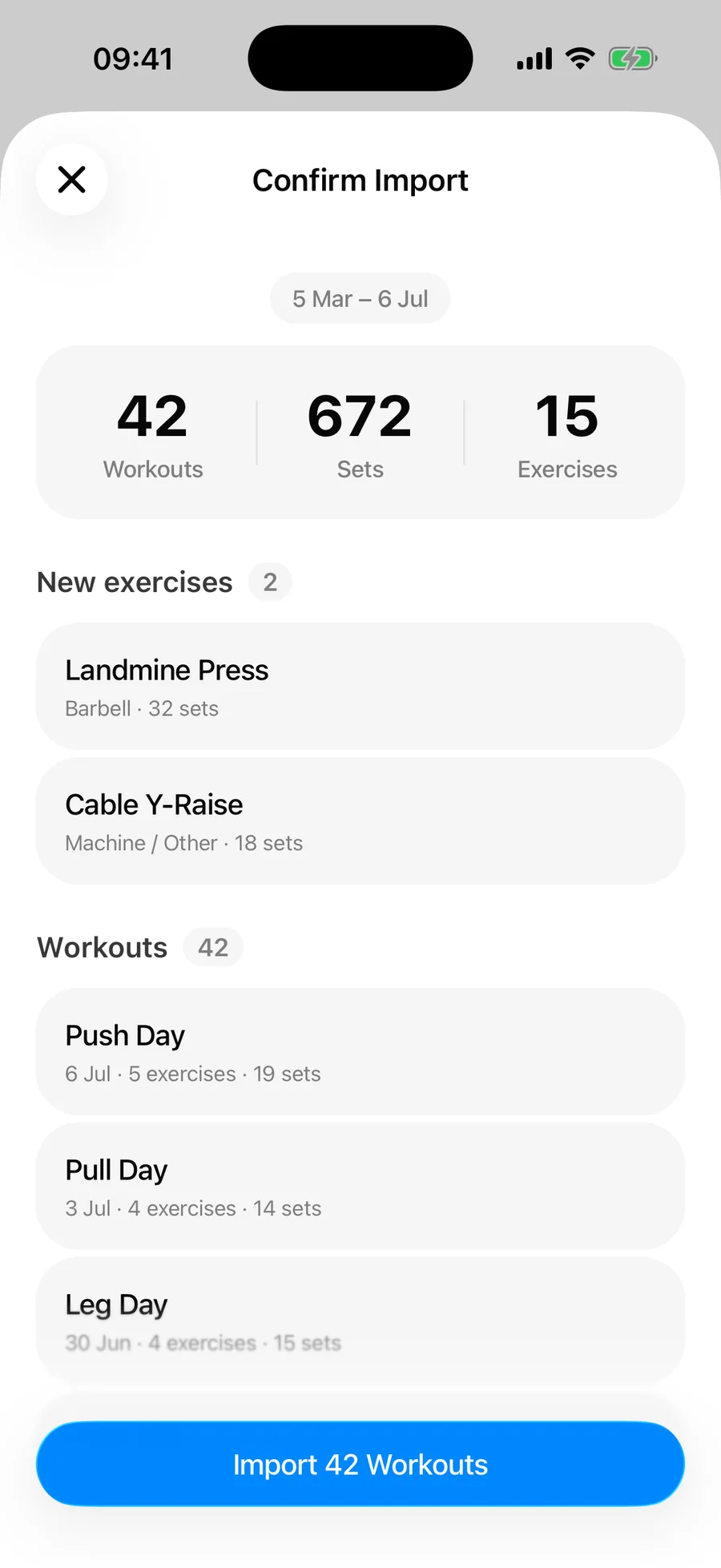
Then review the summary and confirm. Duplicate workouts already in your history are skipped automatically.
What transfers and what doesn't#
- Every strength session in your history, grouped by date, with per-set weights and reps
- Timed sets — planks and holds logged with durations come across as timed sets
- Bodyweight sets, kept as reps-only
- Your weight unit — kg or lbs, read from your JEFIT settings
JEFIT doesn't name workout sessions, so imported workouts arrive without names — your charts, records, and history work the same either way. Saved JEFIT routines aren't part of the workout history, so those get rebuilt in Gript. Cardio sessions like runs are skipped — Gript is a strength tracker.
Common problems#
Gript doesn't recognise the file#
JEFIT's export is a multi-section file, and a spreadsheet app that re-saves it usually breaks that structure. Import the original file downloaded from jefit.com rather than an edited copy.
Some entries didn't import#
The confirmation summary separates skipped duplicates from unreadable rows, so read it before assuming anything was lost — cardio entries and sessions already in your Gript history are skipped deliberately. See how import matching and duplicates work.