
Switch from Hevy without leaving your history behind
Export once, import once, and every set you logged in Hevy is charted in Gript — with the years of history intact.


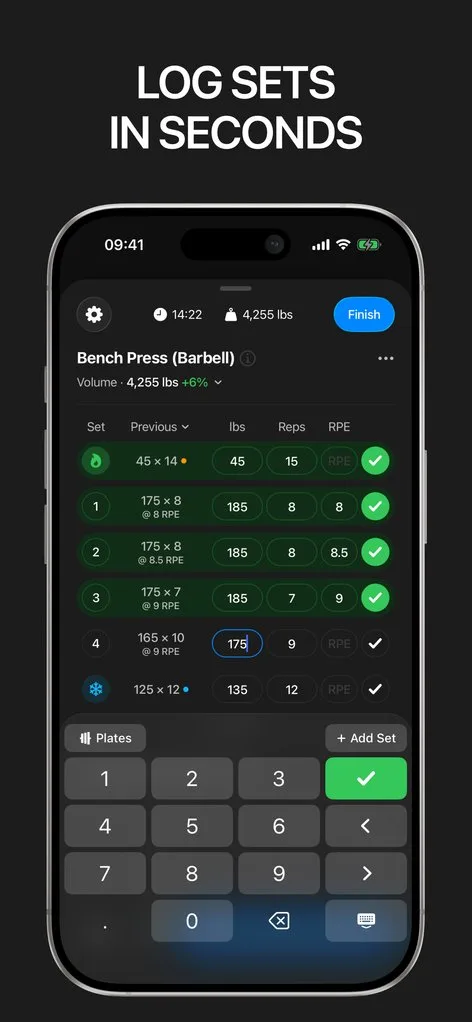
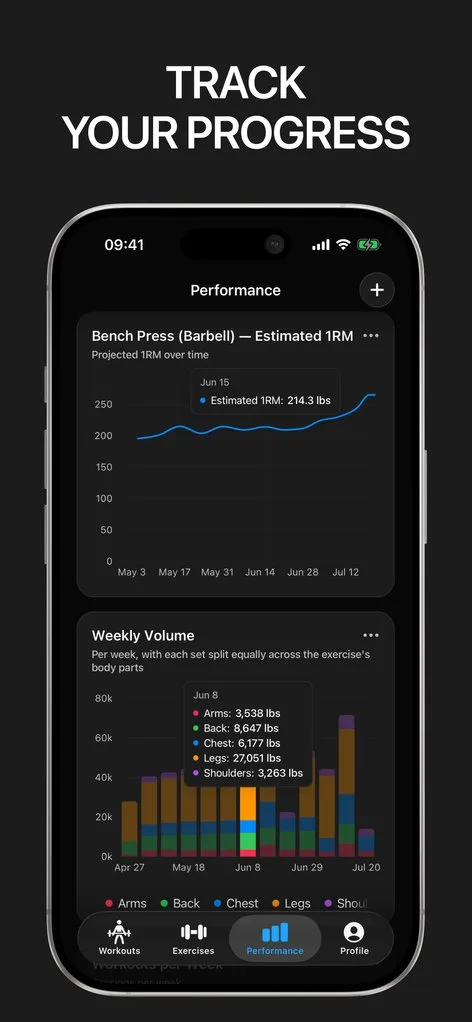
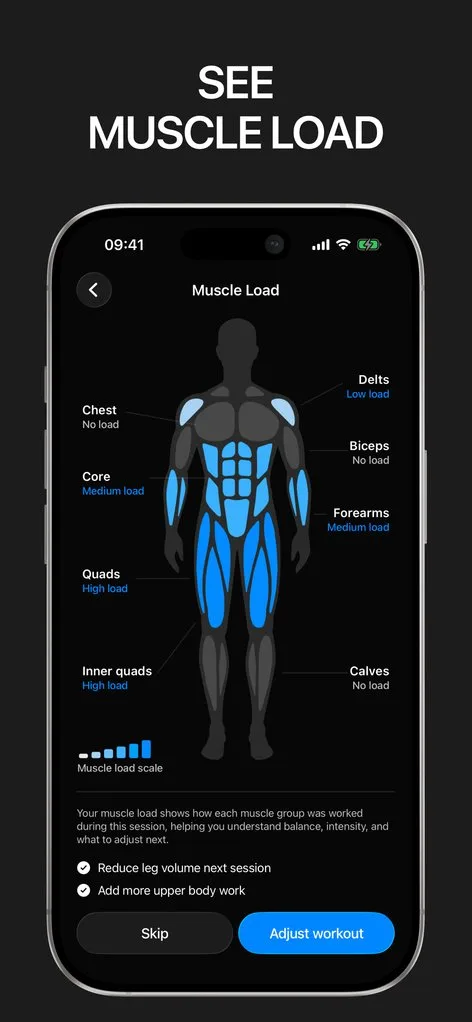
The reason most people stay in a workout tracker they have outgrown is the history. Years of sets are the one thing you cannot recreate, and starting a new app from an empty log feels like throwing them away. That is a solvable problem: Hevy exports your full history as a CSV, and Gript reads that file directly.
Nothing here touches your Hevy account. You export a copy, import it, and decide later whether to delete anything. If Gript does not earn its place, your data exports again in one tap — in Gript, Strong, or Hevy format. Still deciding? Read Hevy vs Strong vs Gript or our Hevy review first.
Why people move off Hevy
Hevy is a good logger, and the people who leave it usually are not leaving because logging is bad. The pattern in feedback is narrower than that: once you have a couple of years of training in an app, you start asking harder questions of it — is this lift actually moving, am I under-training a muscle group, is my weekly volume drifting — and the answers are the part that turns out to be thin.
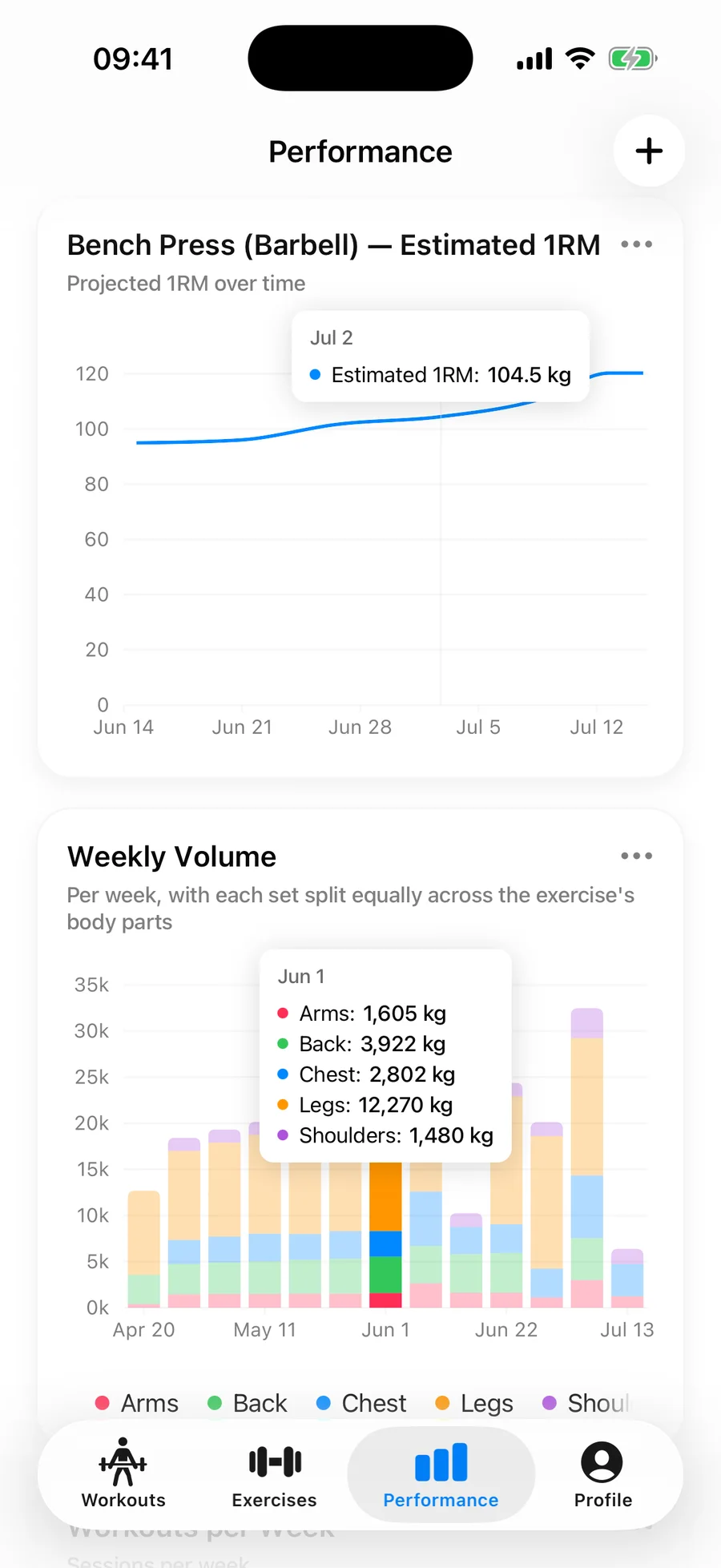
Gript is built the other way round. The charts came first and logging exists to feed them, so estimated 1RM, volume, best sets, muscle balance, and weekly frequency are the default view of your training rather than a summary you go hunting for. The other common reasons are Apple-side: a real Apple Watch app, a Live Activity rest timer on the Lock Screen, and Apple Health sync.
Gript runs on iPhone, iPad, Apple Watch, and Android, so the import works whichever phone you are on. Apple Watch, Live Activities, and Apple Health sync are iPhone-only; Android syncs to Health Connect instead.
Step 1: export your Hevy data as CSV
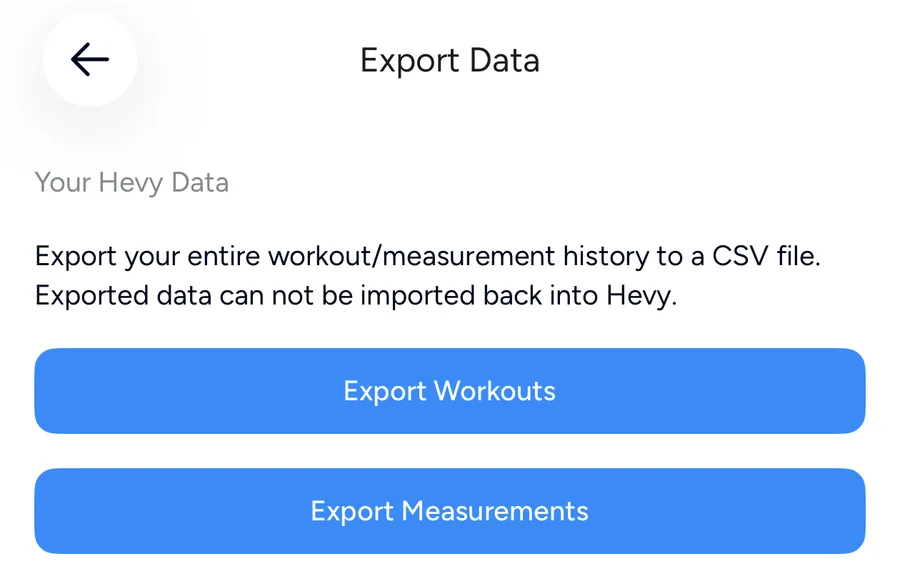
In Hevy, open the Profile tab, go to Settings, scroll to Export & Import Data, tap Export Data, then tap Export Workouts. Hevy builds a CSV of your entire workout history and hands it to the share sheet — choose Save to Files so you can reach it again from Gript.
This is Hevy’s own built-in export: no third-party service, no API key, nothing to authorize. Running it changes nothing in your account, so you can export as many times as you like. The full walkthrough with screenshots is in how to export your Hevy workout data, including what every column means.
Step 2: import the file into Gript
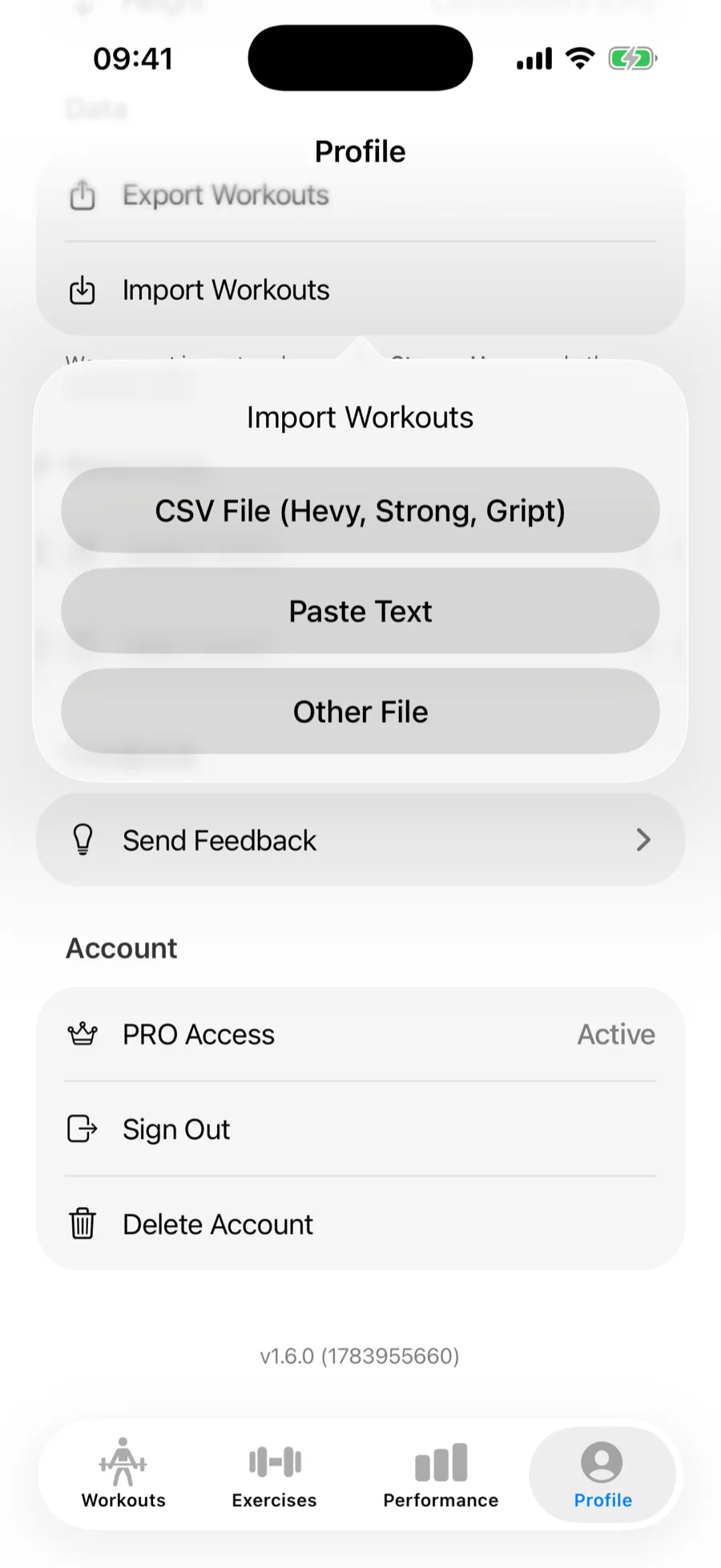
In Gript, go to Profile → Import Workouts and choose CSV File (Hevy, Strong, Gript), then pick the file you just saved — or skip the saving and pick Gript in Hevy’s share sheet, which opens the import with the file already loaded. Gript recognises the Hevy format from the header row, so there is nothing to configure and no template to fill in.
Import the original file straight from Hevy rather than one you opened and re-saved in a spreadsheet — spreadsheet apps rewrite timestamps into their own display format, which is the usual cause of dates landing in the wrong order. Logs that never made it into Hevy at all can still come in: AI import reads pasted notes, text files, PDFs, and photos of a paper logbook.
Step 3: review the exercise matching
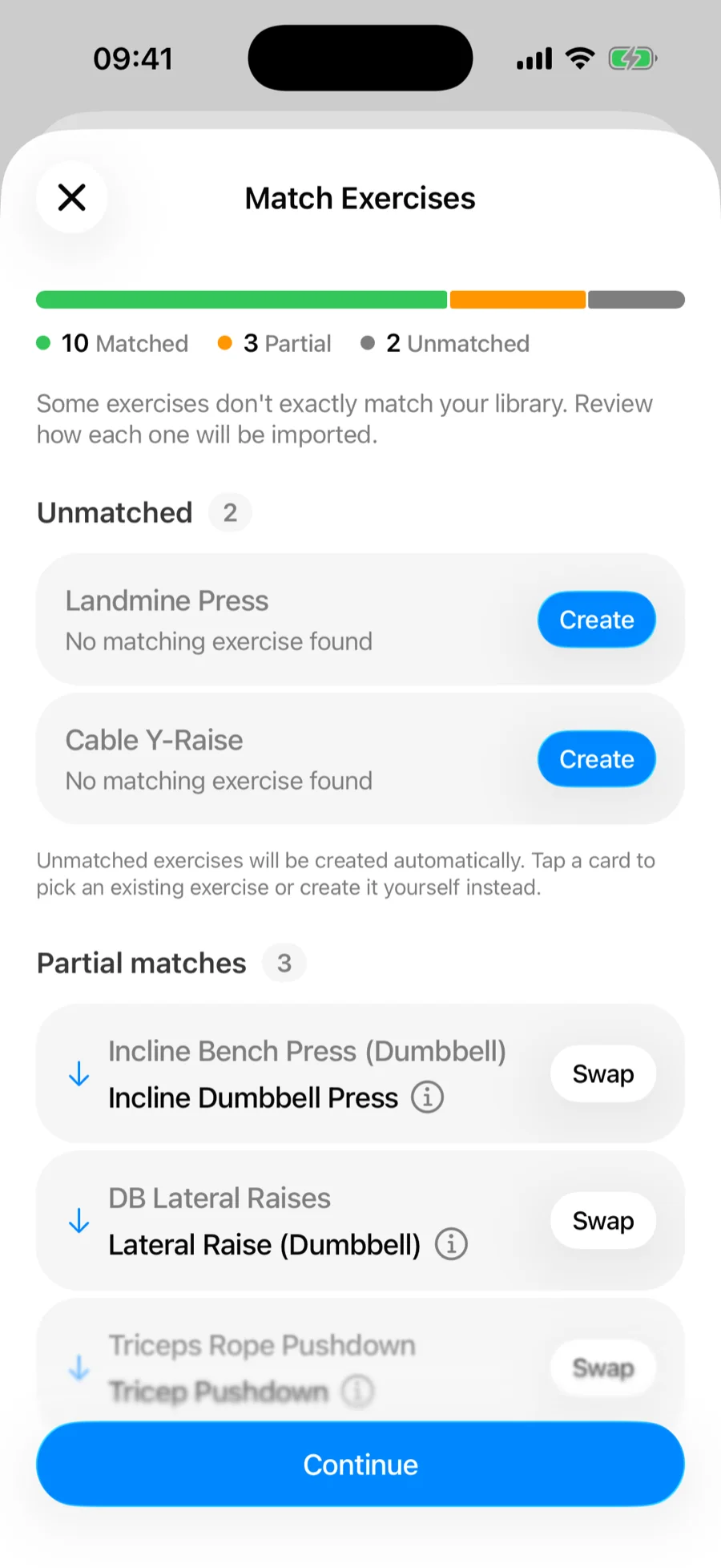
This is the only step that needs your attention, and it is the reason the import is worth doing properly once. Gript matches every Hevy exercise name against its library: exact matches go straight through, close matches are offered as suggestions you accept or remap, and anything unrecognised becomes a custom exercise unless you point it at an existing one.
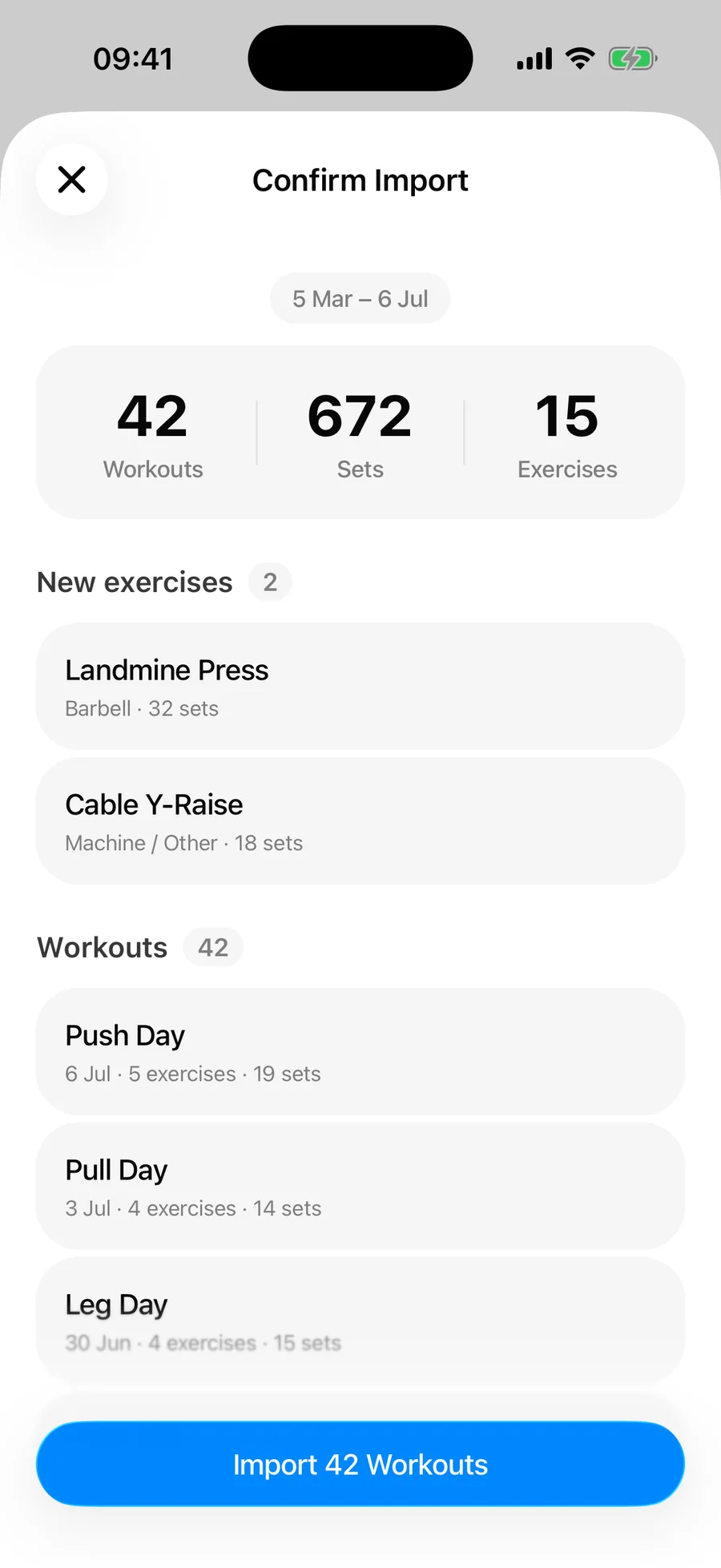
How long this takes depends entirely on you. A history built from stock exercises matches almost entirely on its own; years of personally-named variations need a pass by hand. Either way nothing is saved until you confirm the summary, and duplicate workouts are skipped — so importing twice never doubles your data. Full details in how to import workouts from Hevy.
What transfers, and what does not
Everything in Hevy’s workout CSV comes across: per-set weights and reps, durations for timed sets, set types (warm-up, failure, drop set, cool down), workout names, dates and session lengths, RPE where you logged it, superset grouping, and per-exercise notes. Your charts and personal records are computed from the whole imported history immediately, so day one in Gript looks like year three.
What does not transfer is what Hevy leaves out of that file: saved routines and templates, progress photos, and profile details. Routines take minutes to rebuild and it is a decent moment to drop the ones you stopped running. Body measurements are a separate Hevy export file and import separately.
One thing to check afterwards: open a heavy lift you remember well and confirm the numbers read right. That single check catches both a kilograms-and-pounds mix-up and dates landing out of order.
Lifters seem to like it
This app has so far the best interface and experience, everything is so clean and easy to navigate. I like it after trying many other apps.
The charts in this app are insane good!
I feel that every single time I open the app there is a new feature. Thanks for making it better every day.
Real reviews from the App Store.
Common questions
Can I move my Hevy workouts to Gript?
Yes. Export your history from Hevy as a CSV (Profile → Settings → Export & Import Data → Export Data → Export Workouts), then either pick Gript in the share sheet or, in Gript, open Profile → Import Workouts, choose CSV File (Hevy, Strong, Gript) and pick the file. Review the exercise matches and confirm. The whole thing usually takes about ten minutes.
What transfers when I switch from Hevy to Gript?
Per-set weights, reps, and durations for timed sets; set types including warm-up, failure, drop set, and cool down; workout names, dates, and session durations; RPE values; superset grouping; and per-exercise notes. Saved routines, progress photos, and profile details are not in Hevy’s workout CSV, so they do not transfer. Body measurements come across through a separate Hevy export file.
Is Gript a good Hevy alternative?
It depends on what you want more of. Gript is built around readable progress — per-exercise estimated 1RM, volume, best sets, muscle balance, and weekly frequency are the default view rather than something you dig for — plus an Apple Watch app, a Lock Screen Live Activity rest timer, and Apple Health sync on iPhone. Gript is on Android too, though the Watch app and Live Activities stay iPhone-only, so that is the honest catch.
Do I have to delete Hevy?
No. Importing into Gript never touches your Hevy account, so keep both installed as long as you like. Because Gript skips duplicates by workout completion time and name, you can re-import a fresh Hevy export weeks later and it only adds the sessions you logged in the meantime.
Is Gript free?
Yes. Logging, the exercise library, routines, charts, and import and export are free with no workout limit. Gript PRO is an optional subscription that unlocks unlimited routines and custom exercises, progression suggestions, advanced charts, longer chart history, and the plate and warm-up calculators.
What if I have history in Strong as well?
Import both. A Strong CSV and a Hevy CSV can go into the same Gript account, and duplicate detection keeps any overlap between them from doubling up. The Strong export lives under Settings → Data Management → Export Workouts.
Can I get my data back out of Gript later?
Yes, at any time and on the free plan. Profile → Export Workouts writes your full history to CSV in Gript, Strong, or Hevy format. Switching in should never mean locking yourself in.
Free tools to go with it
From the Help Center
Download Gript free and log your next workout with it. If it does not earn its place, your data exports in one tap.
I have tried pretty much every workout tracker out there — Hevy, Strong and many others — and Gript has quickly become my favorite. The UI and overall design are easily the best on the market.
You're already in Gript
Everything on this page is also available inside the app — this article opens from Help, and the calculators live under Tools.