


Everything you have logged in Hevy — every workout, exercise, and set — can be exported as a single CSV file. Whether you want a backup, a spreadsheet to analyze, or you're moving to another app, here is exactly where the export lives and what you get.
Step 1: open Export & Import Data#
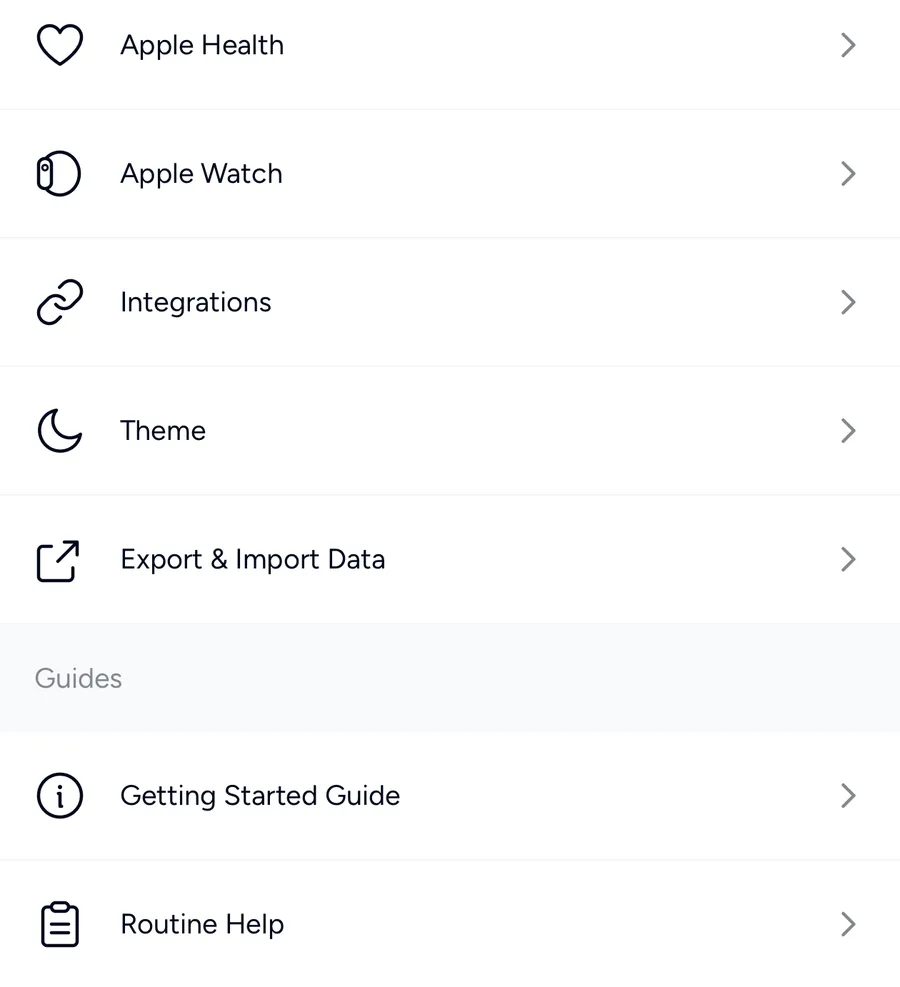
In Hevy, go to the Profile tab and open Settings. Scroll down to Export & Import Data.
Step 2: tap Export Data#
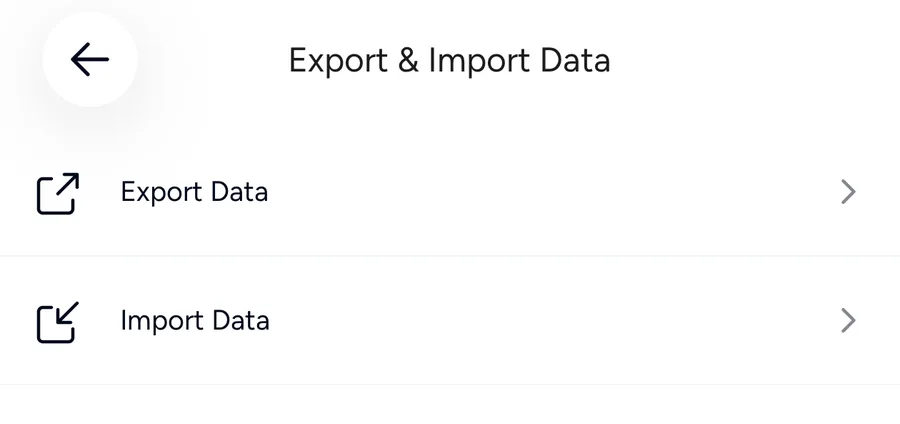
Step 3: tap Export Workouts#
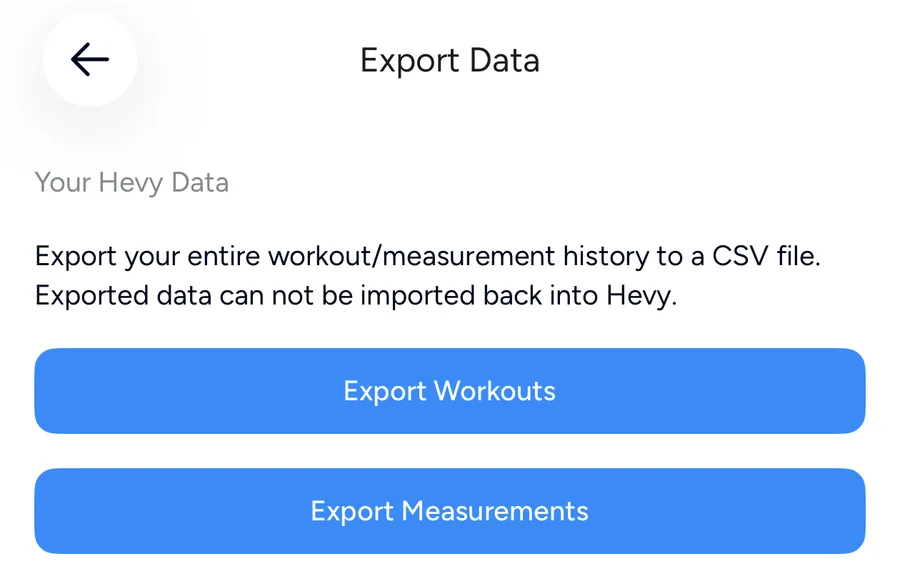
Tap Export Workouts and Hevy generates a CSV of your entire workout history and opens the share sheet — save it to Files, cloud storage, or share it anywhere. Export Measurements does the same for body measurements, in a separate file — Gript imports that one too.
Is this Hevy's official export?#
Yes. This is the export Hevy ships in the app, not a workaround: no third-party service, no browser extension, no API key, and nothing to authorize. You are asking Hevy for your own data and Hevy hands you a plain CSV file. Anything you find that asks for your Hevy login to “export your data” for you is doing something else entirely.
The same screen holds Export Measurements for body measurements and Import Data for bringing a Strong-format CSV into Hevy. Only Export Workouts produces your training history.
Where the file goes#
Hevy does not save the CSV for you — it hands the file to the system share sheet and the file only exists wherever you send it. On iPhone, Save to Files is the safest choice: pick On My iPhone or iCloud Drive and you can reach the file again from any app, including Gript's import picker. Mailing it to yourself works too and doubles as an offsite backup.
If you dismiss the share sheet without choosing a destination, nothing is saved and the export is simply gone. Run it again — generating an export does not change or consume anything in your Hevy account, so you can do it as many times as you like.
What's inside the CSV#
The file is one row per set, not one row per workout. A workout with five exercises of four sets each becomes twenty rows that share the same title and timestamps. That is why the row count looks enormous compared to the number of sessions you actually trained.
These are the columns that carry your training data:
| Column | What it holds |
|---|---|
| title | The workout name, repeated on every set row of that session |
| start_time / end_time | When the session began and ended — together these give you real session duration |
| exercise_title | The exercise name as it appears in Hevy's library |
| set_type | normal, warmup, failure, drop set, or cool down |
| weight_kg or weight_lbs | The load — which of the two you get depends on your Hevy unit setting |
| reps | Repetitions completed in that set |
| duration_seconds | Elapsed time for timed or held sets, such as planks and carries |
| rpe | Your logged effort rating, where you recorded one |
| superset_id | Groups exercises that were performed as a superset |
| exercise_notes | Notes you attached to an exercise during the session |
This is the standard shape other workout trackers read, which is what makes the file portable rather than just an archive.
The first line of the file is a header row naming these columns in Hevy's own snake_case spelling, and that row is how importers recognise the file as a Hevy export in the first place. Alongside them you may see a few extras such as a workout description, a set_index, and a distance column for cardio. Delete or rename the header row and most tools stop recognising the format — the single most common way a good export turns into an unreadable one.
How your Hevy data maps into Gript#
Every column above that carries training data has somewhere to land, so an import is not a lossy summary of your history:
| Hevy CSV column | Where it lands in Gript |
|---|---|
| title, start_time, end_time | Workout name, date, and session duration in your history |
| exercise_title | Matched against the Gript exercise library, or created as a custom exercise |
| set_type | Gript set types — warm-up, failure, drop set, cool down |
| weight_kg / weight_lbs, reps | The logged set, converted to your Gript unit setting |
| duration_seconds | Timed sets for planks, holds, and carries |
| rpe | Per-set effort, shown as RPE or RIR |
| superset_id | Superset grouping within the workout |
| exercise_notes | Exercise notes on that session |
Opening the CSV in Excel, Sheets, or Numbers#
The file opens directly in Numbers, Microsoft Excel, and Google Sheets — but there is one trap worth knowing about. Spreadsheet apps aggressively reformat anything that looks like a date, and if you then save over the original file, the timestamps are written back in the display format rather than the format Hevy wrote. That can turn a clean export into one an importer has to guess at.
The fix is simple: if you want to poke around in a spreadsheet, work on a duplicate and keep the original CSV untouched for importing. Open it, look at it, close it without saving.
Exporting from Hevy on Android#
The path is identical — Profile → Settings → Export & Import Data → Export Data — and the only difference is the Android share sheet in place of the iOS one. Choose Save to Drive or your files app and the CSV lands in your usual downloads location, ready to move wherever you need it.
What the export doesn't include#
The CSV covers logged workout data, which leaves a few things outside it. Body measurements come out through the separate Export Measurements button. Your saved routines and templates are not part of the workout CSV — only the sessions you actually performed. Progress photos and profile details stay in the app.
For a full migration that usually does not matter much: the training history is the part that took you years to build, and routines take minutes to recreate once your history is in place.
Common problems#
The dates look wrong after importing#
Almost always a day-first versus month-first mix-up, and almost always caused by a spreadsheet app rewriting the file. Gript detects which convention an export uses when it reads the file, so importing the untouched original gets it right — see how import matching works.
The weights are off by roughly 2.2x#
That is a kilograms and pounds mismatch. Hevy writes either a weight_kg or a weight_lbs column depending on your account setting, so check which one your file contains before assuming a number is wrong. Gript reads the column name to determine the unit rather than guessing at the values.
The file appears empty or truncated#
Open it in a plain text editor rather than a spreadsheet to confirm — a very long history produces a large file that some preview tools give up on rendering. If the header row and a few thousand set rows are there, the export worked.
I can't find the file afterwards#
It only exists where the share sheet put it. Search Files for a .csv ending in your Hevy export name, and if nothing turns up, just run the export again.
What to do with your export#
- Keep it as a backup — save the CSV to Files or cloud storage so your training history doesn't depend on any one app.
- Analyze it — open the CSV in Numbers, Excel, or Google Sheets.
- Import it into Gript — Gript reads Hevy's CSV directly and brings over your whole history, with exercise matching, duplicate detection, and charts computed from day one. See how to import workouts from Hevy.
Have workouts that never made it into Hevy — notebooks, spreadsheets, or photos of a logbook? Gript's AI import turns those into structured workouts too.
If the export is the first step of a move rather than a backup, the guide to switching from Hevy to Gript walks through the whole migration end to end. Training in Strong as well? Exporting your Strong workout data works much the same way, and both files import into Gript.