


Every set in Gript has a type. Most sets are Normal working sets, but you can mark any set as Warm Up, Failure, Drop Set, or Cool Down.
How to change a set's type#
- In your workout, tap the set number at the start of the set row.
- Pick a type from the menu: Normal, Warm Up, Failure, Drop Set, or Cool Down.
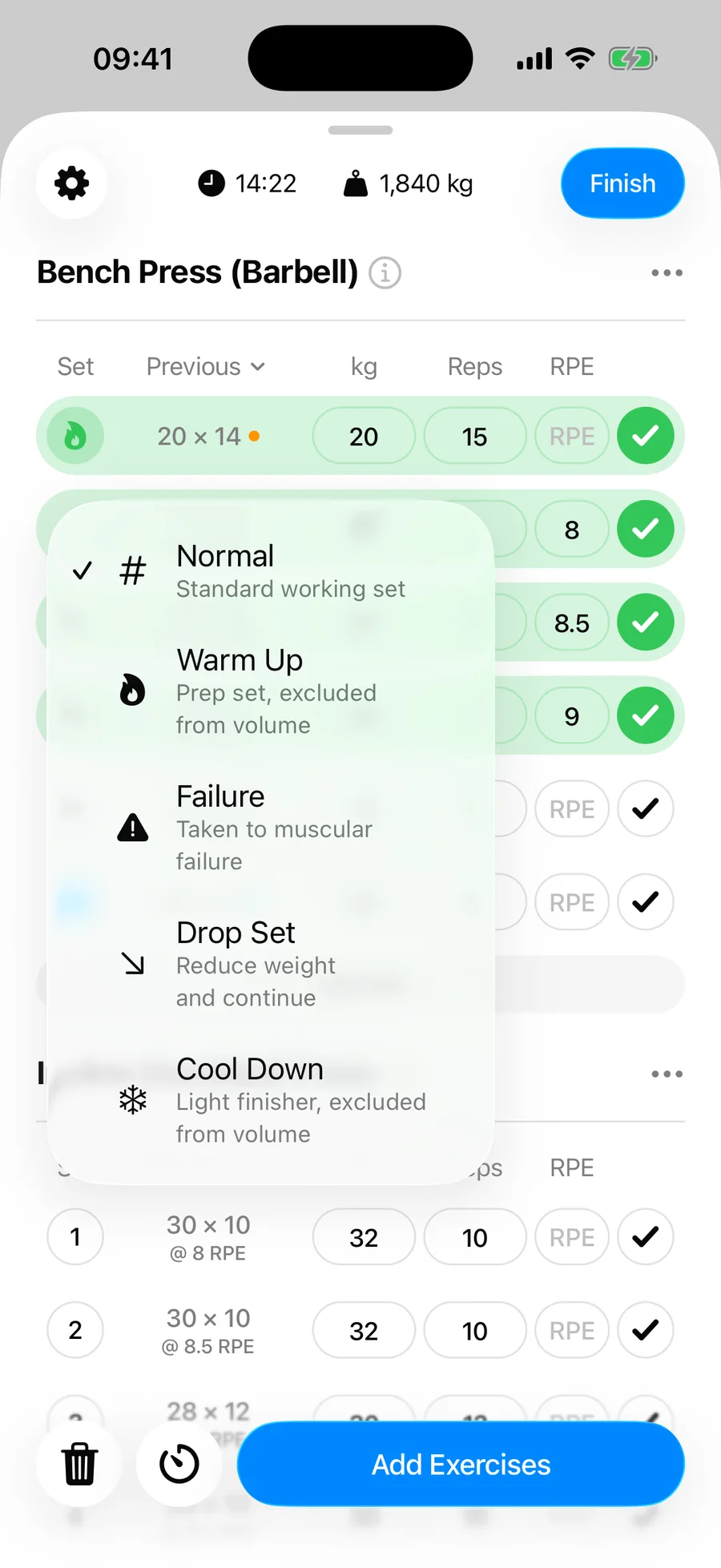
The set number changes color so you can tell set types apart at a glance.
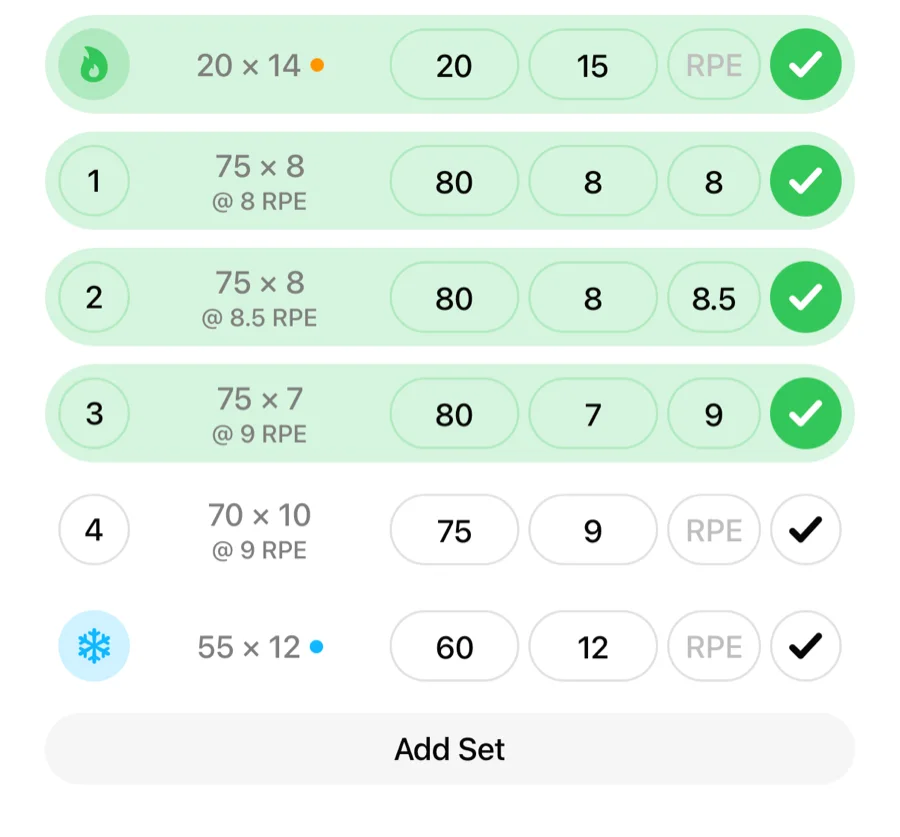
What each type means#
- Normal — a standard working set. Counts toward volume.
- Warm Up — a prep set, excluded from volume. The warm-up calculator can generate these for you.
- Failure — a set taken to muscular failure. Counts toward volume.
- Drop Set — you reduced the weight and continued without rest. Counts toward volume.
- Cool Down — a light finisher, excluded from volume.
Add Set follows the block you are in: after a Drop Set it adds another Drop Set, and after a Cool Down another Cool Down, so multi-set finishers do not need retyping. After a Normal, Warm Up, or Failure set, the new set is a Normal set.
Set type hints#
If you want a short description next to each type when picking, turn on Show Set Type Hints in Workout Settings (the gear button on the workout screen).