


Strong can export your complete workout history — every workout, exercise, and set — as a single CSV file. Whether you want a backup, a spreadsheet to dig into, or you're switching apps, here is where the export lives and what you get.
Step 1: open Settings#
In Strong, go to the Profile tab and tap the gear icon to open Settings. The export options are under Data Management.
Step 2: tap Export Workouts#
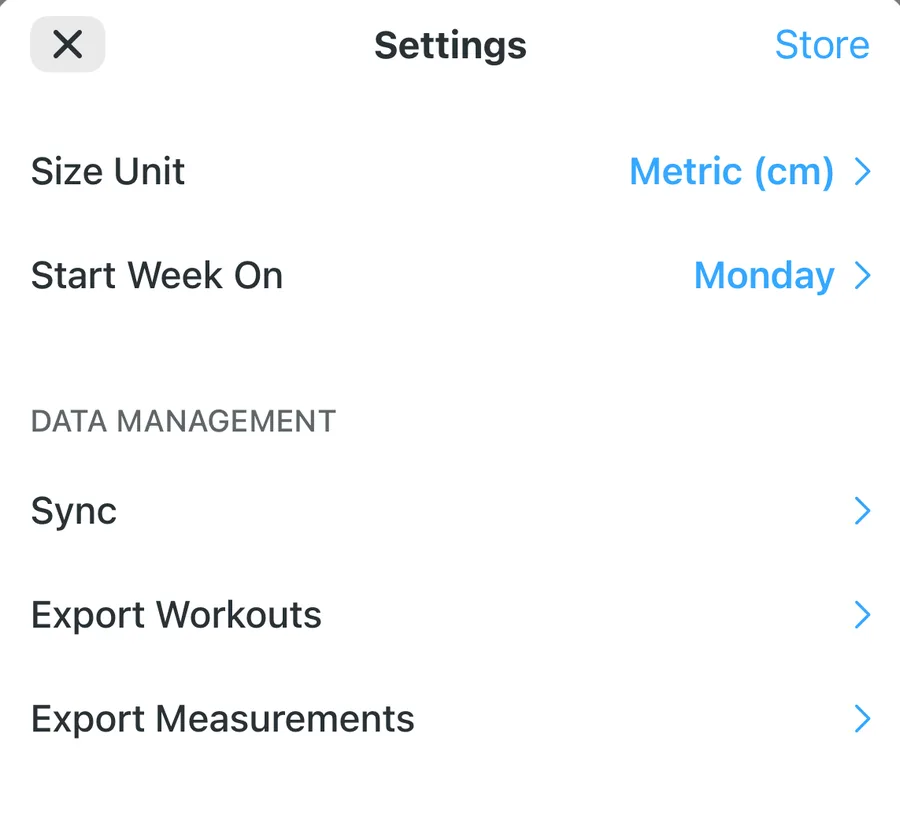
Export Measurements, right below it, does the same for body measurements in a separate file — Gript imports that one too.
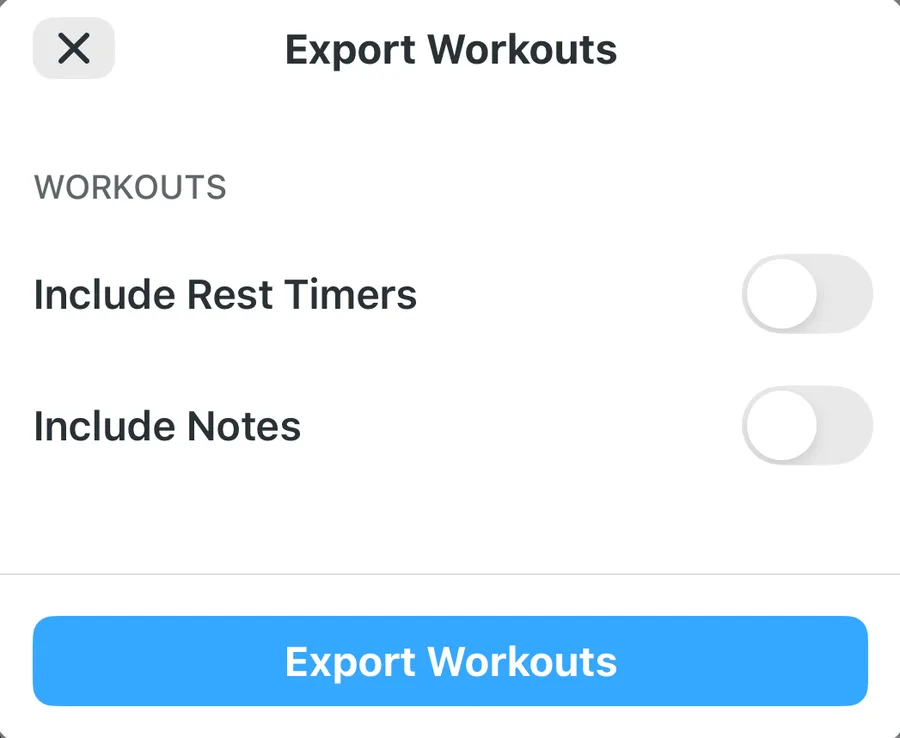
Step 3: choose options and export#
Decide whether to include rest timers and notes, then tap Export Workouts. Strong generates a CSV of your entire history and opens the share sheet — save it to Files, cloud storage, or email it to yourself.
Where the file goes#
Strong hands the CSV to the system share sheet rather than saving it somewhere itself, so the file only exists wherever you send it. On iPhone, choose Save to Files and put it in On My iPhone or iCloud Drive — that way you can reach it again from Gript's import picker. Dismiss the share sheet without picking a destination and nothing is saved, but you can re-run the export as often as you like.
What's inside the CSV#
The file is one row per set rather than one row per workout, so every set row repeats the date and workout name of the session it belongs to. A twenty-set session becomes twenty rows.
| Column | What it holds |
|---|---|
| Date | When the session happened, repeated on each of its set rows |
| Workout Name | The session name, such as Push A or Legs |
| Duration | How long the session took |
| Exercise Name | The exercise as named in Strong's library |
| Set Order | The position of the set within that exercise |
| Weight | The load, in whichever unit your Strong account is set to |
| Reps | Repetitions completed in that set |
| Seconds | Elapsed time for timed or held sets |
| Notes / Workout Notes | Per-exercise and per-session notes, when you export with notes included |
| RPE | Your logged effort rating, where you recorded one |
The Strong CSV format in practice#
Two details explain almost everything people find surprising about the file. The first is that it is set-level, not workout-level: there is no row that represents a session, only rows that represent sets, each repeating its session's date and name. Grouping by Date and Workout Name is how you get back to sessions in a spreadsheet.
The second is that Set Order carries more than a number. Alongside the plain 1, 2, 3 of working sets, Strong uses it to mark warm-up sets and rest-timer rows, which is why a raw row count runs higher than the sets you remember doing. An importer that understands the format separates those out; a spreadsheet formula that sums the whole column will not.
Everything else is what it looks like — one exercise name per row, weight and reps as plain numbers, seconds for held or timed work, and notes only if you exported with them included. It is a genuinely simple format, which is why so many tools read it, Gript included.
Opening the CSV in Excel, Sheets, or Numbers#
It opens directly in Numbers, Microsoft Excel, and Google Sheets. The one trap: spreadsheet apps reformat anything resembling a date, and saving over the original writes those timestamps back in the display format instead of the format Strong wrote — which makes the file harder for an importer to read correctly.
So work on a duplicate if you want to explore the data, and keep the original CSV untouched for importing.
What the export doesn't include#
The CSV covers performed workouts. Body measurements come out through the separate Export Measurements button, and your saved routines and templates are not in the workout file — only the sessions you actually did. For a migration that is usually fine: the history is the irreplaceable part, and routines take minutes to rebuild afterwards.
Common problems#
The dates came in wrong#
Usually a day-first versus month-first mix-up introduced by a spreadsheet app rewriting the file. Gript works out which convention an export uses when it reads it, so importing the untouched original is the reliable path — see how import matching works.
Every weight looks about 2.2x off#
A kilograms and pounds mismatch. Because Strong's CSV omits the unit, this is the one thing worth checking against the app right after an import — compare a lift you remember and you will know immediately.
Notes are missing#
The Include Notes toggle in the export dialog was off. Run the export again with it on; there's no downside to a second export.
I can't find the file afterwards#
It lives only where the share sheet sent it. Search Files for a .csv, and if nothing turns up, just export again.
What to do with your export#
- Keep it as a backup — save the CSV to Files or cloud storage so your training history doesn't depend on any one app.
- Analyze it — open the CSV in Numbers, Excel, or Google Sheets.
- Import it into Gript — Gript reads Strong's CSV directly and brings over your whole history, with exercise matching, duplicate detection, and charts computed from day one. See how to import workouts from Strong.
Training history that predates Strong — notebooks, spreadsheets, or photos of a logbook — can come into Gript through AI import as well.
If the export is the first step of a move rather than a backup, the guide to switching from Strong to Gript walks through the whole migration end to end.
Worth knowing if you are shopping around: the Strong CSV is the one format Hevy's own Import Data option accepts, so this single export is what most other trackers ask for. Exporting from Hevy works much the same way if your history is split across both apps.