


Years of weigh-ins should not stay locked in your old app. Gript imports body measurement history from a CSV file — including exports from Hevy and Strong — in a few taps.
Step 1: Export from your current app#
In Hevy, open Settings → Export & Import Data → Export Data and tap Export Measurements. Hevy exports a CSV file with a column per measurement and opens the share sheet — the same screen covered in exporting from Hevy.
In Strong, open Settings and tap Export Measurements under Data Management — right below the workout export shown in exporting from Strong. Strong saves a CSV with one measurement per row.
From a spreadsheet or another app, save a CSV with one measurement per row: Date, Measurement (like Weight or Left Bicep), Value, and optionally Unit. Gript detects both layouts automatically.
Step 2: Import into Gript#
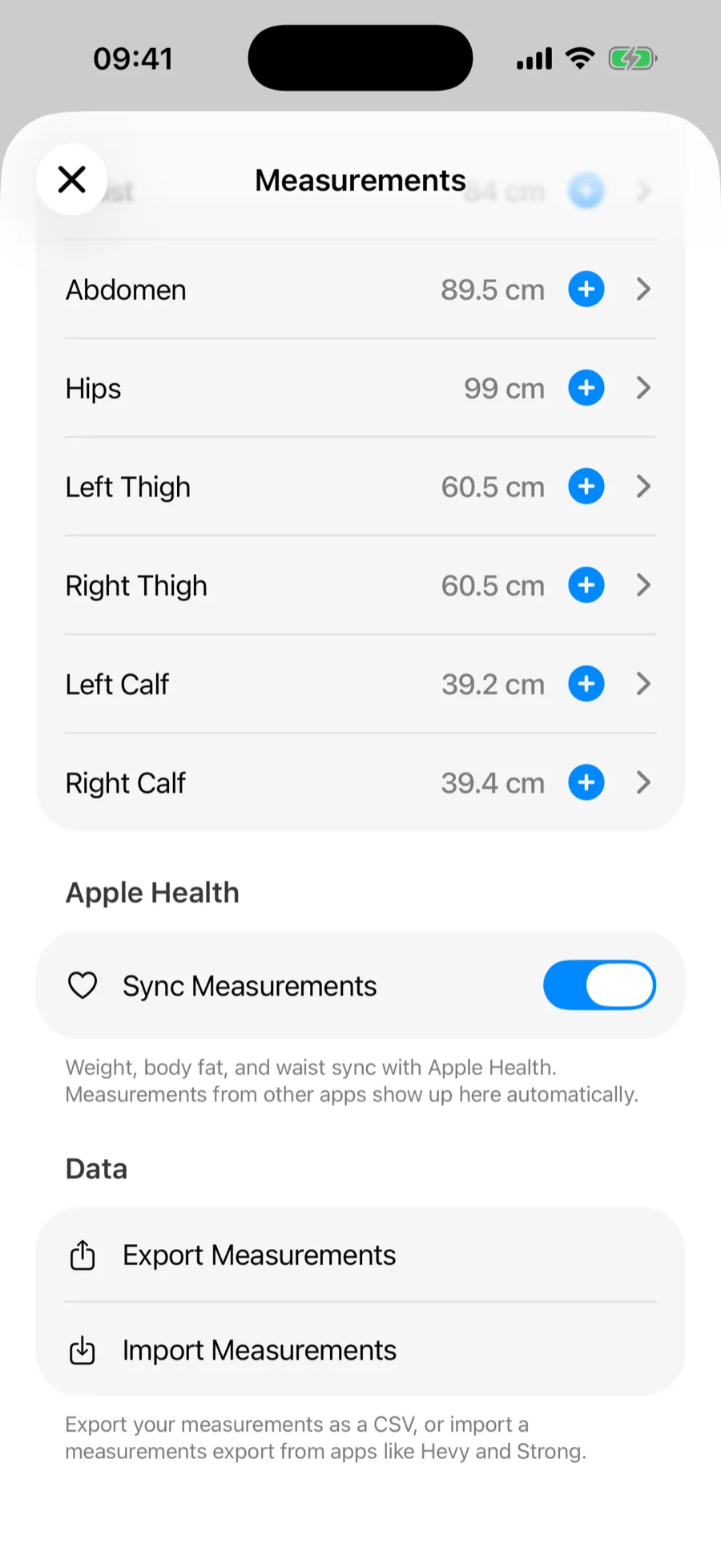
- Go to Profile → Measurements and scroll to the Data section.
- Tap Import Measurements and pick the CSV file.
- Gript shows how many measurements it found — confirm to add them to your history.
What the import handles for you#
- Units — values in pounds or inches are converted to metric storage automatically, and always display in your preferred units.
- Duplicates — entries that already exist in your history, including ones synced from Apple Health, are skipped, so importing the same file twice is safe.
- Messy data — rows without a valid date or value are skipped rather than breaking the import.
Bringing your workouts over too? See importing workouts from Hevy and from Strong.