


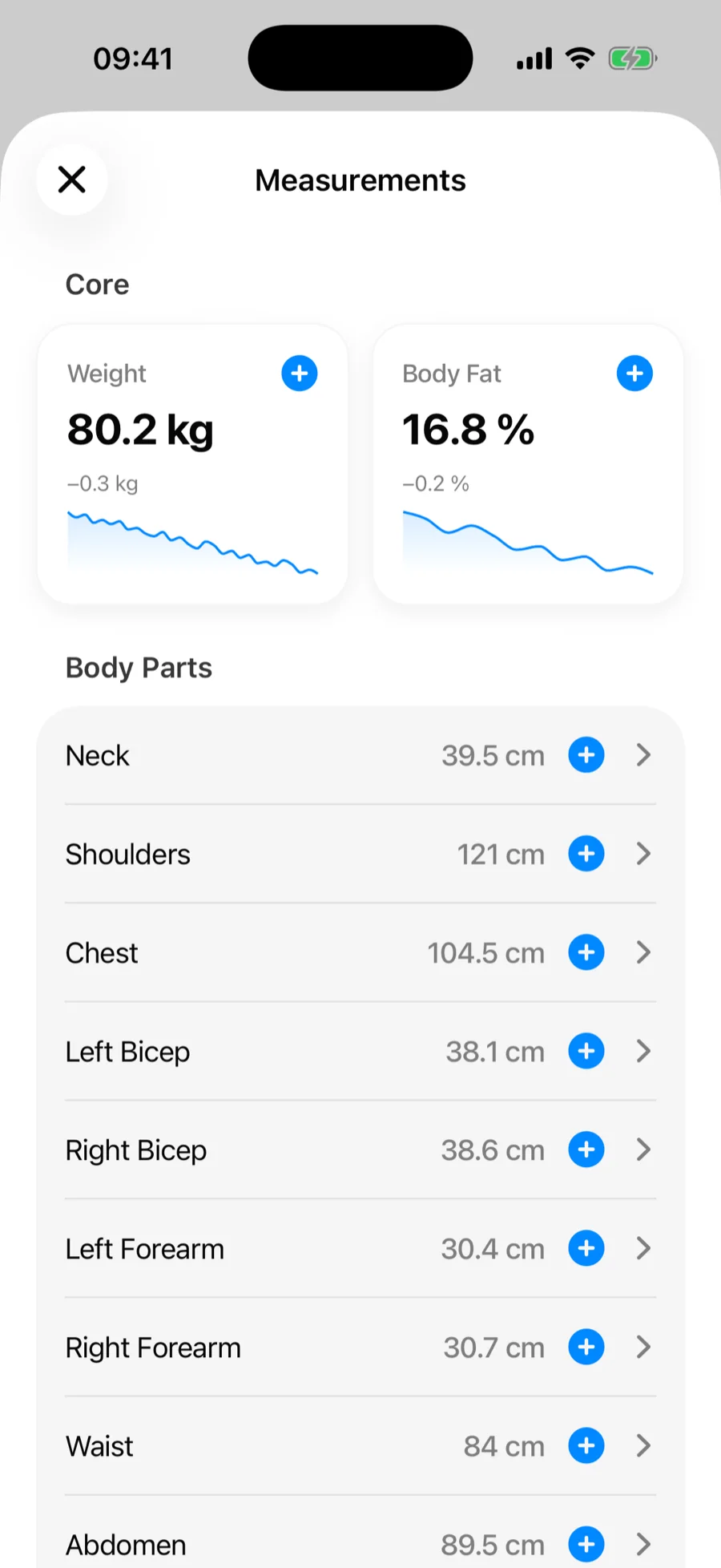
Gript tracks more than your lifts. The Measurements screen keeps your weight, body fat, and tape measurements for 14 body parts in one place — with a chart, history, and trend stats for each one.
What you can track#
- Core — Weight and Body Fat, shown as large cards with a sparkline of your recent trend.
- Body parts — Neck, Shoulders, Chest, Waist, Abdomen, Hips, and left/right pairs for Biceps, Forearms, Thighs, and Calves.
Values follow your unit settings — kilograms or pounds, centimeters or inches.
Log a measurement#
- Open the Profile tab and tap Measurements in the Body section.
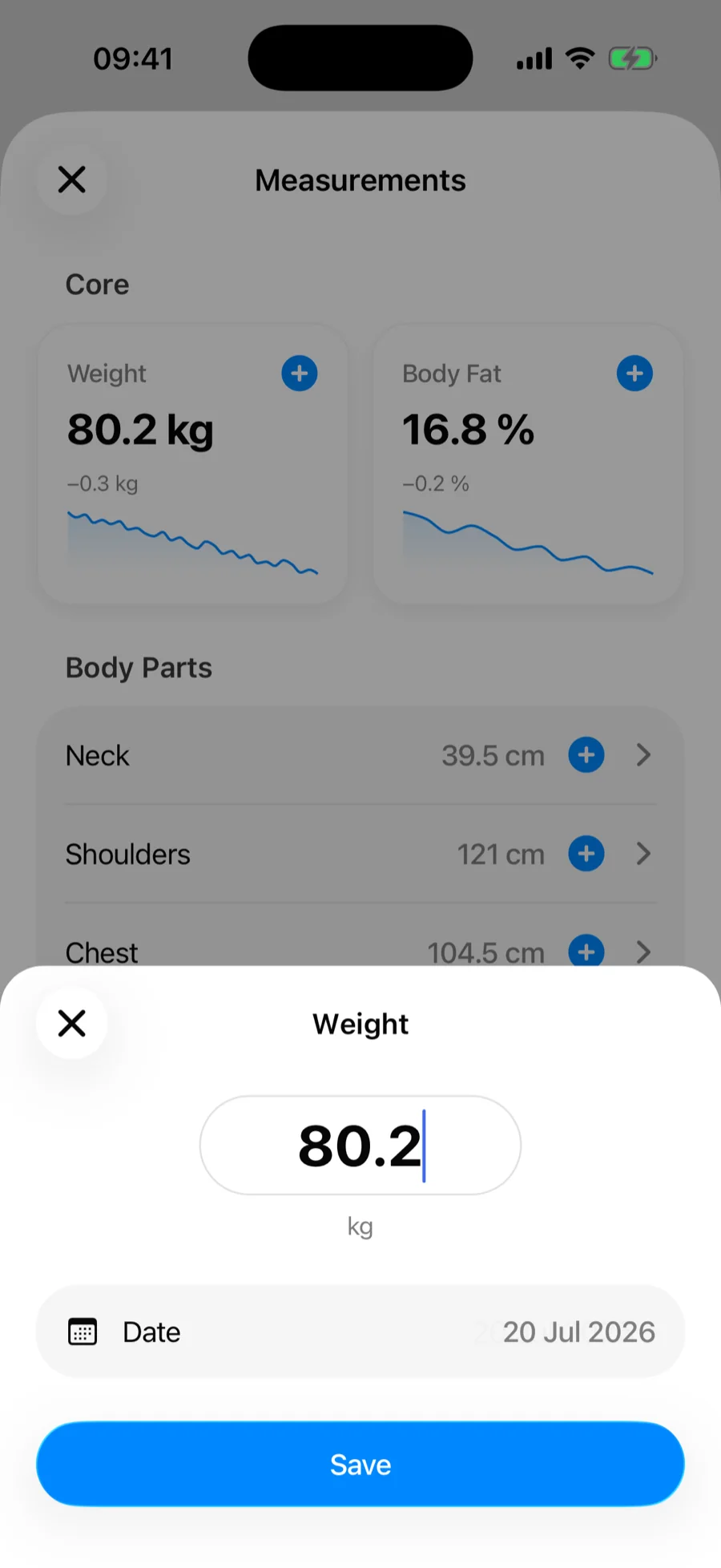
- Tap the + button on a core card or next to any body part. You can also open a measurement and tap Add Measurement.
- Enter the value, adjust the date if you are backfilling, and save.
The measurement detail screen#
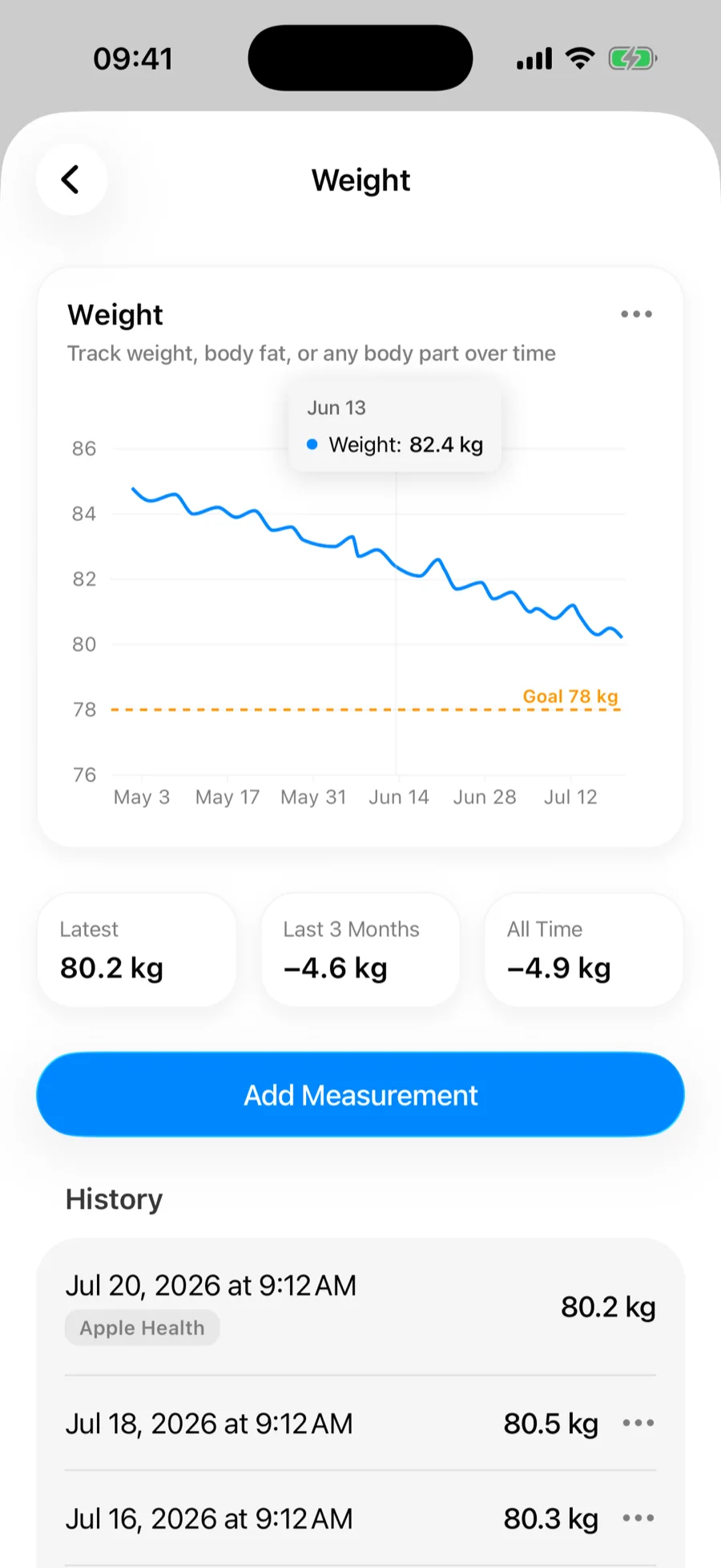
Tap any measurement to open its detail screen:
- Chart — your trend over the last 7 days, 30 days, 3 months, 12 months, or all time. If you set a goal, it appears as a dashed line.
- Stats — your latest value, the change over the selected period, and the all-time change.
- History — every entry with its date and source. Entries you logged in Gript can be deleted from the menu next to them.
Symmetry for paired body parts#
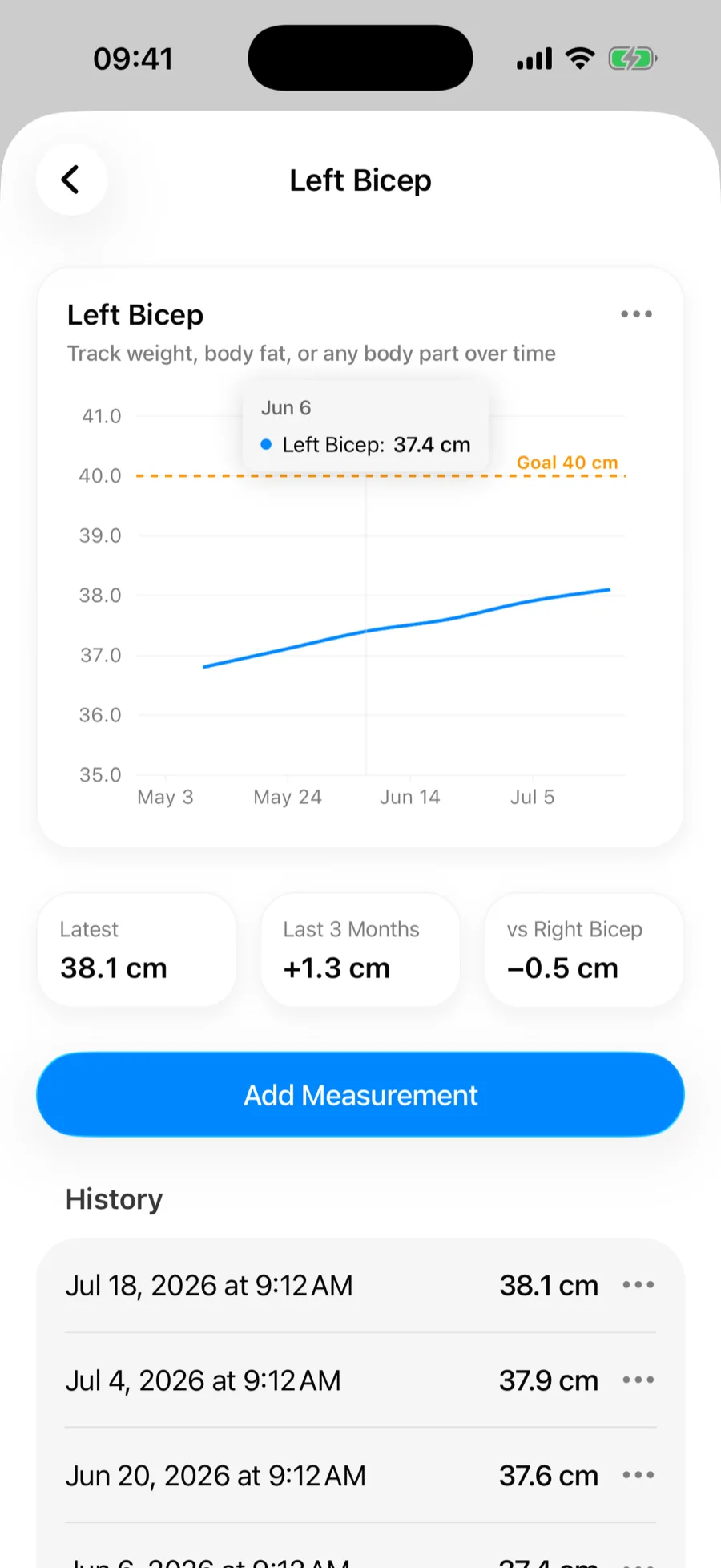
For left/right pairs like biceps and thighs, the stats row compares the two sides. If your left bicep measures differently from your right, Gript shows the difference — and shows Balanced when they match. It is an easy way to catch imbalances before they grow.
Measurements on the Performance tab#
Any measurement chart can live next to your training charts: open the chart menu on a measurement detail screen and tap Add to Performance Tab, or add a Body Measurement chart directly from Add Chart.
On iPhone, measurements also sync with Apple Health — smart scale weigh-ins appear in Gript automatically.