


The scale does not tell the whole story. Progress photos show you what measurements cannot — how you actually look — and Gript keeps them organized by pose and date, with your weight attached to every shot automatically.
Add a progress photo
- Open the Profile tab and tap Progress Photos in the Body section.
- Tap the + button in the top-right corner.
- Take a photo with the camera or choose one from your library, pick the pose — Front, Side, or Back — and tap Save Photo.
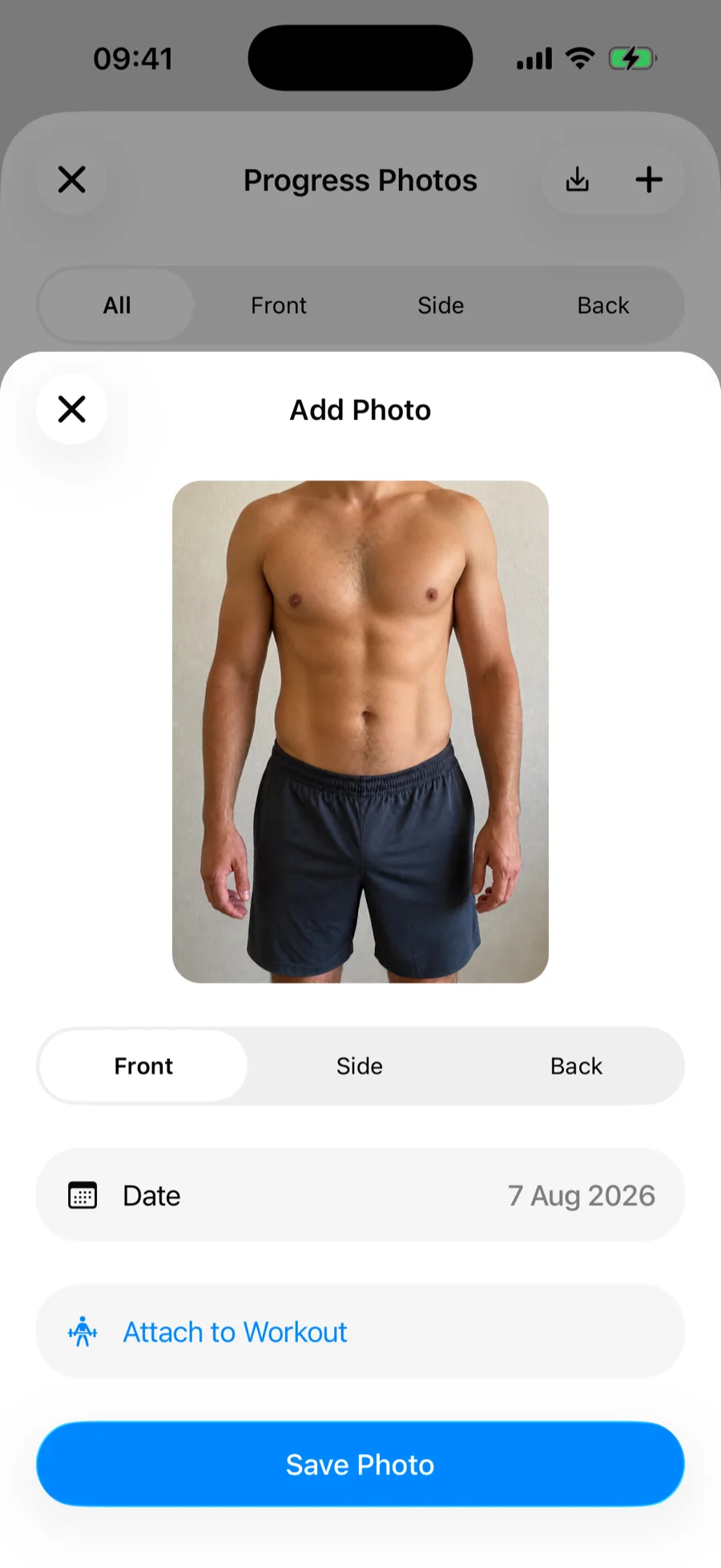
Backfilling old photos from your camera roll? The Date is set to when the photo was taken, read from the photo itself, so your timeline and comparisons stay accurate. Adjust it only if the photo carries no date or the wrong one.
The camera ghost overlay
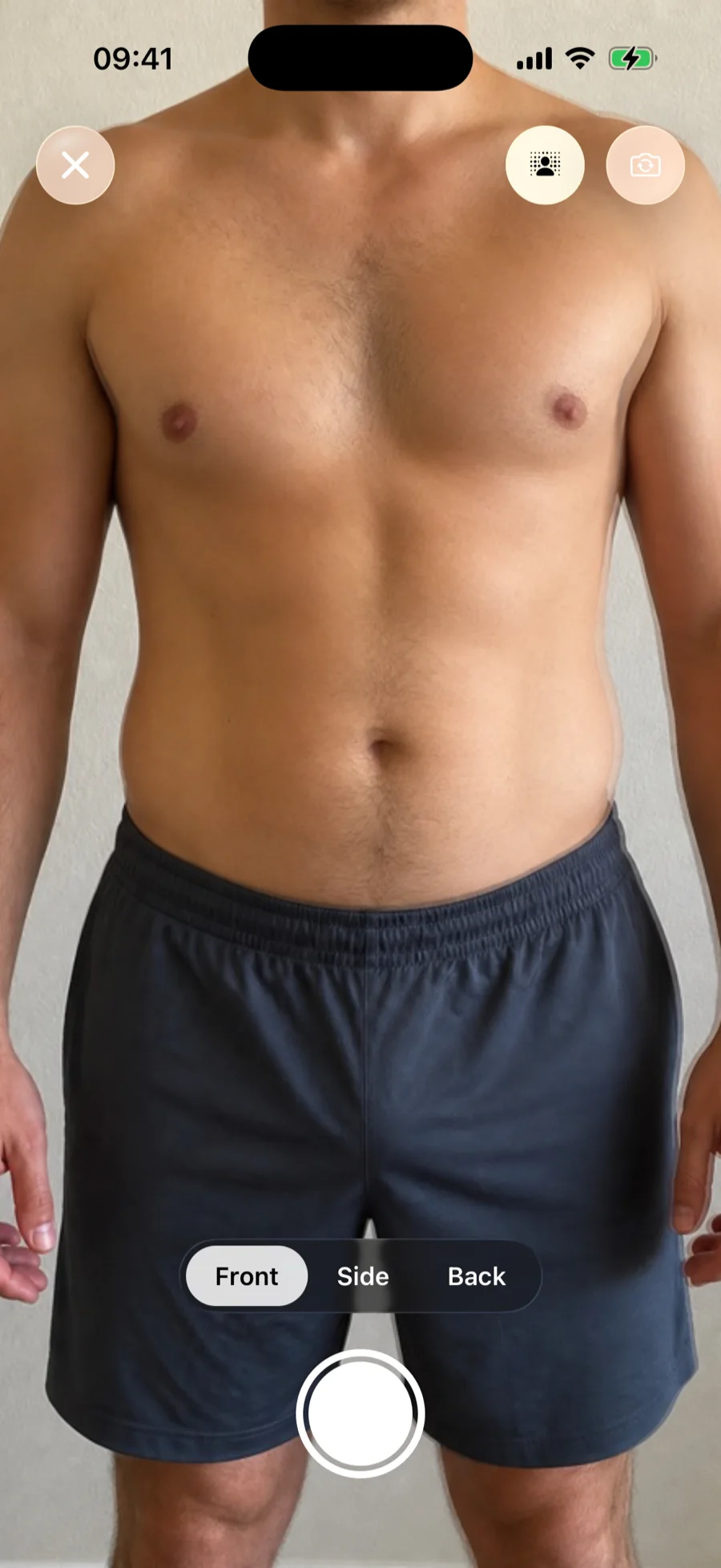
When you take a photo with the camera, Gript overlays your previous photo of the same pose as a faint ghost, so you can line up your distance, angle, and stance to match. Consistent framing is what makes before/after comparisons convincing — same spot, same pose, same lighting.
Your weight, attached automatically
When you save a photo, Gript looks for a weight and body fat measurement from around the same day — including entries synced from Apple Health — and attaches them to the photo. That is how comparisons can show exactly how many kilograms or pounds separate two photos.
Browse and manage your photos
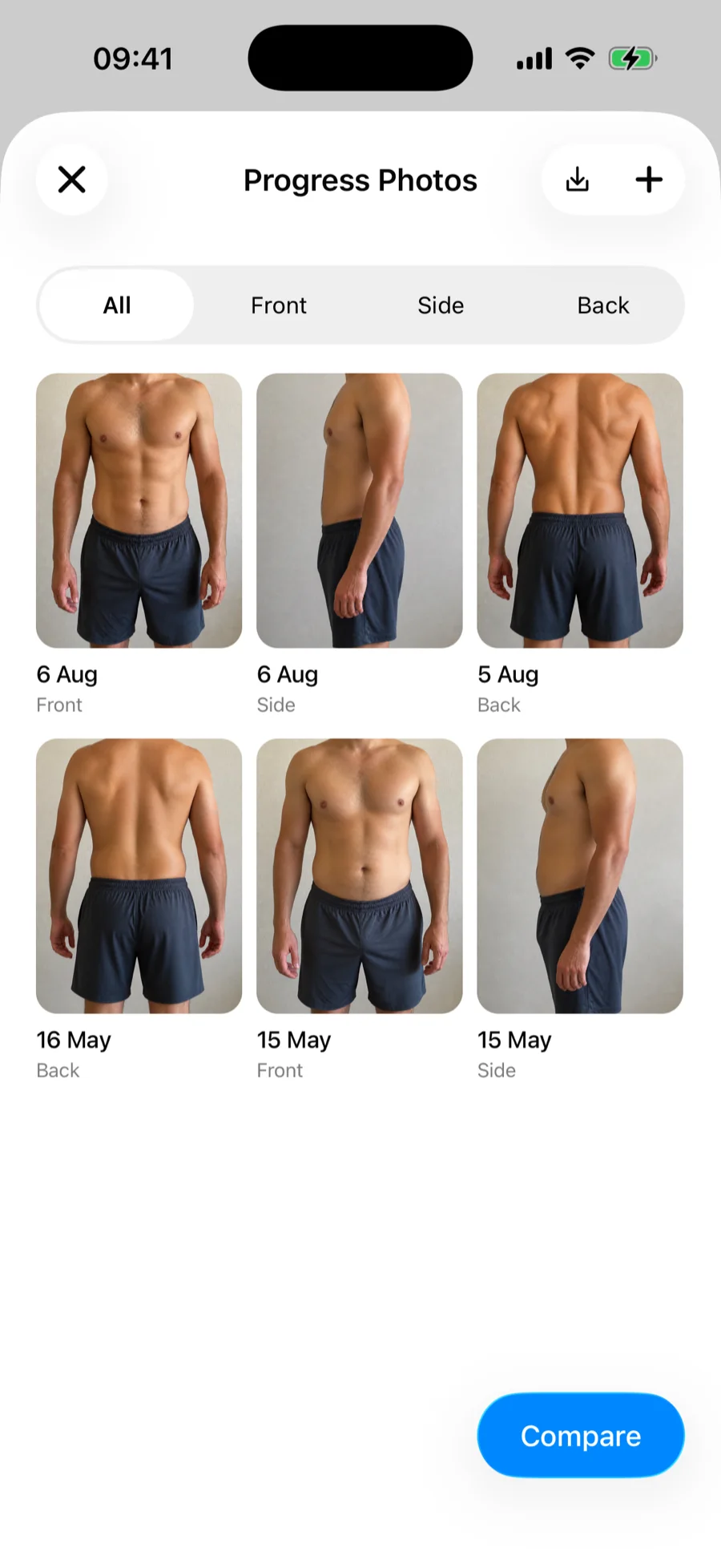
- Timeline — photos appear in a grid, newest first, each labeled with its date and pose. Once you have photos of more than one pose, a filter appears to view one pose at a time.
- Detail — tap a photo to see it full size with its pose, date, and any attached measurements.
- Save to your phone — open a photo and tap the download icon in the top-right corner to save it to your photo library, or tap the download icon on the timeline to save every photo at once. Gript asks for photo library permission the first time.
- Delete — open a photo and tap Delete Photo. This permanently removes it.
Attach photos to a workout
A progress photo can be linked to the workout you took it after, so the photo and the training session that earned it stay together:
- From a photo — open it and tap Attach to Workout, then pick a recent workout. Tap Remove from Workout to unlink it.
- From a workout — when editing a completed workout, use the Photos section to take a new photo or attach an existing one.
Workouts with photos attached show a small camera badge in your workout history, so you can spot them at a glance.
Progress photos are private. They are stored securely with your account and synced across your devices — nobody sees them unless you share a comparison yourself.