


Tracking is only half the job — Gript also helps you move toward a target and keeps you measuring consistently.
Set a goal for any measurement#
- Go to Profile → Measurements and open a measurement, such as Weight.
- Open the menu in the top-right corner of the chart and tap Set Goal.
- Enter your target in your preferred units and tap Save Goal.
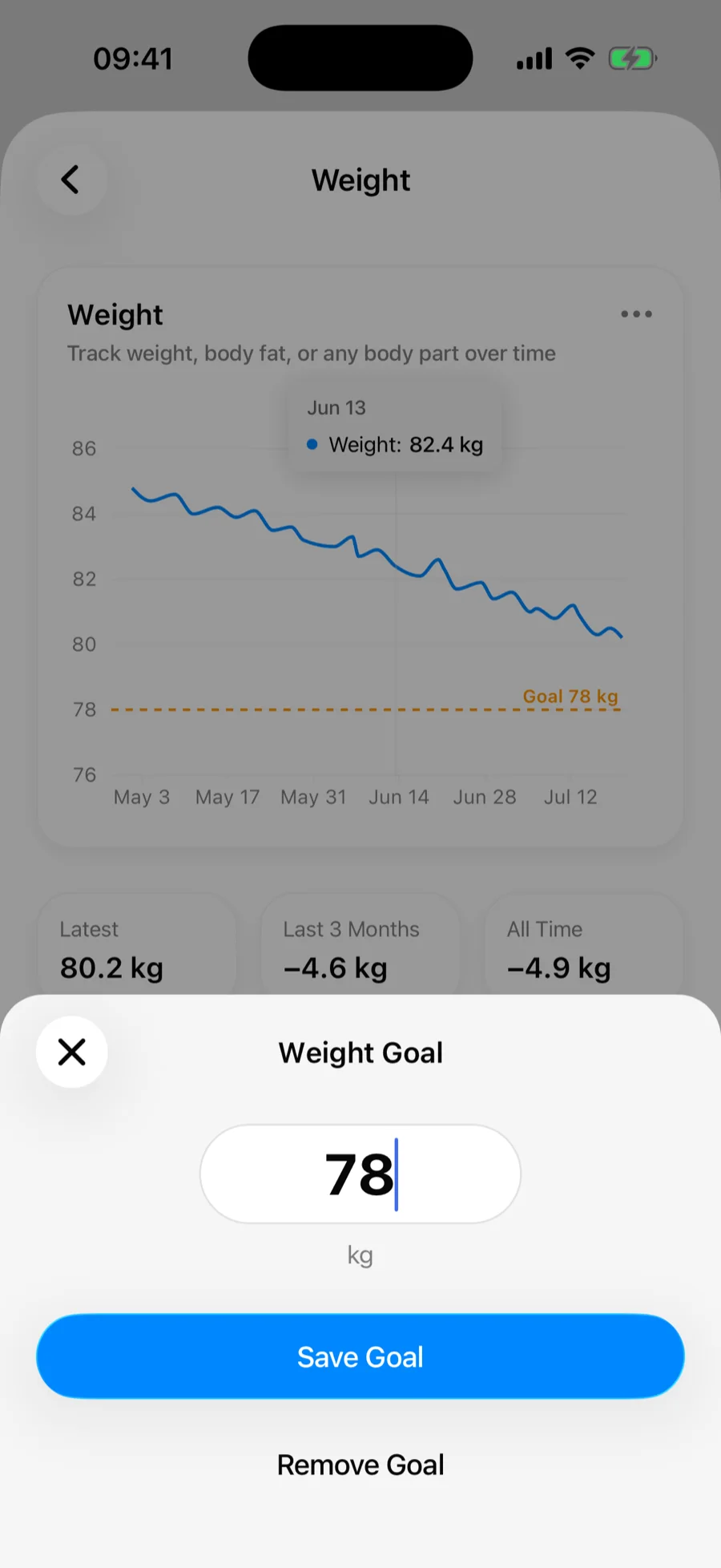
The goal appears as a dashed line on the chart, so you always see how far you are from it. If you added the measurement to the Performance tab, the goal line shows there too.
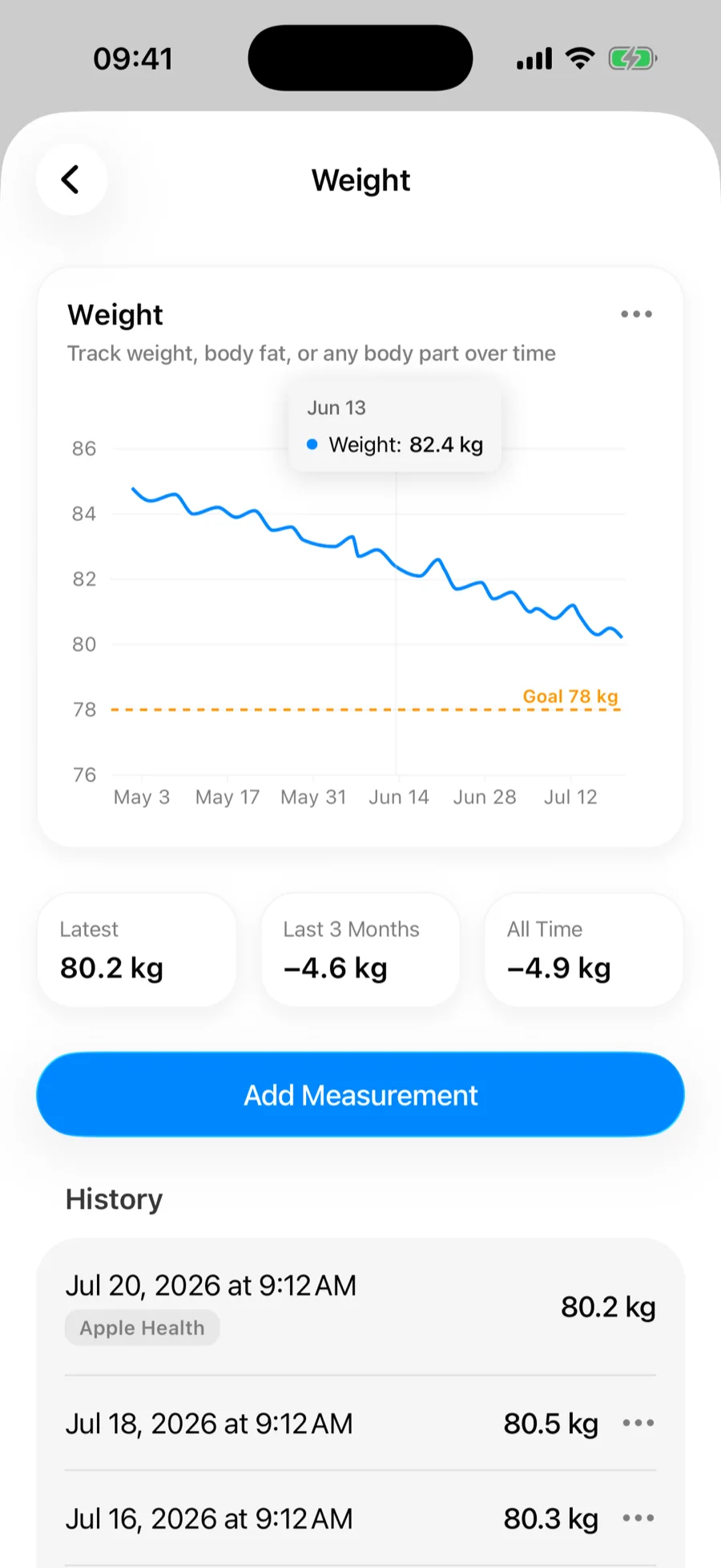
To change or clear a target, open the same menu and tap Edit Goal — you can save a new value or tap Remove Goal.
Re-measure reminders#
Body measurements only tell a story when you take them regularly. Every time you log a measurement in Gript, it schedules a gentle reminder for one week later at 9:00 in the morning. Log again and the reminder moves a week forward — so you get at most one, and only when you are due.
Tapping the notification takes you straight to the Measurements screen.
Weekly measurements pair well with a weekly workout goal — one tracks the input, the other the result.