


On iPhone, Gript syncs body measurements with Apple Health in both directions. Weigh in on a smart scale, log body fat in another app, or add weight in the Health app itself — it all shows up in Gript automatically, and what you log in Gript flows back to Health.
Turn measurement sync on#
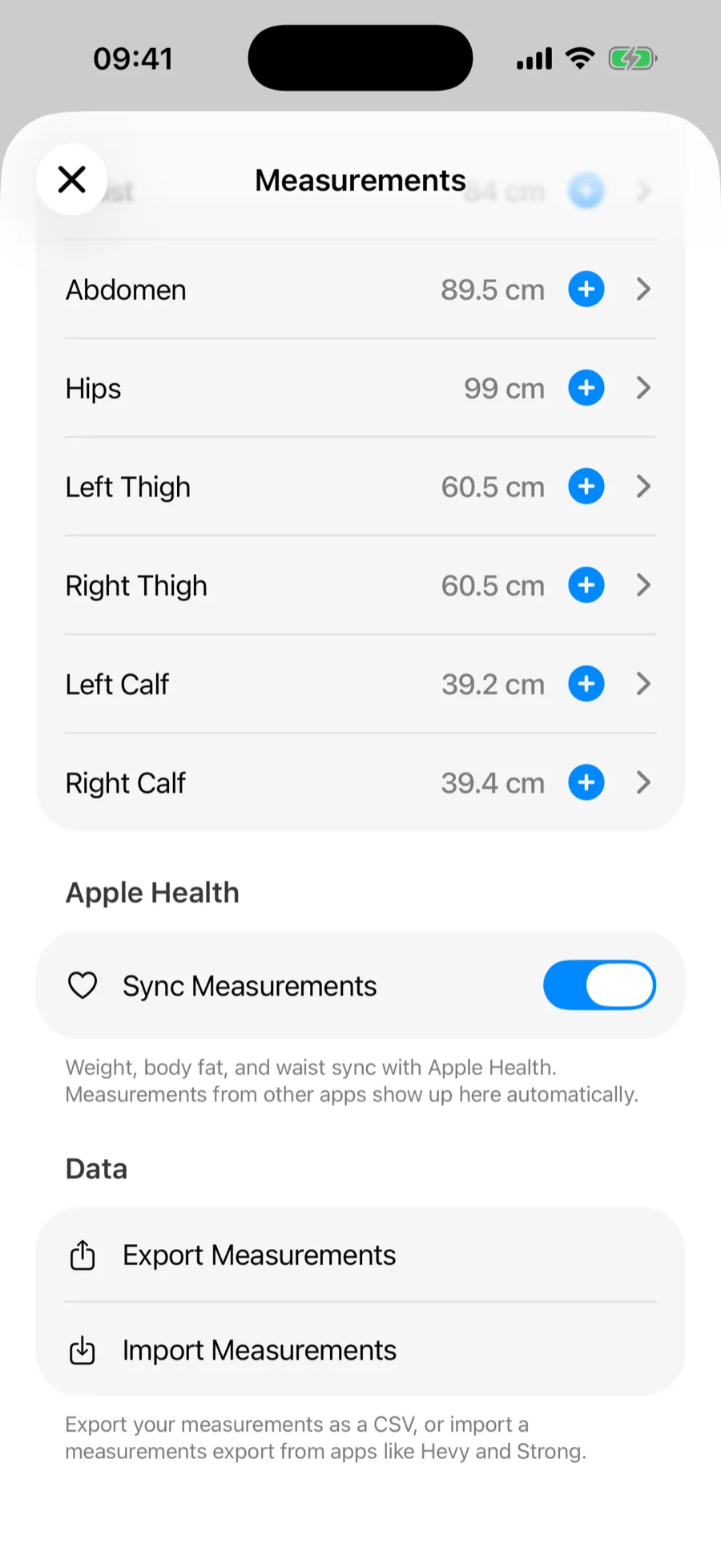
- Go to Profile → Measurements.
- In the Apple Health section, toggle Sync Measurements.
- Allow access to weight, body fat, and waist circumference when iOS asks.
What syncs#
- Weight, Body Fat, and Waist sync both ways — these are the measurements Apple Health supports.
- Entries you log in Gript are written to Apple Health. Delete one in Gript and it is removed from Health too.
- Entries from other sources — smart scales, other apps, or the Health app itself — are imported into your Gript account and appear with an Apple Health label. Because they are saved to your account, they show up on every device you sign in on and in your Performance charts. When you turn sync on for the first time, Gript imports your full Health history for these measurements.
- If an imported reading is deleted in Apple Health, it disappears from Gript too. If you only want it gone from Gript, open its menu and choose Remove from Gript — the reading stays in Health and will not be imported again.
How your Health data is handled#
Imported readings are stored in your Gript account alongside the measurements you log by hand, so they sync across your devices and survive a reinstall. They are used only to show your measurement history and progress. Gript never uses Health data for advertising, never shares it with anyone other than the providers that store it on our behalf, and never stores it in iCloud. Turning sync off keeps what has already been imported; deleting your account removes all of it. See our privacy policy for the full picture.
Other body part measurements, like biceps or thighs, have no Apple Health equivalent and live in Gript only. Like everything else, they sync across your devices through your Gript account.
If syncing stops working#
Health permissions live at the system level. If measurements stop appearing, open the Health app → profile picture → Apps → Gript and make sure measurement sharing is allowed. When access is off, Gript shows a shortcut to these settings when you toggle Sync Measurements.
Moving from an app without Health sync? You can also import measurements from a CSV file.