

Gript runs natively on Apple Watch, so you can leave your phone in the locker: start workouts, log every set, run the rest timer, and track heart rate and calories — all from your wrist.
Install the watch app#
- Open the Watch app on your iPhone.
- Scroll to Available Apps and tap Install next to Gript. If automatic app installation is enabled, Gript may already be on your watch.
- Open Gript on your iPhone once, signed in — that's all the setup there is.
Start a workout from your wrist#
- Quick Start — begins an empty workout; add exercises as you go.
- Routines — tap a routine to preview its exercises and sets, then start it. Planned weights and reps come pre-filled, exactly like on the iPhone.
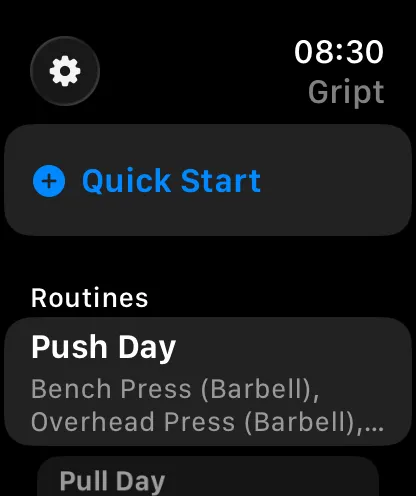
Starting a workout on the watch also starts it on your iPhone (and its Live Activity), and the other way around — an active phone workout appears on the watch automatically, ready to continue from either device.
During the workout#
The workout screen shows elapsed time, live heart rate, and calories at the top, with every exercise and set below. Gript runs a real watchOS workout session, so your activity rings get credit and heart rate is recorded — see logging sets on Apple Watch for the full logging flow.
Need a break? Below the exercise list, Pause Workout freezes the elapsed time and greys it out with a pause icon; the rest timer stays off until you tap Resume Workout. Pausing on the watch pauses the iPhone and its Live Activity too, and the other way around. Paused time does not count toward the workout's duration.
Add the complication#
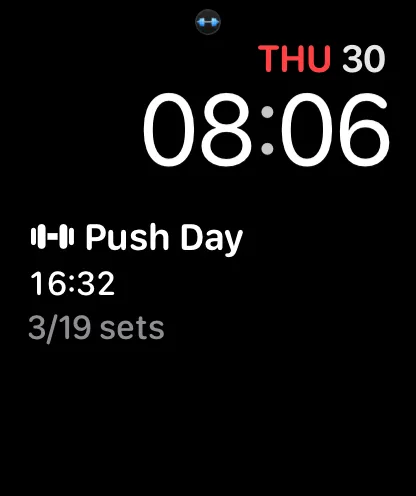
Add Gript to your watch face to start workouts in one tap. During a workout, the complication and Smart Stack widget show your elapsed time and set progress; when idle they are a launcher for the app.
From Gript 1.16 the iPhone's Live Activity also appears in the watch's Smart Stack as a card with your current exercise and rest countdown — turn the Digital Crown on the watch face to see it, and tap it to jump straight into the workout.
Watch settings#
In the watch app, the gear icon on the start screen has watch-specific options: rest-timer haptics, whether the next set opens automatically after completing one, and your iPhone connection status. Everything else — units, rest durations, effort tracking — follows your iPhone settings.