


Switching from StrengthLog? Gript reads StrengthLog's CSV export directly, so your lifting history — every workout with its sets, reps, weights, and RPE — transfers in a few minutes.
Step 1: export your data from StrengthLog#
- In StrengthLog, open your profile and go to Settings.
- Choose the export option to generate a CSV of your training log. If you can't find it, StrengthLog's support (app@strengthlog.com) can send your data export.
- Save the CSV where your iPhone can reach it, like iCloud Drive or email.
Step 2: import into Gript#
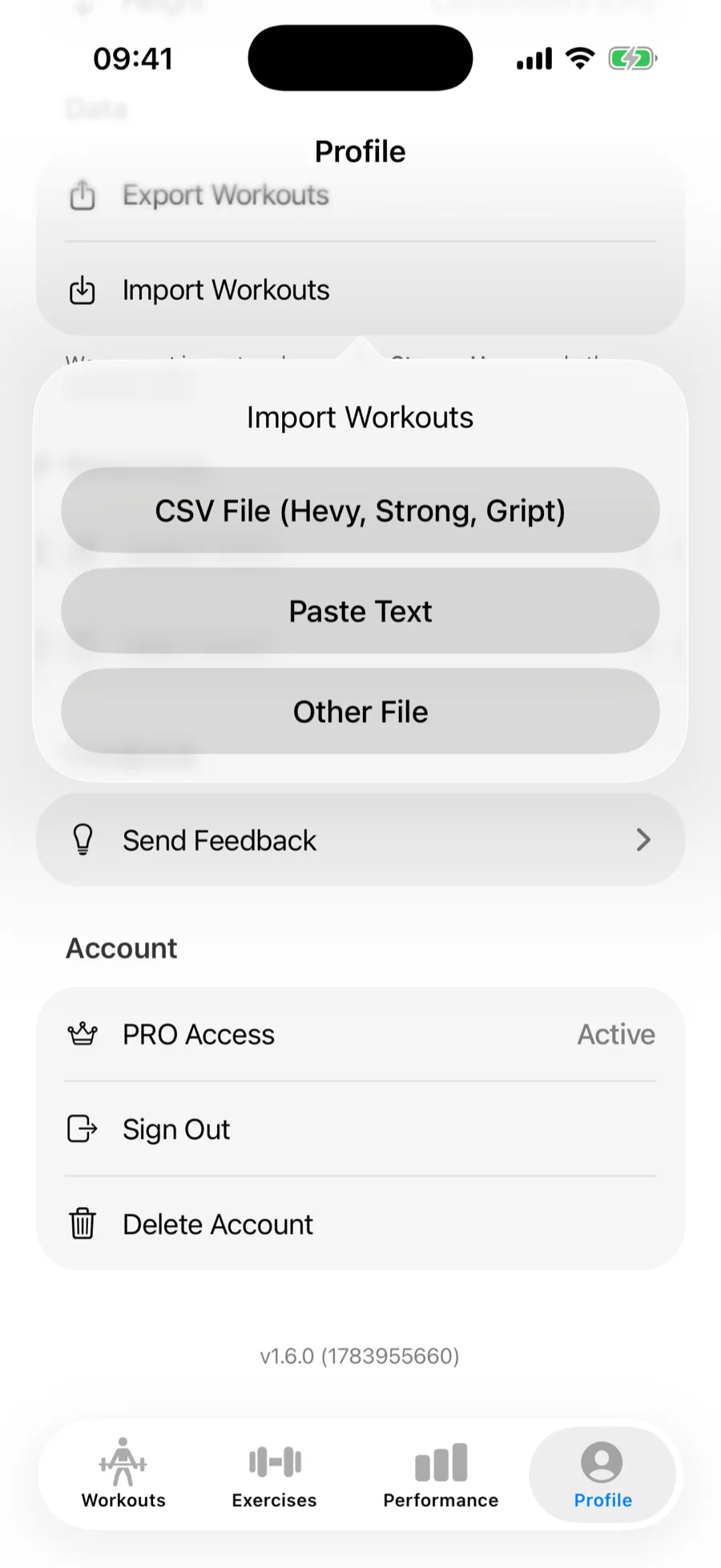
- In Gript, open Profile → Import Workouts.
- Choose CSV File (Hevy, Strong, Gript) and pick the exported file. StrengthLog exports are recognized automatically.
Step 3: match exercises and confirm#
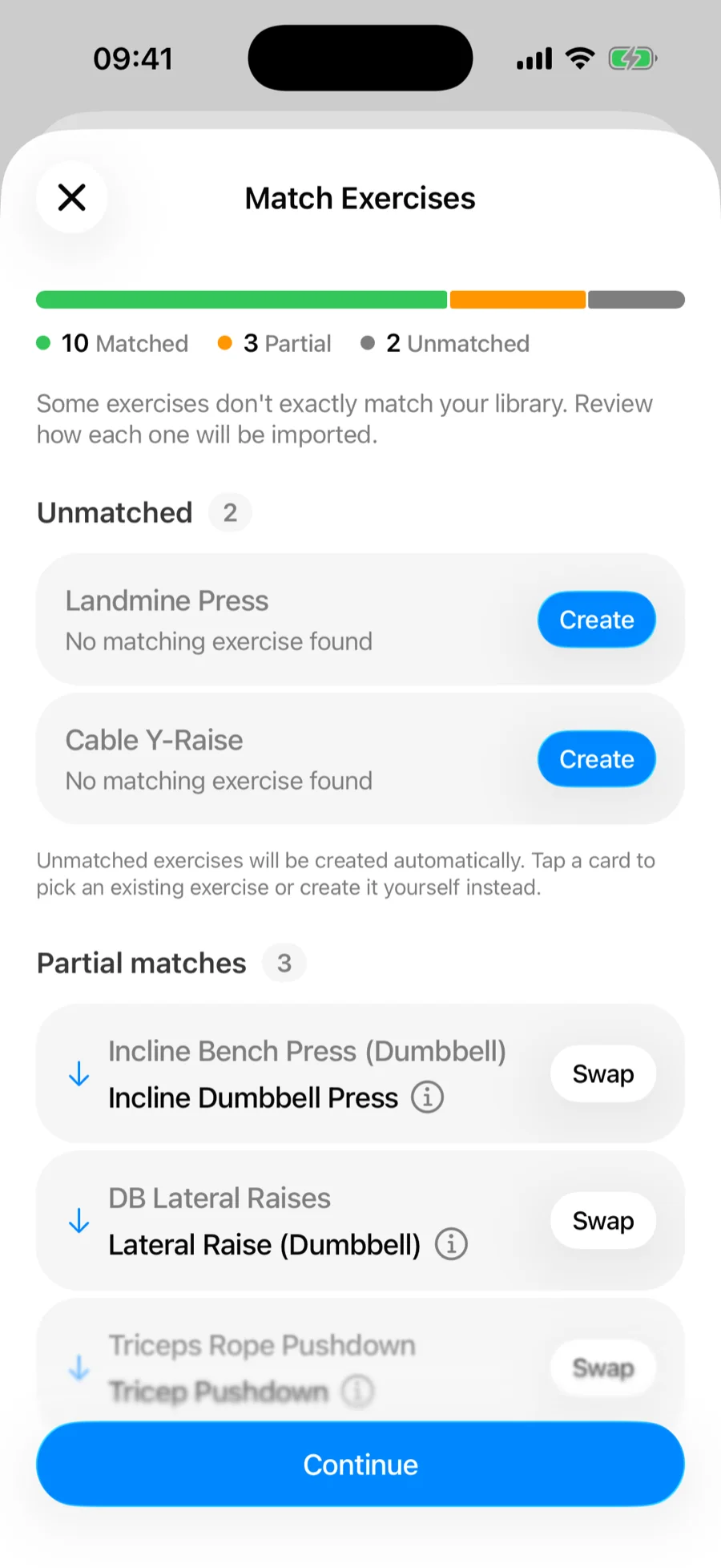
Gript matches StrengthLog's exercise names to its own library on the Match Exercises screen — accept the suggested matches, remap anything it got wrong, and let unmatched movements be created as custom exercises. See how import matching works for the full details.
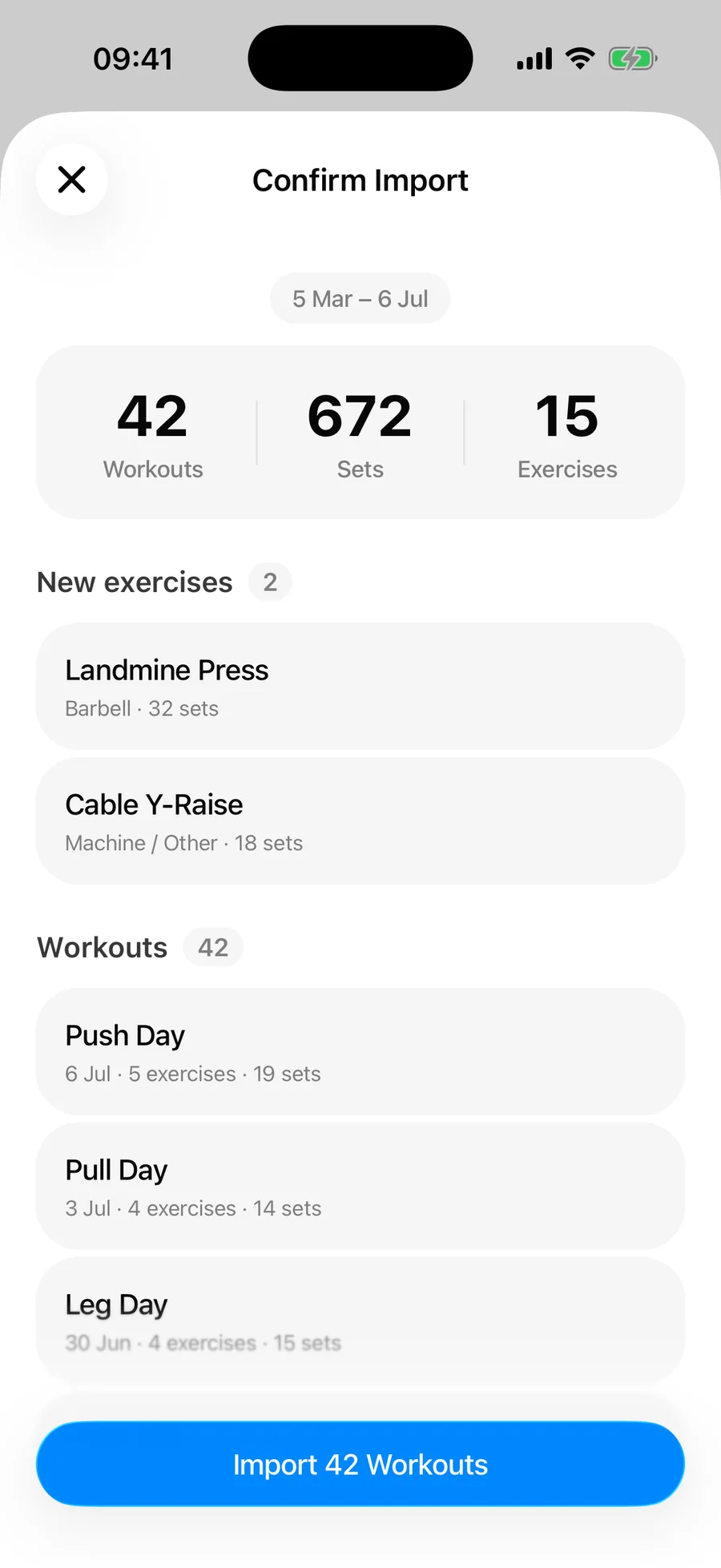
Then review the summary and confirm. Duplicate workouts already in your history are skipped automatically.
What transfers and what doesn't#
- Every workout with its name and date
- Per-set weights and reps, including extra weight on weighted bodyweight movements like chin-ups
- RPE, when you logged it
- Timed sets — planks and carries logged with durations come across as timed sets
StrengthLog's export doesn't include workout comments or distance-based cardio, so those stay behind — the confirmation summary counts any skipped rows. Your charts, records, and history pick up everything else immediately.
Common problems#
Gript doesn't recognise the file#
The format is detected from the file's structure, so a CSV that a spreadsheet app has re-saved may no longer look like a StrengthLog export. Import the original file rather than an edited copy.
Some rows didn't import#
The confirmation summary separates skipped duplicates from unreadable rows, so read it before assuming anything was lost — cardio rows and sessions already in your Gript history are skipped deliberately. See how import matching and duplicates work.