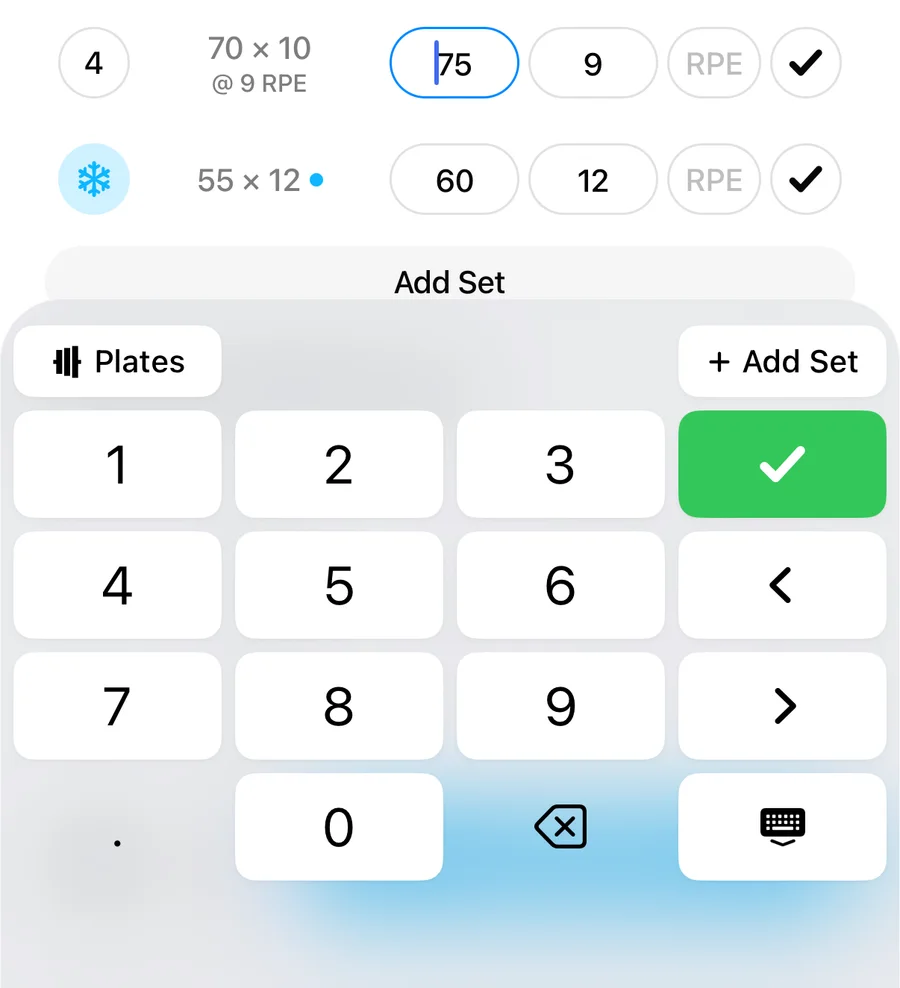
Gript does not use the standard iPhone keyboard during workouts. Tap any weight or reps field and a custom workout keyboard slides up instead — a full number pad with everything you need to log entire sets, so you never have to dismiss the keyboard between sets or hunt for buttons that are not there.
What's on the keyboard#
- Number pad — large digit keys with a decimal point for weight fields.
- Green checkmark — complete the current set. This logs it and starts the rest timer.
- Previous / next arrows — jump between the weight and reps fields, and from set to set, without tapping tiny inputs. The list scrolls automatically so the active field always stays visible above the keyboard.
- − / + stepper — nudge the value up or down without retyping it. Reps move by one; weight moves by your weight increment for that equipment, so a barbell steps 2.5 kg or 5 lb by default.
- Add Set — append the next set to the current exercise. Press and hold it to add two to five sets at once; the list scrolls along so the button stays in reach.
- Plates button — on barbell weight fields, opens the plate calculator for the weight you just typed.
- Hide key — dismiss the keyboard when you are finished.
The effort quick-pick#
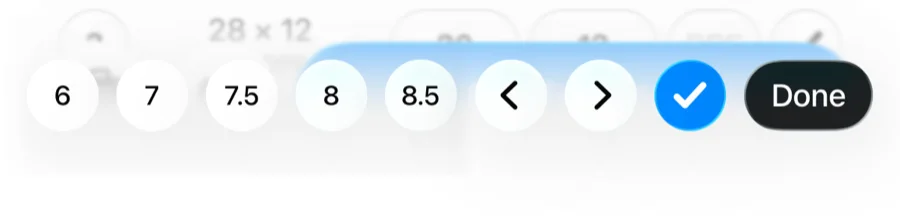
When you focus the RPE or RIR field, the number pad switches to a grid of effort values with a plain-language description of the selected value. One tap logs the effort — no scrolling through a picker.