


By default, Gript starts a rest timer automatically every time you complete a set — no extra taps. The countdown is visible in the app and, on iOS, on your lock screen. Cardio sets are the exception: rest does not start after them unless that exercise has its own rest time.
Change the default rest duration#
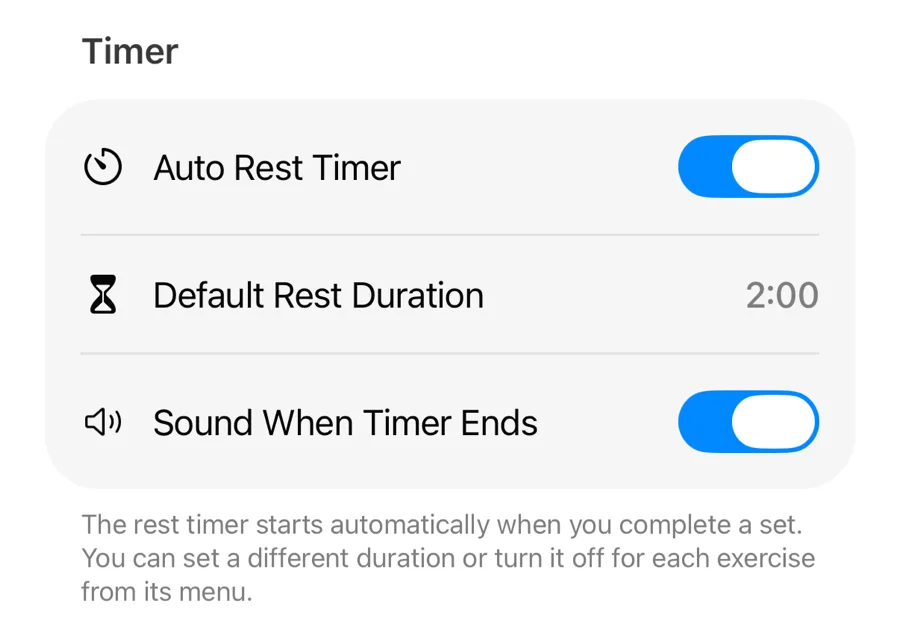
- During a workout, tap the gear button to open Workout Settings.
- Under Timer, tap Default Rest Duration and pick a time.
While the timer is running#
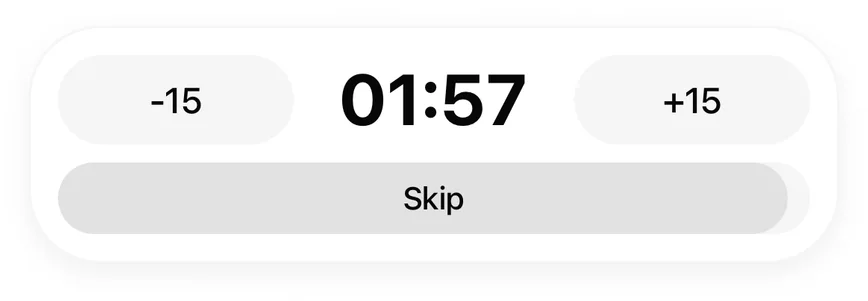
- Add or subtract time if you need a longer or shorter rest today.
- Skip the rest entirely and go straight to your next set.
When the timer ends, Gript plays your chosen sound (if timer sounds are on) or sends a notification if the app is in the background. The notification is time-sensitive, so it comes through even with a Focus mode on, and it carries +30 s and +1 min buttons to extend the rest without unlocking your phone.
Gript learns your pace#
Adjust an exercise's rest the same way twice in a row — two rests you extended by at least 15 seconds, or two you cut short — and Gript makes that new length the exercise's rest time from then on. A toast confirms the change with an Undo button in case it guessed wrong.
Turn auto-start off#
In Workout Settings, toggle Auto Rest Timer off. You can still start rests manually whenever you want one.