


Gript works out your personal records from the sets you log — nothing to tag or enter by hand. New records light up the moment you finish a workout, and every record you have ever set lives on one screen with its history.
Where records show up#
- Completion screen — after you tap Finish, record-setting sets carry a PR tag on the workout card, a records card lists each new record with how much it improved by, and a PRs button opens the workout with every record tagged. See sharing a workout.
- History — workouts that set records show a trophy with the count, and the record-setting sets are tagged inside them.
- Share cards and links — the same tags appear on the image cards and on the web page a shared link opens.
- Exercise detail — the Records tab of any exercise lists its current records. See exercise detail.
The Personal Records screen#
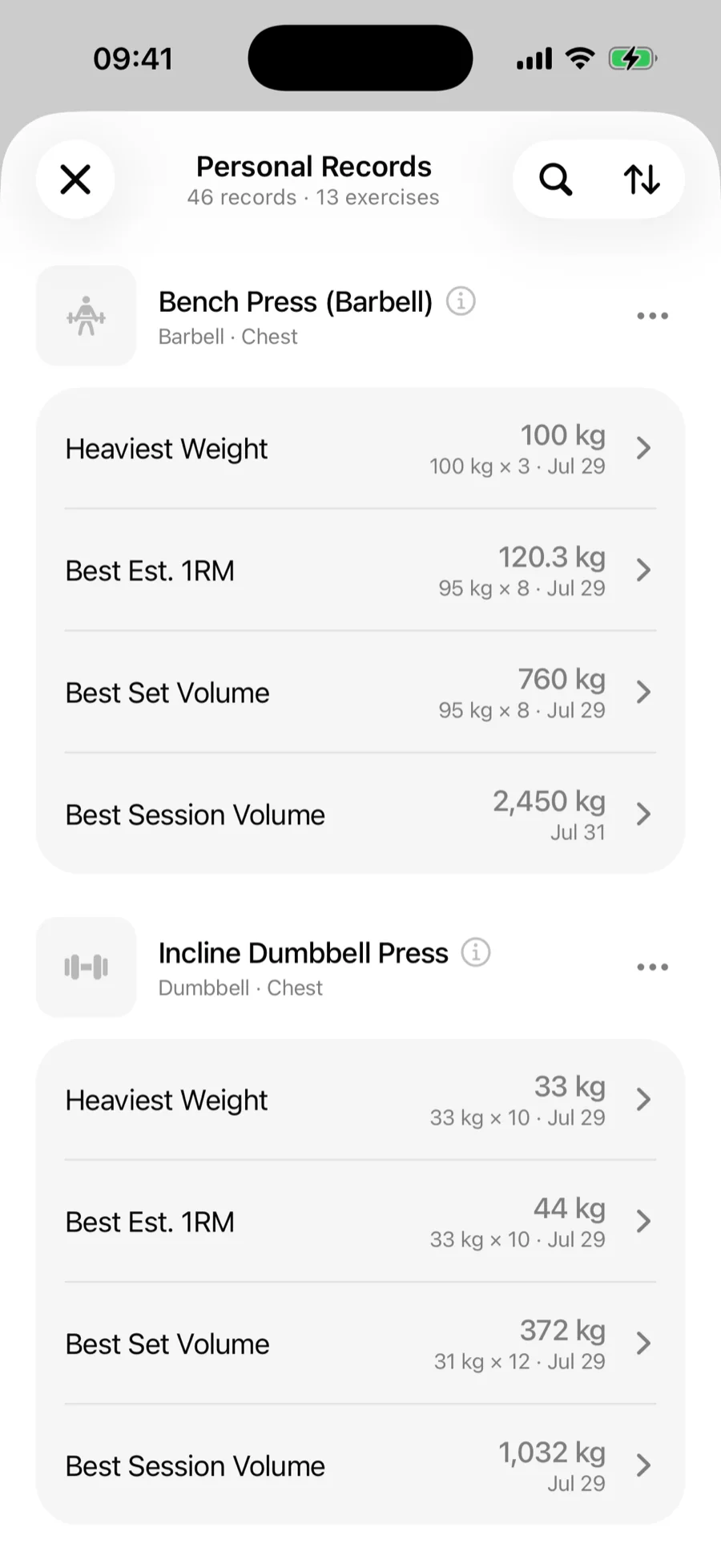
Open Profile → Personal Records. Every exercise with at least one record is listed with its current records — heaviest weight, best estimated 1RM, best set and session volume, most reps, and for timed and cardio exercises the longest duration and distance — along with the date each one was set. Search by exercise name, or use the sort button to switch between Most recent and A to Z. Tap the exercise name to open its detail view.
Record history#
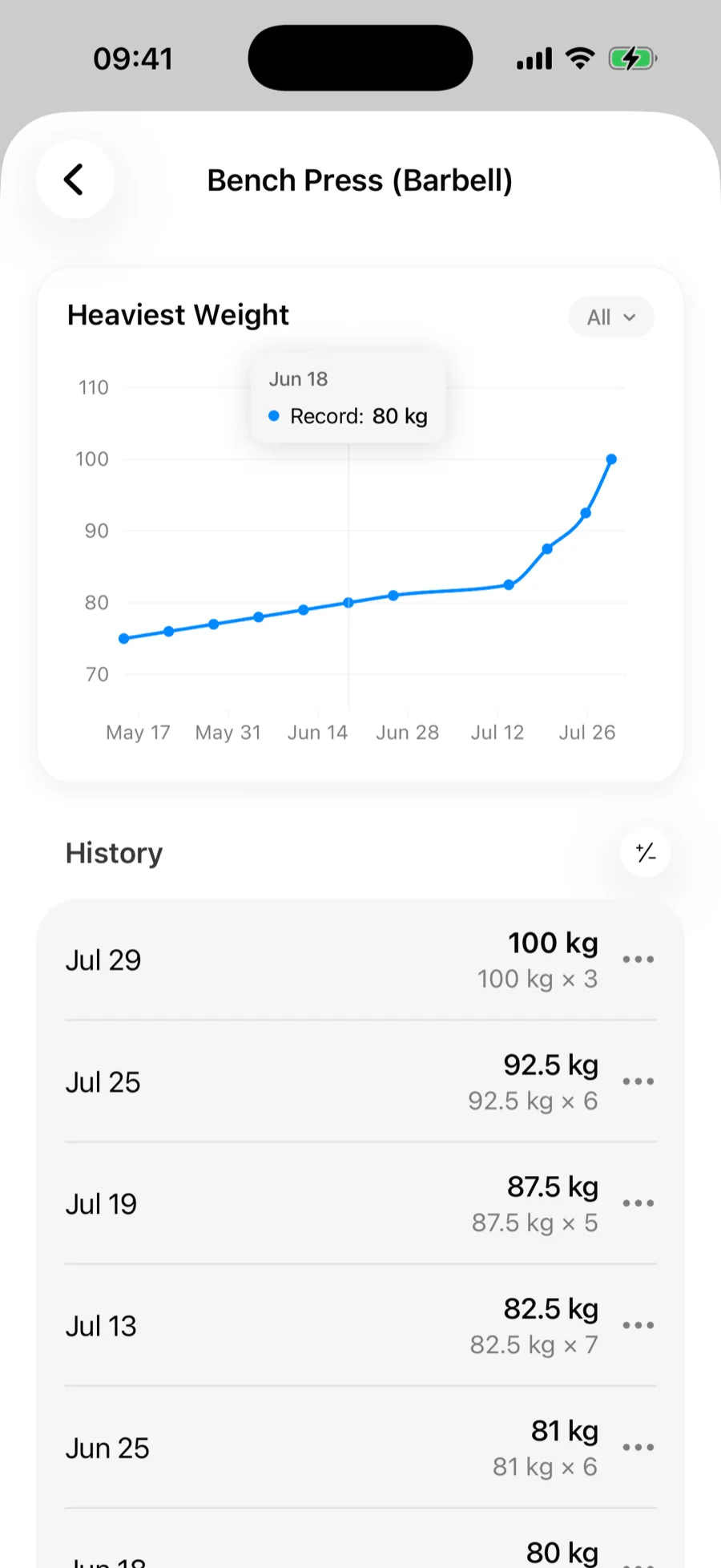
Tap any record to see its history: a chart of every time the record moved, and the list of record-setting sets underneath, newest first. The ± button switches the list between the value of each record and the gain over the previous one. For assisted exercises, less assistance counts as progress, so the chart trends up as you need less help.
A set that should not count#
A miscounted rep or a spotter-assisted lift can create a record you do not want. You can leave it out without editing the workout:
- In a record's history, tap ••• on the set and choose Don't count this set. A toast lets you undo.
- While editing a past workout, tap the set's type indicator and turn off Counts toward records.
The set stays in your workout and your charts. It just stops counting toward records.
Reset an exercise's records from a date#
Coming back from an injury, or switching to a stricter form? On the Personal Records screen, tap ••• next to an exercise and choose Reset records from a date. Records for that exercise then count only sets from that date on; older sets stay in your history and charts. The footer under the exercise shows the date, and Clear reset date brings the old records back.