


Coming from SugarWOD? Gript reads SugarWOD's CSV export directly, so your barbell lifts and strength work transfer in a few minutes — with every logged load and rep.
Step 1: export your data from SugarWOD#
- In SugarWOD, tap the menu icon (three lines) in the top-left corner.
- Choose Tools & More, tap Export Workouts, and confirm.
- SugarWOD emails a CSV of your workout history to your account address — download the attachment and save it somewhere your iPhone can reach.
Step 2: import into Gript#
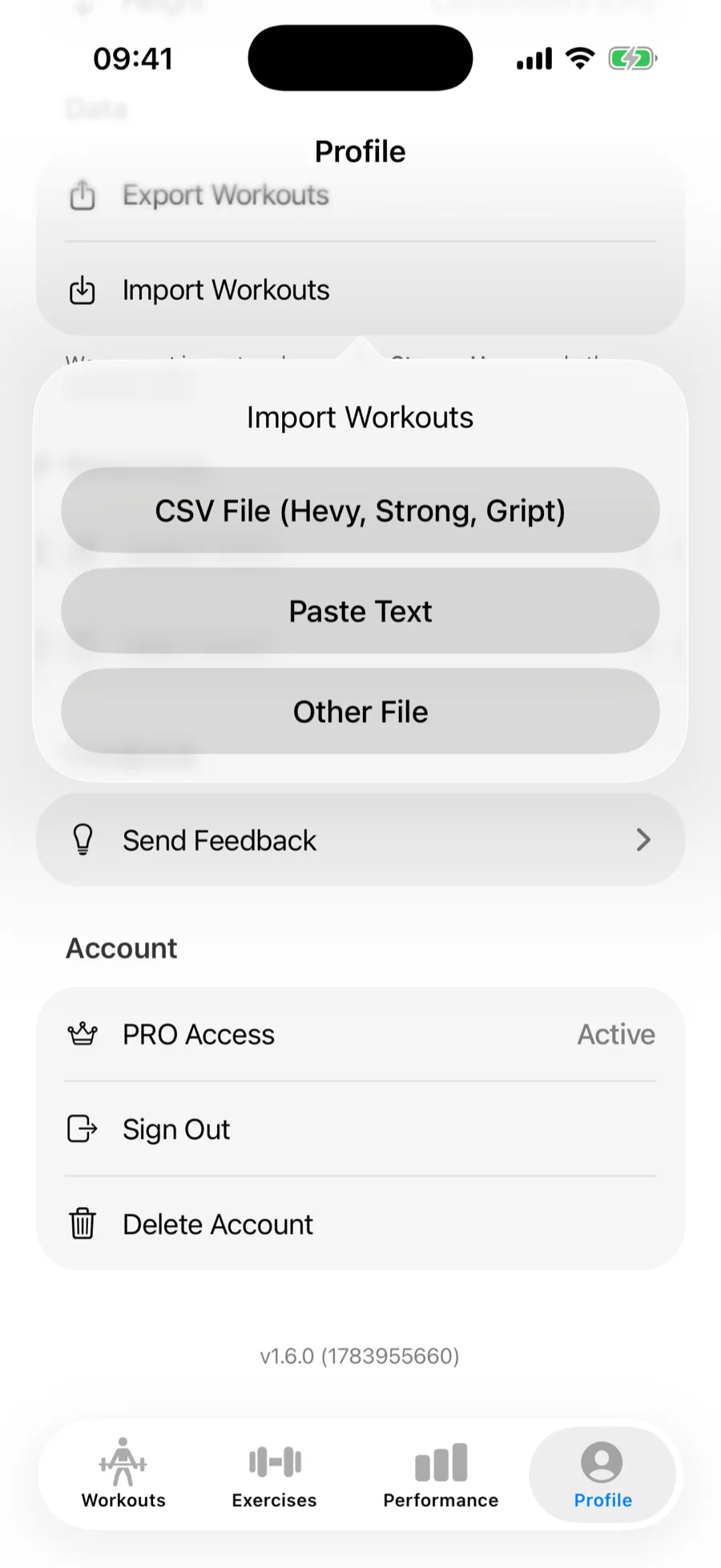
- In Gript, open Profile → Import Workouts.
- Choose CSV File (Hevy, Strong, Gript) and pick the exported file. SugarWOD exports are recognized automatically.
Step 3: match exercises and confirm#
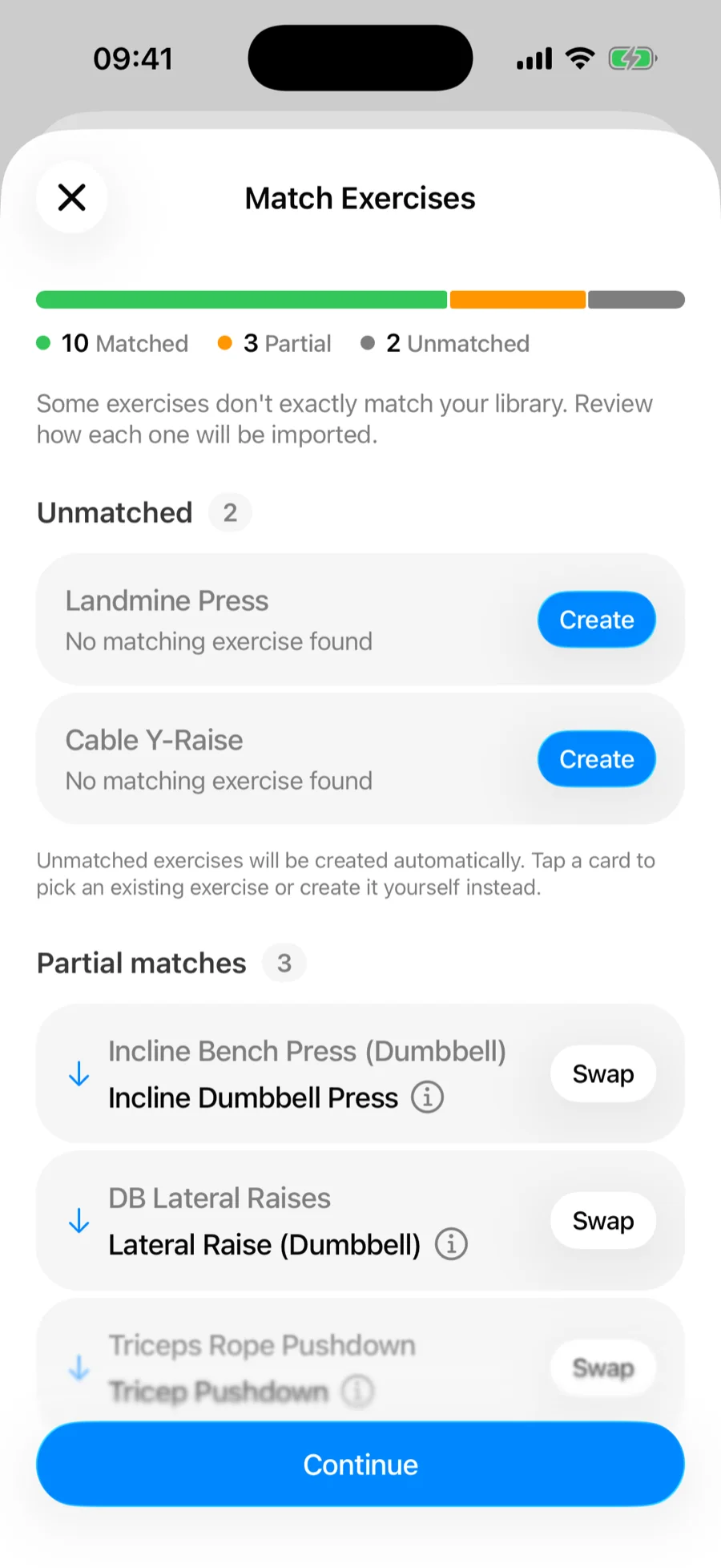
Gript matches SugarWOD's movement names to its own library on the Match Exercises screen — accept the suggested matches, remap anything it got wrong, and let unmatched movements be created as custom exercises. Then review the summary and confirm. Duplicate workouts already in your history are skipped automatically.
What transfers and what doesn't#
- Barbell lifts and strength work with per-set loads, grouped into workouts by date
- Reps, wherever SugarWOD recorded them set by set
- Your notes on each entry
Entries without per-set load data — metcons, WODs scored by time or rounds, and bodyweight-only pieces — are skipped: Gript is a strength tracker, and there is no meaningful way to chart a Fran time as sets and reps. The confirmation summary shows exactly how many entries came across.
Common problems#
Gript doesn't recognise the file#
The format is detected from the header row, so a CSV that a spreadsheet app has re-saved may no longer carry the columns Gript looks for. Import the original attachment from SugarWOD's email rather than an edited copy.
Fewer workouts than expected#
Only entries with logged loads import — skipped metcons are expected, not lost data. See how import matching and duplicates work for what the summary numbers mean.