


Explore is a library of ready-made training inside Gript: multi-week programs and single routines you can preview, start straight away, or save to your own routines. It lives on the Workouts tab, so nothing has to be built from scratch before your first session.
Open Explore#
Open the Workouts tab and tap Explore in the control at the top of the screen, next to Routines and History. You can also swipe sideways between the three.
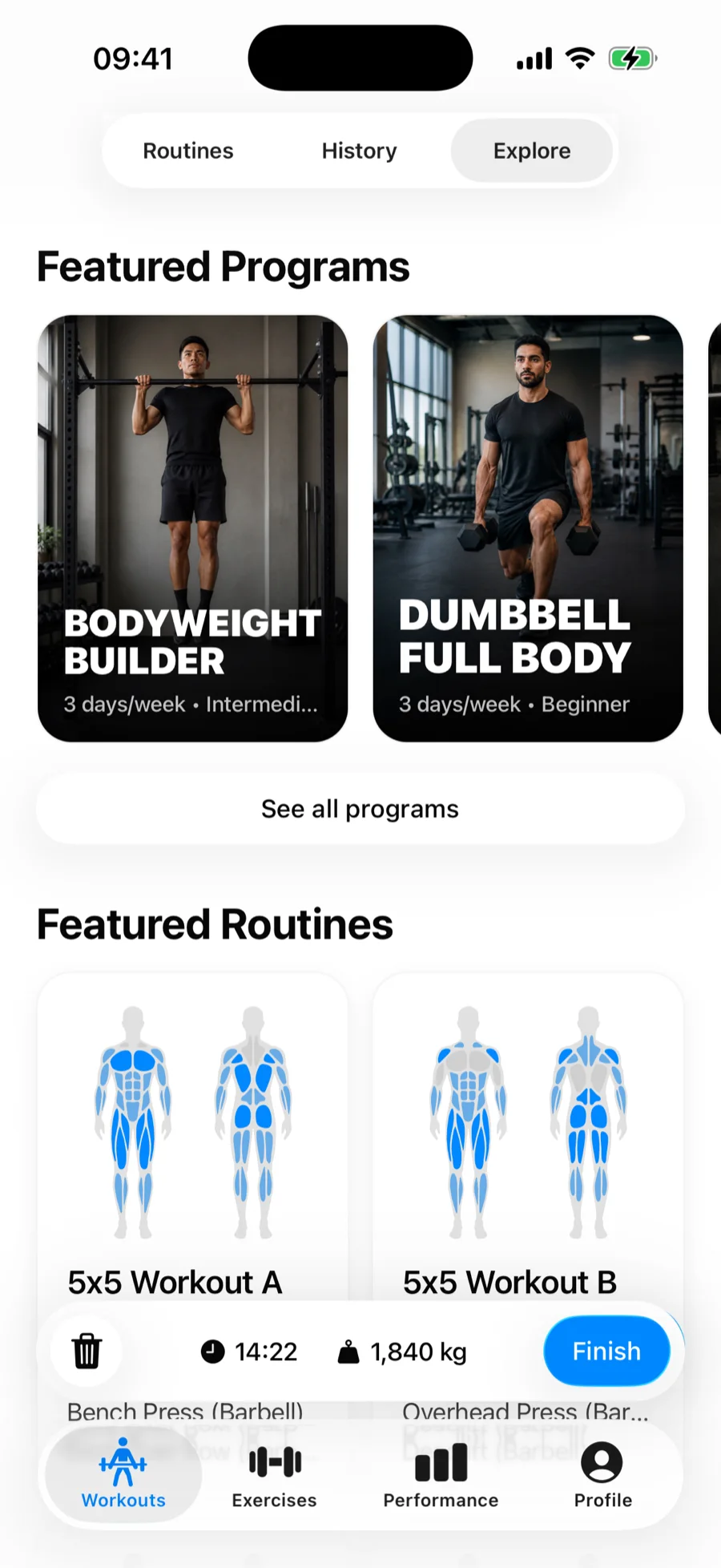
Featured Programs#
A program is a full training plan made of several routines — an upper/lower split, a push/pull/legs week, and so on. Each cover card shows the program name, how many days a week it runs, and its level (Beginner, Intermediate, or Advanced). Tap See all programs to browse every program.
Open a program and you get:
- how many workouts it contains, days per week, and its level;
- every routine in the program as a card you can preview on its own;
- Schedule — how the training week is laid out;
- Progression — how to move the weights and reps as the weeks go by.
Featured Routines#
Below the programs are single routines you can drop into a week you already have — a leg day, an arms finisher, a full-body session. See all routines opens the complete list.
Filters#
The All Programs and All Routines screens have four filter chips across the top:
- Duration — <45 min, 45–90 min, or 90 min+.
- Difficulty — Beginner, Intermediate, or Advanced.
- Muscles — Chest, Back, Legs, Shoulders, Arms, or Core.
- Equipment — whatever the current library uses, so you can match what your gym actually has.
Every chip accepts more than one option at a time, and the chips combine — for example Legs plus 45–90 min plus Barbell. Tap a ticked option again to drop it, or use Clear Filters to start over. When nothing is left, Gript says Nothing matches your filters.
Preview before you commit#
Tapping a routine — in Explore or inside a program — opens its preview. At the top are two body diagrams, front and back, shaded by how hard each muscle is worked, so you can see what the session trains without reading a single exercise name. Below that come the estimated duration, the level, the main muscle group, the description, and the full exercise list with sets and supersets grouped as they will appear in your workout.
Two buttons sit at the bottom. Start Workout begins the session right now, without saving anything. Save keeps the routine — and if you already have folders, it lets you choose where it lands. Once saved, the button reads Saved.
Swap an exercise before you commit#
Not your gym's equipment, or an exercise you would rather not do? Every row in the preview has a pair of arrows on the right. Tap them and Replace Exercise opens with stand-ins for that exercise: Suggested for this routine — alternatives picked by the coach who built it — and More exercises, which works the same muscle group with any equipment, sorted by how close a match each one is. The exercise currently in the routine is listed at the top as Current, and the one the coach originally chose stays available as Original so you can always go back.
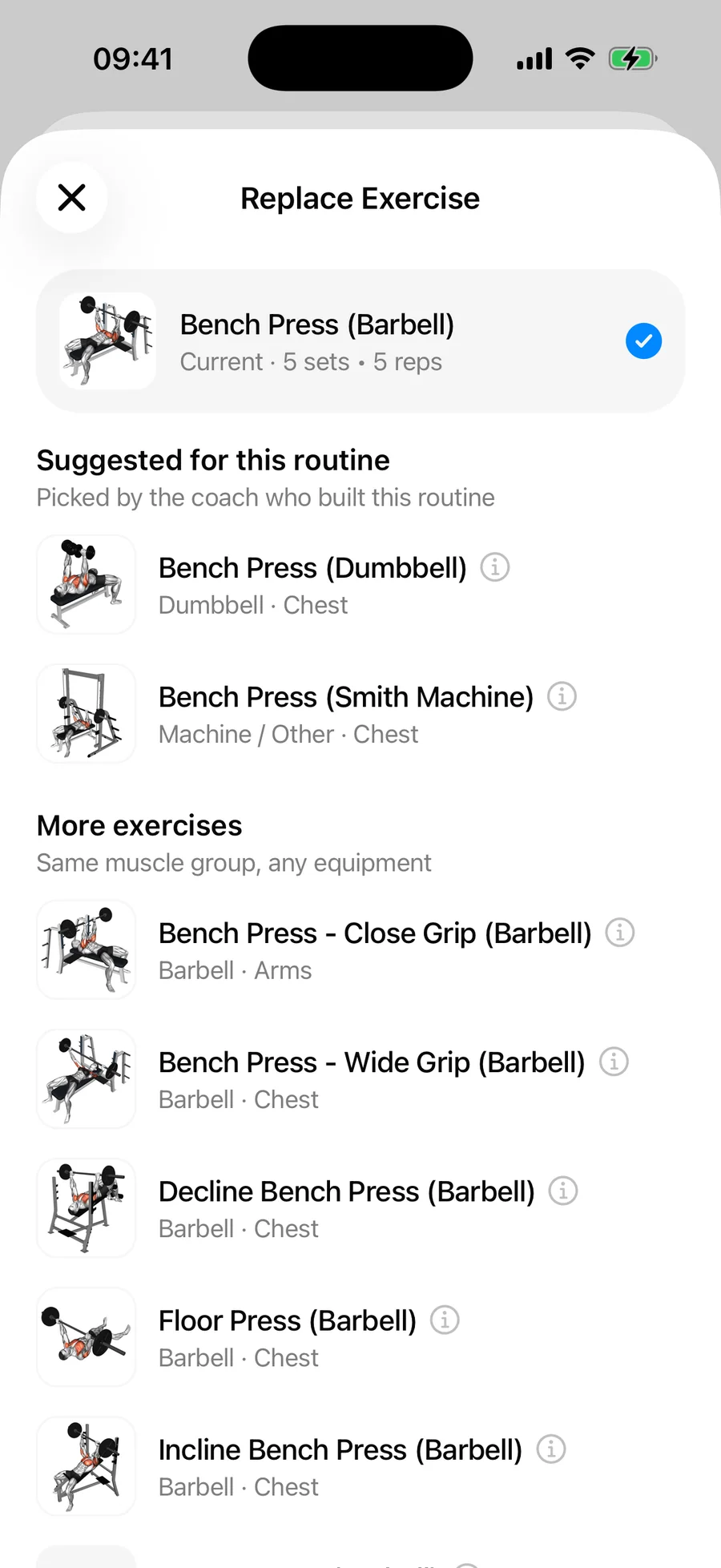
Pick a replacement and the preview updates in place; the sets, rep targets, and rest timer carry over to the new exercise. A line under the exercise list keeps count — 2 exercises swapped · Save or start to keep them — and each swapped row shows Undo so a single tap brings the original back.
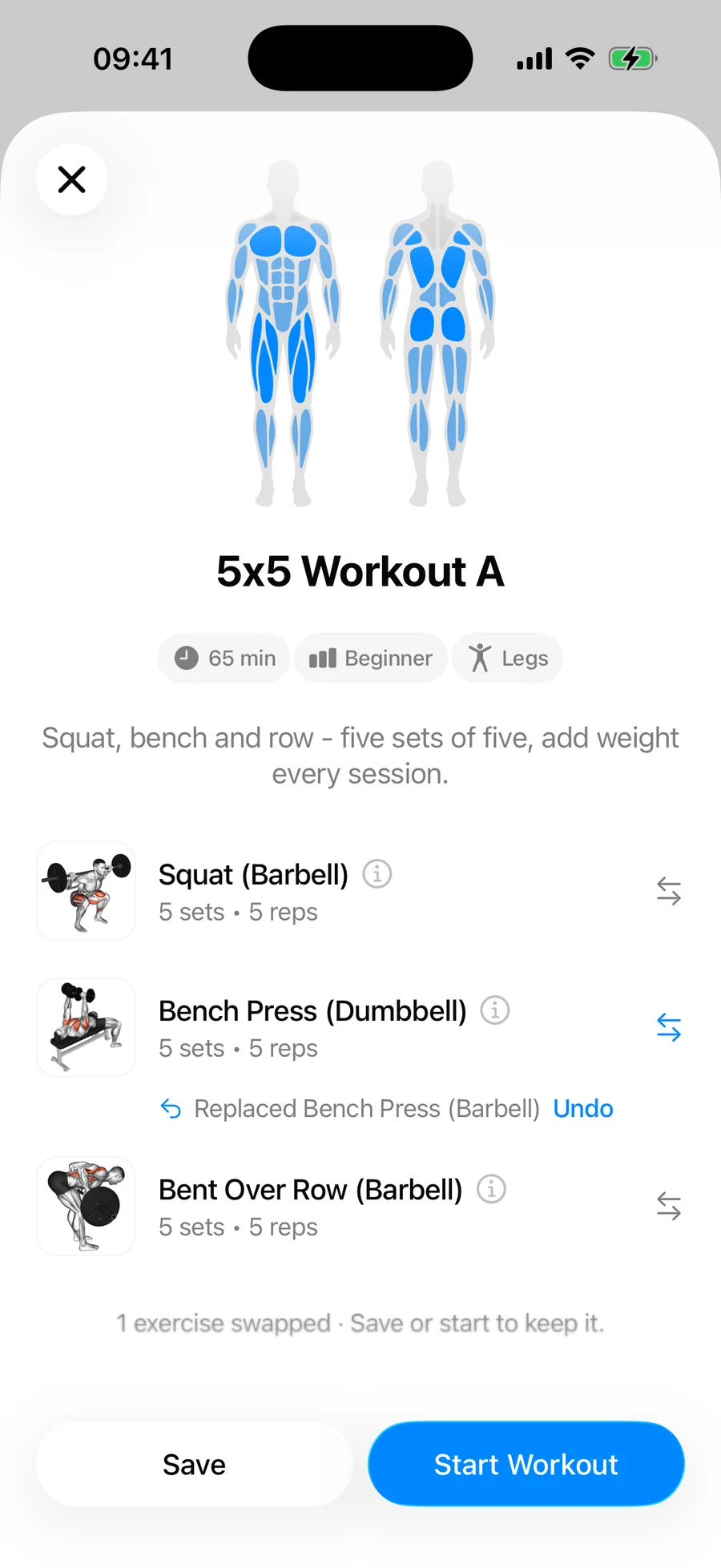
Swaps are held in the preview only until you tap Save or Start Workout; both use the swapped version. Leave the preview without doing either and the routine goes back to how the coach wrote it. Swapping works on single routines and on the routines inside a program alike.
Save to My Routines#
On a program, the button at the bottom reads Save to My Routines. Tapping it creates a folder named after the program and puts every routine in the program inside it, so the whole plan arrives organized; the button then reads Saved to your routines. On a single routine preview, Save adds that one routine, and if you already have folders you can send it to No Folder, an existing folder, or a New Folder you name on the spot.
Saved routines are yours from then on — edit the exercises, change the target weights, rename them, or delete them like any routine you built yourself.
If Explore looks empty#
Programs and routines are loaded from our servers, so Explore needs a connection the first time you open it. If you see Library Unavailable, check your internet and tap Try Again.