


Gript widgets put your training on the Home Screen: start a workout in one tap, see how this week is going against your goal, and keep any progress chart in view without opening the app. They work on iPhone and Android, and on iPhone they also fit on the Lock Screen.
The widgets#
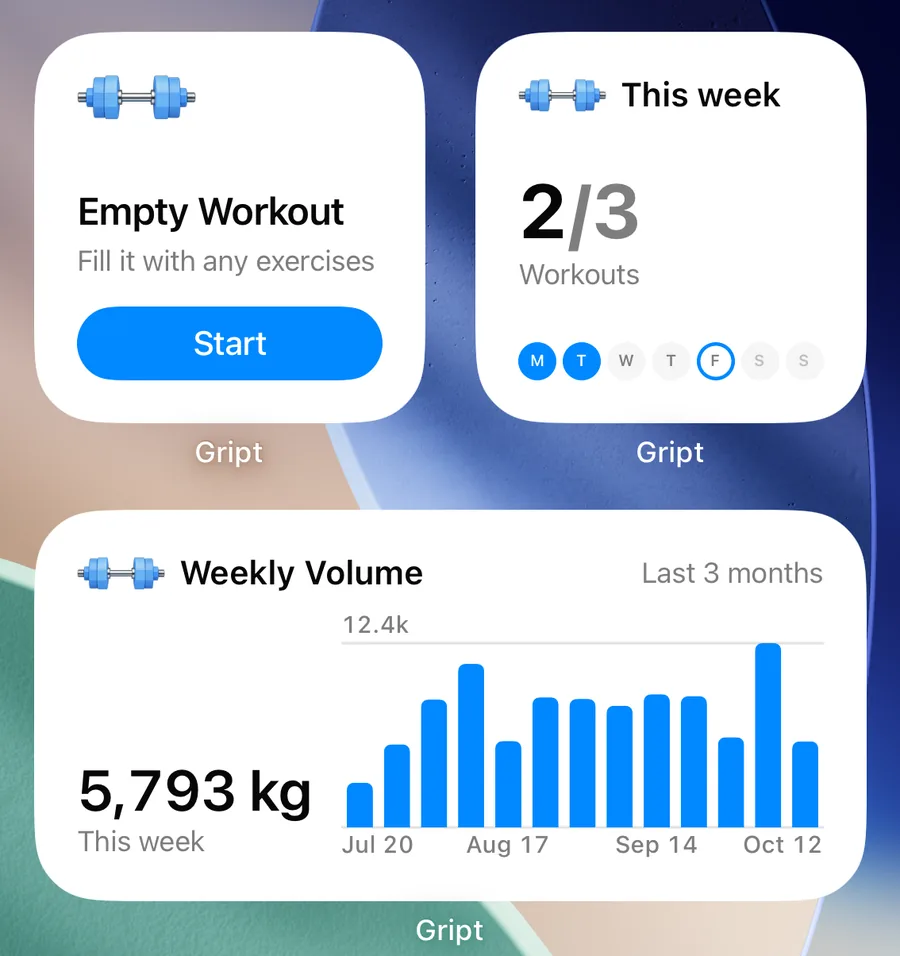
- Quick Start — starts an empty workout or one of your routines. The small size starts one workout, the medium size lists up to three routines next to an empty workout.
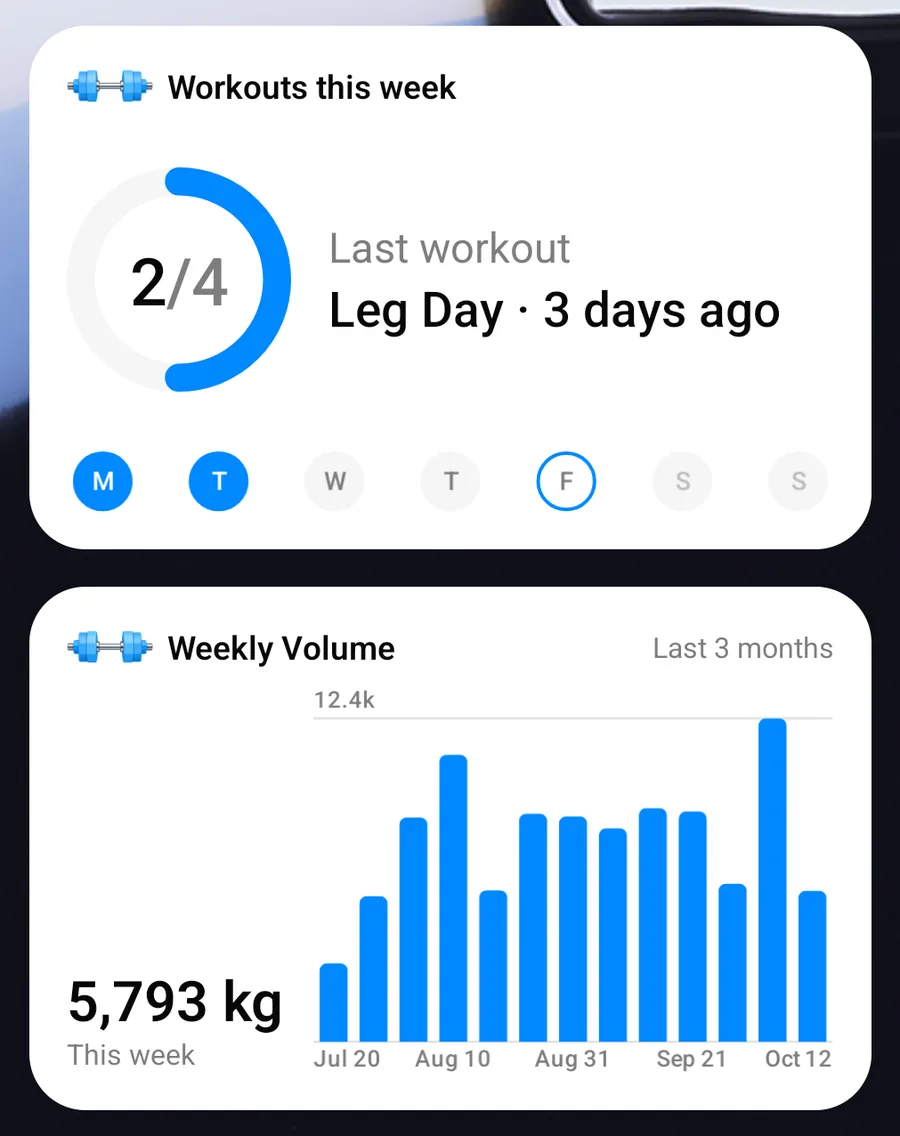
- This Week — how many workouts you have done this week against your weekly goal, with a dot for each day you trained. The medium size also shows your last workout.
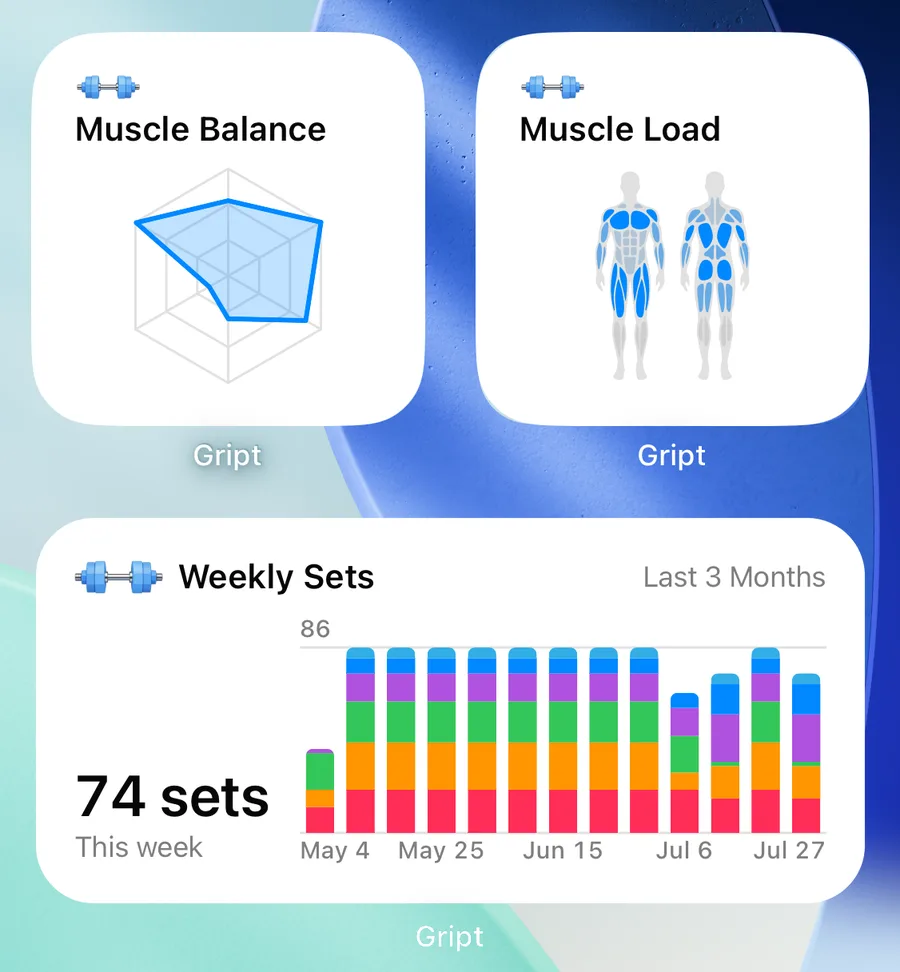
- Performance Chart — any chart from your Performance tab, drawn the same way: weekly volume and workouts per week as bars, weekly sets as bars split by muscle group, training days and training load as a grid, muscle balance as a radar, muscle load as a front and back body map, and exercise, duration, and body measurement charts as a line. Weekly volume is split by muscle group too when you stack it in the app. Small, medium, and large sizes, and the large size adds a color legend for split bars.
Tapping Quick Start starts that workout. Tapping This Week or a chart opens the Performance tab.
Add a widget on iPhone#
- Touch and hold an empty area of your Home Screen until the apps jiggle.
- Tap Edit in the top-left corner, then Add Widget.
- Search for Gript, swipe to the widget and size you want, and tap Add Widget.
Add a widget on Android#
- Touch and hold an empty area of your Home screen.
- Tap Widgets and find Gript.
- Touch and hold the widget you want and drag it into place.
You can also add one from the app: open the Profile tab, tap Widgets, and tap Add to Home screen next to the widget.
Pick which chart a widget shows#
A new Performance Chart widget shows the first chart in your Performance tab. To pick another one on iPhone, touch and hold the widget, tap Edit Widget, and choose a chart. On Android, touch and hold the widget and tap the pencil icon (on some phones, Widget settings). Add the widget more than once to keep several charts in view.
The widget uses the time range you set for that chart in the Performance tab, so change it there to show the last month or the whole year. Muscle split and the working weight range charts are not available as widgets.
Pick routines for Quick Start#
Quick Start fills itself with your routines. To choose them yourself, touch and hold the widget and tap Edit Widget on iPhone, or the pencil icon on Android.
Lock Screen widgets on iPhone#
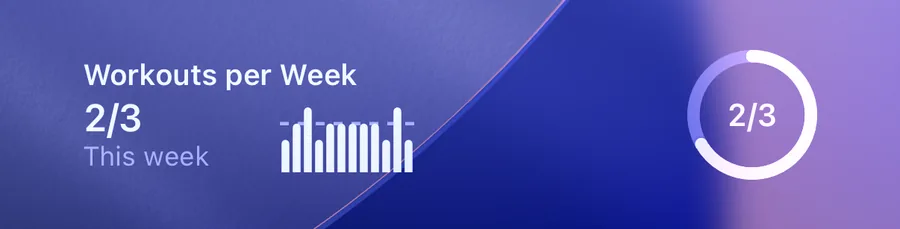
On the iPhone Lock Screen, This Week fits as a ring, a line of text above the clock, or a rectangle. Performance Chart and Quick Start fit as rectangles, and Quick Start also as a line above the clock. Touch and hold the Lock Screen, tap Customize, choose the Lock Screen, and tap the widget area to add them.
When widgets update#
Widgets update as soon as you finish, edit, or delete a workout in Gript. At midnight they move to the new day on their own, and This Week and the weekly charts start a new week every Monday without you opening the app. Widgets follow the accent color you pick in Gript, and the tinted and clear Home Screen styles on iPhone.