

From Gript 1.16 you can run the things you do most without opening the app: start a workout, start the rest timer, log your body weight, and open your progress charts. They work from Siri, from Spotlight, from the Shortcuts app, and as Control Center controls.
What you can ask Siri#
- "Start a workout in Gript" — starts an empty workout.
- "Start my Push Day in Gript" — starts that routine. Use the name exactly as it appears in My Routines; Siri lists your routines and asks which one if it cannot tell.
- "Start rest timer in Gript" — starts the rest countdown for the workout in progress, using that exercise's rest time. If no workout is running, Siri tells you so instead.
- "Log my weight in Gript" — Siri asks for the number, then Gript opens with the entry ready to save in your measurements.
- "Show my progress in Gript" — opens the Performance tab with your charts.
The phrases need the app name so Siri knows who to hand them to. "Open performance in Gript", "Start resting in Gript", and "Log my bodyweight in Gript" work too. Nothing to set up: the shortcuts are available as soon as you have opened Gript once after updating.
Spotlight and the Shortcuts app#
Swipe down on the Home Screen and type Gript — the same four actions appear under the app icon, and your routines show up as you type their names. Tap one to run it without opening the app first.
In the Shortcuts app, search for Gript to find Start Workout, Start Rest Timer, Log Weight, and Show Progress as actions. Combine them with anything else Shortcuts can do: start your routine when you arrive at the gym, log your weight as part of a morning routine, or set a fixed rest length between 15 seconds and 10 minutes.
Add Gript to Control Center#
- Open Control Center and touch and hold an empty area, then tap the plus in the top-left corner.
- Tap Add a Control and search for Gript.
- Pick Start Workout, Rest Timer, or Log Weight and place it where you want it.
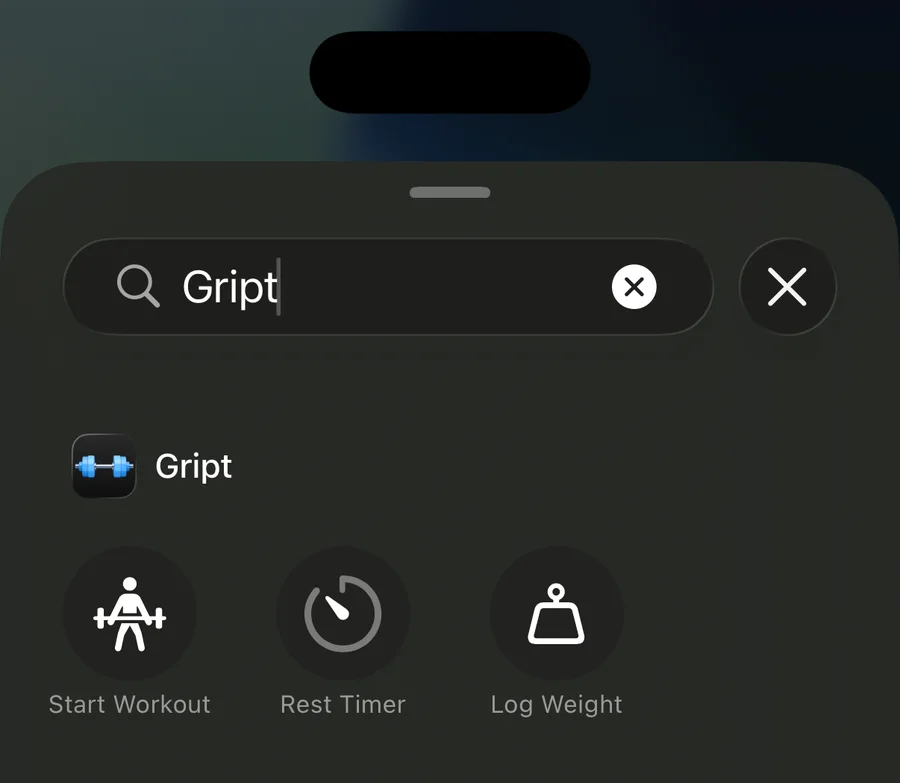
Start Workout can be pinned to a specific routine — touch and hold the control after adding it to choose one, or leave it on an empty workout. Rest Timer is a toggle: tap it to start the rest for the exercise you are on, tap again to skip it. It only lights up while a workout is in progress. The same controls can be assigned to the Lock Screen quick actions or to the Action button on iPhone 15 Pro and later.