


Switching from GymBook? Gript reads GymBook's logs export directly — both the XML and the CSV variant — so your full training history transfers in a few minutes.
Step 1: export your logs from GymBook#
- In GymBook, open Settings and find the export options.
- Export your logs — the XML and the CSV export both work in Gript.
- Save the file to Files, or share it to yourself via email or cloud storage.
Step 2: import into Gript#
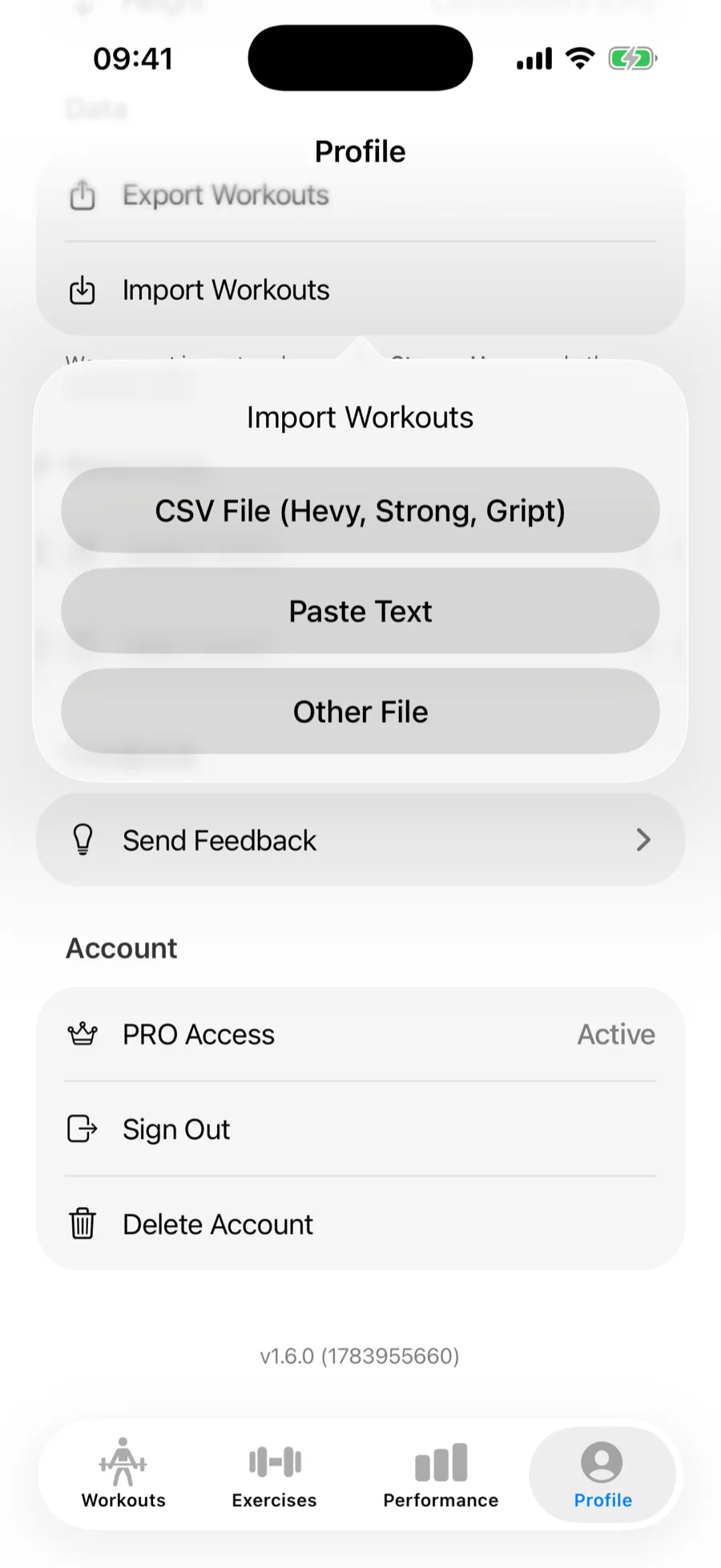
- In Gript, open Profile → Import Workouts.
- Choose CSV File (Hevy, Strong, Gript) for a CSV export, or Other File for the XML export, then pick the file. GymBook exports are recognized automatically — including German-language ones.
Step 3: match exercises and confirm#
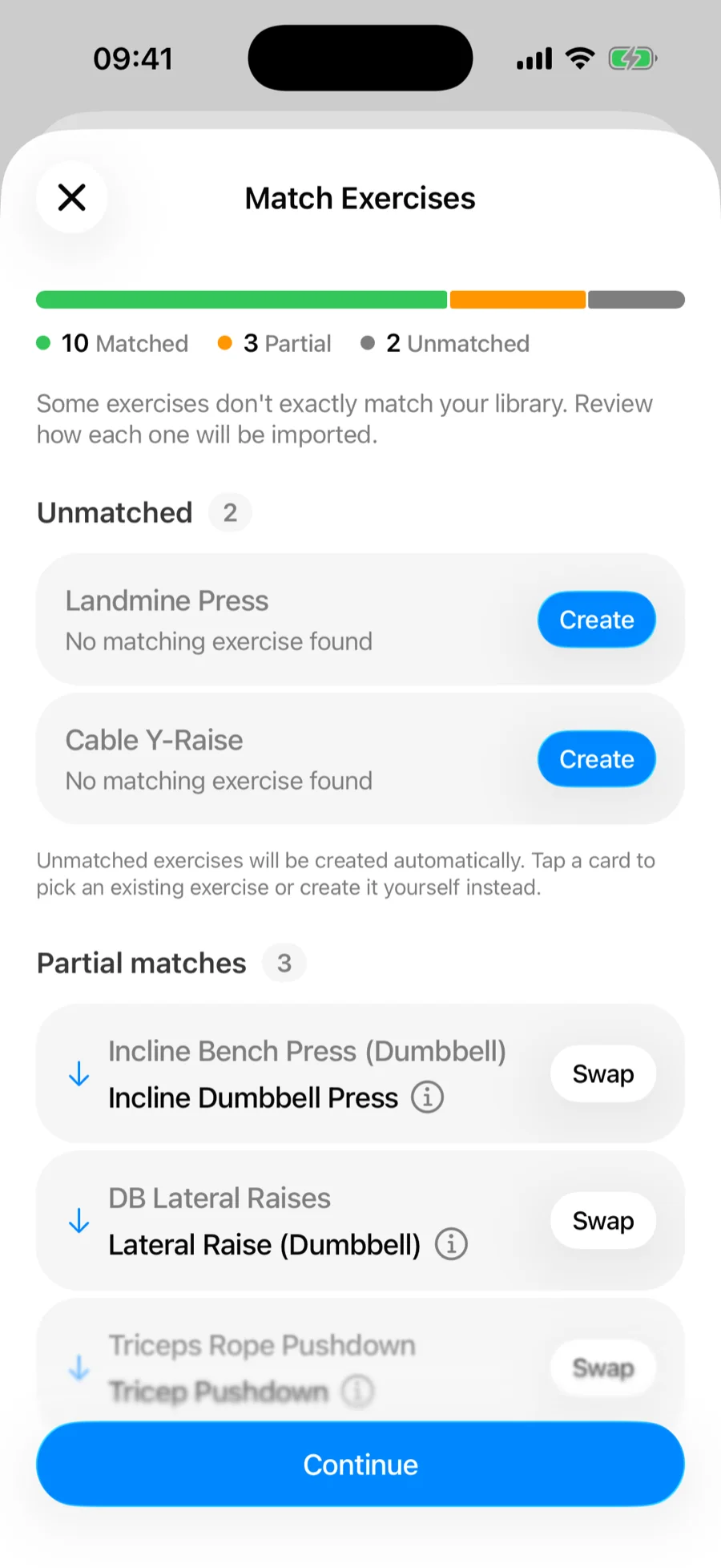
Gript matches GymBook's exercise names to its own library on the Match Exercises screen — accept the suggested matches, remap anything it got wrong, and let unmatched movements be created as custom exercises. Then review the summary and confirm. Duplicate workouts already in your history are skipped automatically.
What transfers and what doesn't#
- Every logged set with weight and reps, grouped into workouts by date and time
- Timed sets — durations logged in GymBook come across as timed sets
- Sets marked as skipped in GymBook are left out, so they don't pollute your history
GymBook workouts shared as .routine files also import — pick one under Other File and Gript offers to save it as a routine. Body measurements are a separate export and import separately — see importing body measurements.
Common problems#
Gript doesn't recognise the file#
Import the original file from GymBook's export rather than a copy re-saved by a spreadsheet or text editor — re-saving can change the encoding or strip the columns Gript looks for. Both the CSV and the XML export work, so if one gives you trouble, try the other.
Training history from before GymBook — notes, spreadsheets, or photos of a logbook — can come in through AI import as well.