
Switching from FitNotes to iPhone without losing your log
There is no FitNotes for iPhone and the developer says there will not be one. Export once before you switch phones and every set you logged is charted in Gript on day one.


FitNotes has been the quiet default for Android lifters for over a decade: free, no ads, no account, a log that opens straight to today. The catch shows up when you switch phones. FitNotes is Android-only, its developer has said there is no iOS version and no plans for one, and a new iPhone therefore means a new app. It does not have to mean an empty one.
FitNotes exports your whole history as a CSV, and Gript reads that file directly, so the years of squats, presses, and rows you logged on Android arrive charted the day you import them. If Gript does not earn its place, your data exports again in one tap.
Why there is no FitNotes for iPhone
FitNotes is written by a single independent developer in the UK and has only ever shipped on Android: free, with no ads, plus a one-time Supporter add-on for advanced exercise types and per-exercise units. The developer’s own FAQ is direct about iOS. There is no iPhone version, and there are no plans to build one.
Searching the App Store muddies this. There is an app listed there as FitNotes - Workout Tracker, and it is made by a different developer with no connection to the Android FitNotes. It does not read a FitNotes export, does not sync with the Android app, and is not a continuation of it. The practical question is not where FitNotes for iOS is, but which iPhone app will take a FitNotes history.
Step 1: export your FitNotes workouts as CSV
On your Android phone, open FitNotes, open Settings from the main workout screen, and choose Spreadsheet Export. Pick Workout as the data to export. FitNotes writes a CSV of every set you have logged and offers to Save it or Share it. Share it to yourself, by email, Google Drive, or any cloud storage you can also open from the iPhone, so the file is waiting on the new phone.
Export the CSV, not the backup. FitNotes’ Backup option produces a .fitnotes file, which is the app’s own database: right for restoring FitNotes onto another Android phone and unreadable to anything else, including Gript. The automatic Google Drive backup is the same kind of file, so it is not a substitute either.
Do this before you hand the Android phone over, trade it in, or wipe it: once the old phone is gone there is no way to produce the file again. Exporting changes nothing in FitNotes, so run it as often as you like.
Step 2: import the file into Gript
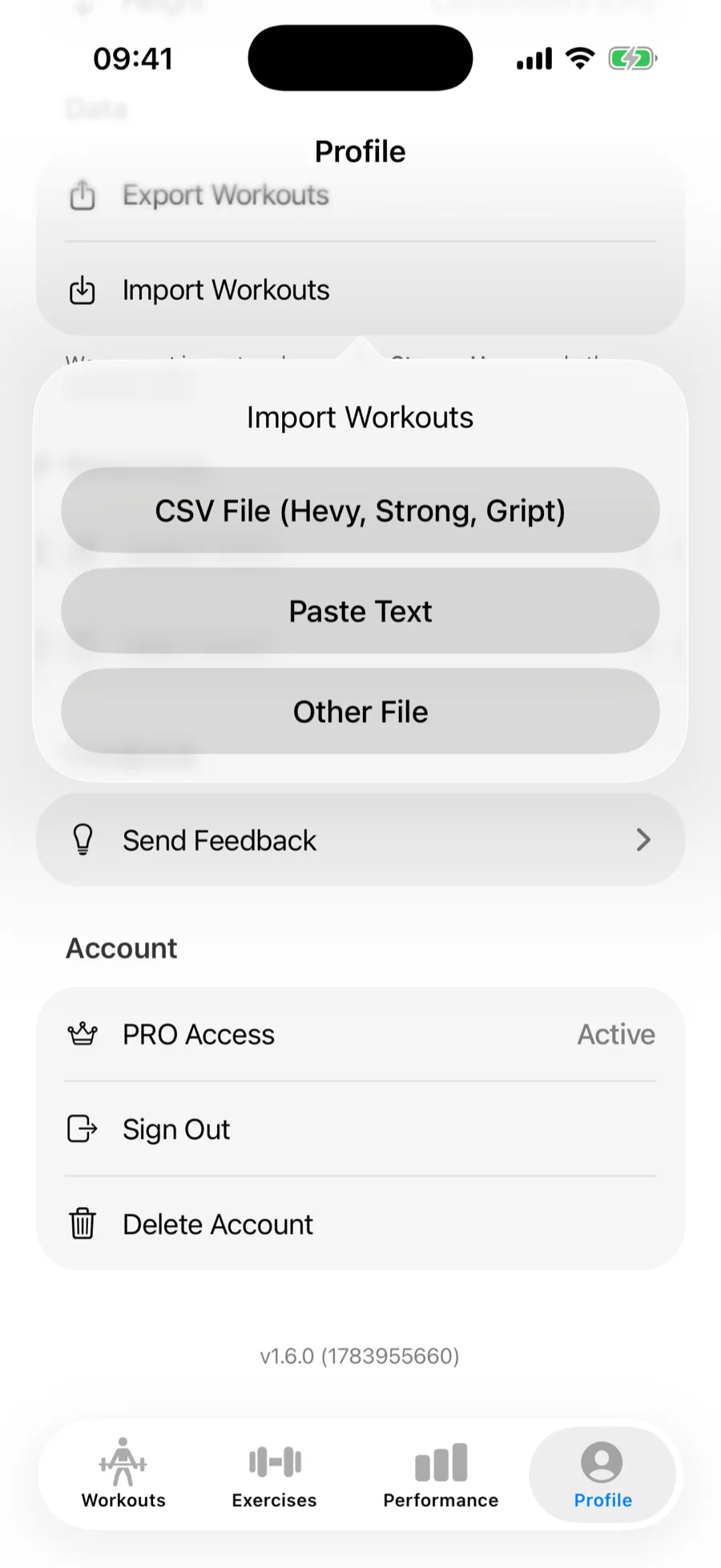
Install Gript on the iPhone and go to Profile → Import Workouts. Choose CSV File (Hevy, Strong, Gript) and pick the file from wherever you shared it. Gript recognises the FitNotes format from the header row, so there is nothing to configure. Both generations of the export are recognised: the older layout with a single weight column and a Comment column, and the newer one with separate kg and lbs columns, Notes, and Kind.
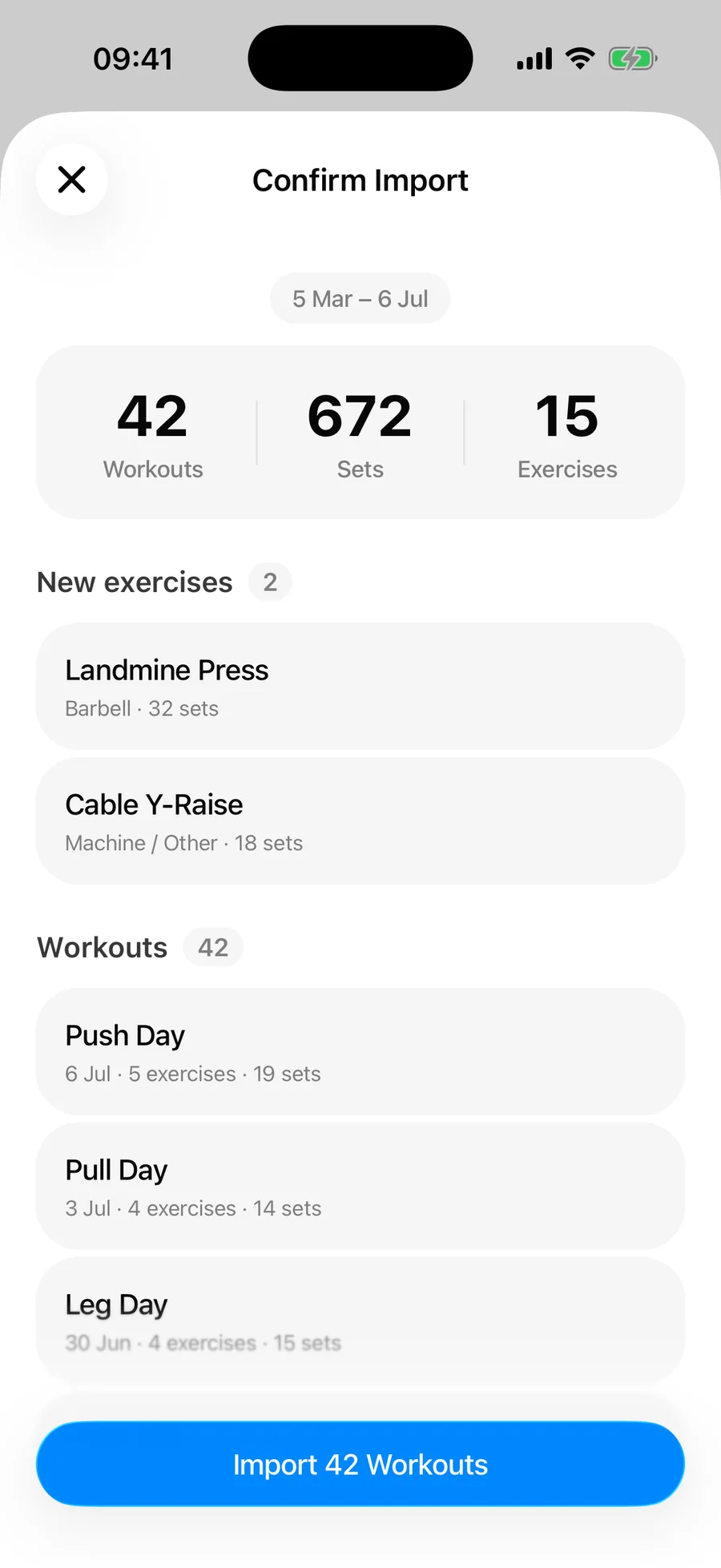
Import the original file rather than one you opened and re-saved in a spreadsheet; spreadsheet apps rewrite dates into their own display format and are the usual cause of a file Gript no longer recognises. Gript then matches every FitNotes exercise name against its library: exact matches go straight through, close matches are offered as suggestions, and anything unrecognised becomes a custom exercise unless you point it at an existing one. Nothing is saved until you confirm the summary, and duplicate workouts are skipped. The full walkthrough is in how to import workouts from FitNotes.
What transfers and what does not
Every strength set in the file comes across: weight and reps for each set, durations for timed sets like planks and holds, and the comment on each set, kept as an exercise note. Your unit comes with it, since the export is in kilograms or pounds depending on your FitNotes setting and the newer format carries both. Charts and personal records are computed from the whole imported history straight away.
One thing is shaped differently because of how FitNotes stores data. FitNotes has no concept of a named workout or a start time; it records sets against a date. Gript therefore groups your sets by date into one workout per training day, and those workouts arrive unnamed with no session duration. Your charts, records, and previous-set values work the same either way.
Distance-based cardio is skipped. FitNotes tracks runs and rows by distance and time, and those rows have no counterpart in a strength log, so Gript leaves them out and counts them in the confirmation summary. Body weight lives in a separate FitNotes export and imports separately as a body measurement.
Life after FitNotes
The honest first difference is money. FitNotes was free with no ads and no subscription, and Gript is not quite that. Logging is unlimited and free, and so are body measurements, CSV import and export, and twelve weeks of charts, but the free tier is capped at three routines. Gript Pro is $4.99 a month or $29.99 a year and adds unlimited routines, progression suggestions beyond the first five, full chart history, and the plate and warm-up calculators.
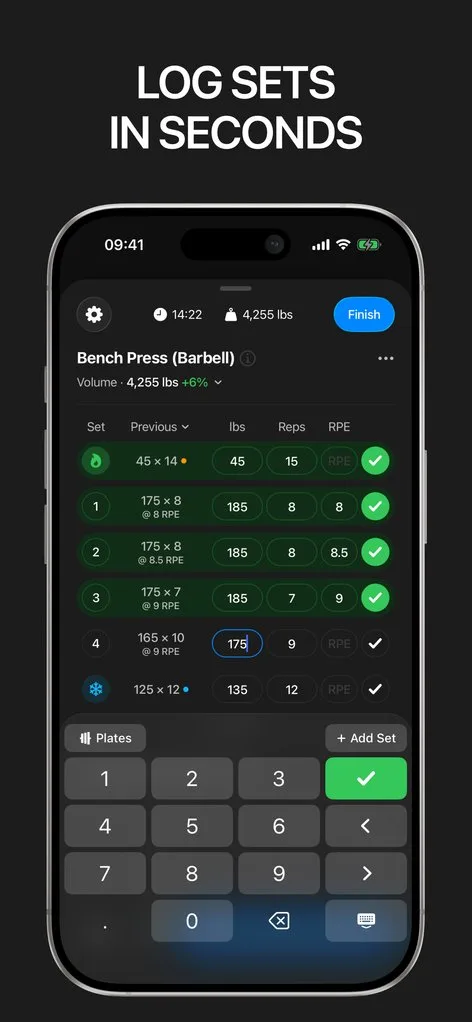
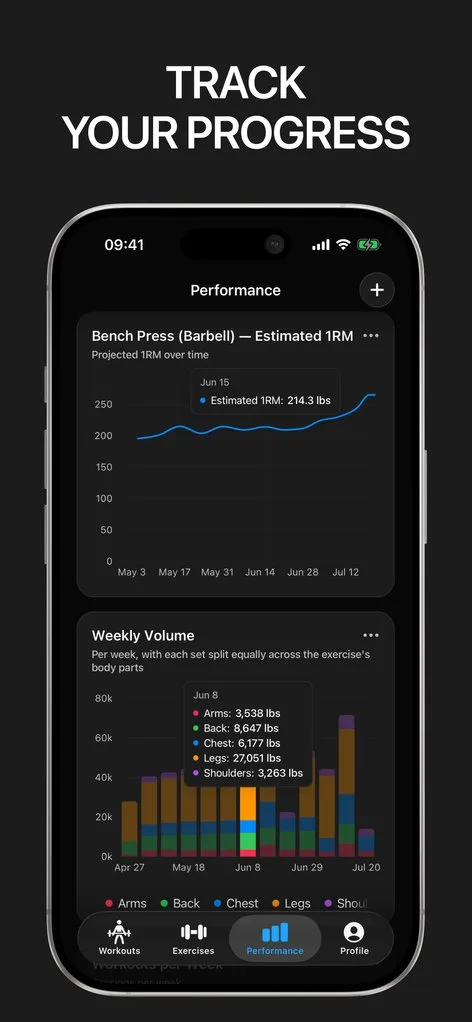
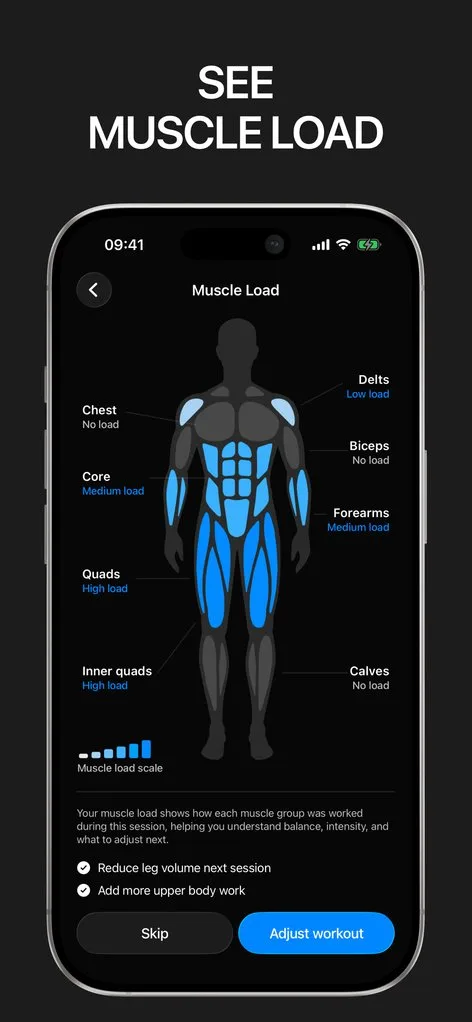
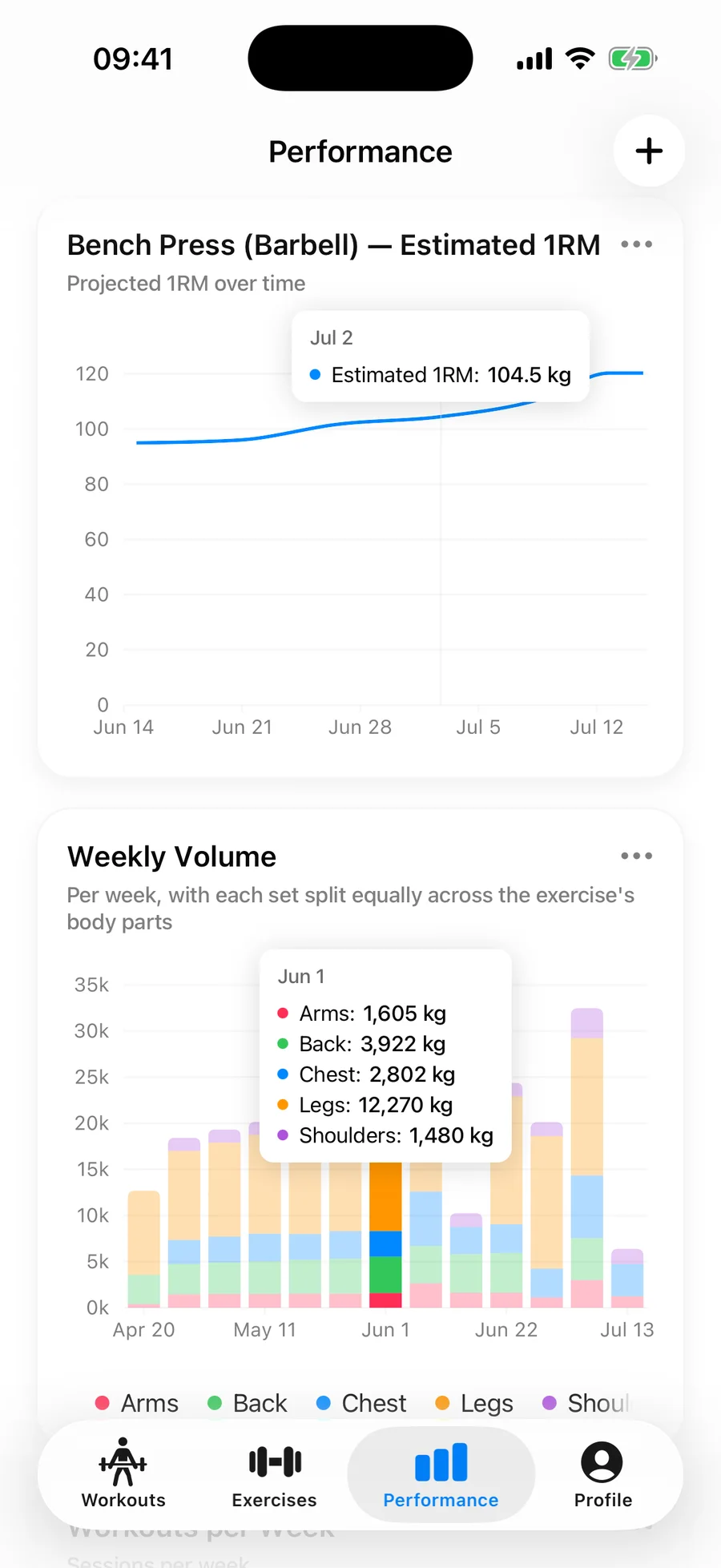
What you gain is mostly what FitNotes never had room for. Progress charts, from estimated 1RM and volume to muscle balance, are the default view of your training rather than a graph you open one exercise at a time. An Apple Watch app logs sets from your wrist, a Live Activity keeps the rest timer on the Lock Screen, and Apple Health sync records each workout. All of it works against the history you just imported, and because Gript skips duplicates, you can export from the old phone again later and pick up anything logged in between.
Lifters seem to like it
This app has so far the best interface and experience, everything is so clean and easy to navigate. I like it after trying many other apps.
The charts in this app are insane good!
I feel that every single time I open the app there is a new feature. Thanks for making it better every day.
Real reviews from the App Store.
Common questions
Is there a FitNotes app for iPhone?
No. FitNotes is Android-only, and its developer’s FAQ says there is no iOS version and no plans for one. The App Store app called FitNotes - Workout Tracker is by a different developer and unrelated. To keep your history on an iPhone, export the FitNotes CSV and import it into an app that reads it, such as Gript.
Can I import a .fitnotes backup file into Gript?
No. The .fitnotes file from FitNotes’ Backup option and its Google Drive backup is the app’s own database, meant only for restoring FitNotes on another Android phone. Gript reads the spreadsheet export instead: in FitNotes, open Settings → Spreadsheet Export → Workout and Save or Share the CSV.
What transfers when I import from FitNotes?
Weight and reps for every set, durations for timed sets, set comments as exercise notes, and your kg or lbs unit. Both FitNotes CSV layouts are read. Distance-based cardio rows are skipped and counted in the confirmation summary, and body weight is a separate export that imports as a body measurement.
Why do my imported FitNotes workouts have no names?
FitNotes records sets against a date and has no workout names or start times, so Gript groups your sets by date into one workout per training day and leaves them unnamed. Charts, personal records, and the previous values next to each set all work the same.
Does Gript work on Android too?
Yes. Gript runs on iPhone, iPad, Apple Watch, and Android, so the same import works if you are staying on Android and simply want charts and routines. Apple Watch, Live Activities, and Apple Health sync are iPhone-only; Android syncs to Health Connect instead.
Is Gript free?
Yes. Logging is unlimited and free, and so are body measurements, CSV import and export, and twelve weeks of charts, with up to three routines. Gript Pro, at $4.99 a month or $29.99 a year, adds unlimited routines, progression suggestions beyond the first five, full chart history, and the plate and warm-up calculators. There are no ads on either tier.
Free tools to go with it
From the Help Center
Download Gript free and log your next workout with it. If it does not earn its place, your data exports in one tap.
I have tried pretty much every workout tracker out there — Hevy, Strong and many others — and Gript has quickly become my favorite. The UI and overall design are easily the best on the market.
You're already in Gript
Everything on this page is also available inside the app — this article opens from Help, and the calculators live under Tools.